Using
the
Remote
Changing
the
input
button
assignments
3 Referring to the following table,
press the corresponding
button for the category you
want, then release AV
I/C).
Example: Press I, then release AV
I/~.
Now you can use the DVD button to
control the B1u-ray disc player.
Note
You cannot change the remote assignments for TV,
VIDEO 2, DMPORT, TUNER,
HDMl2
and
HDMl
3 input buttons.
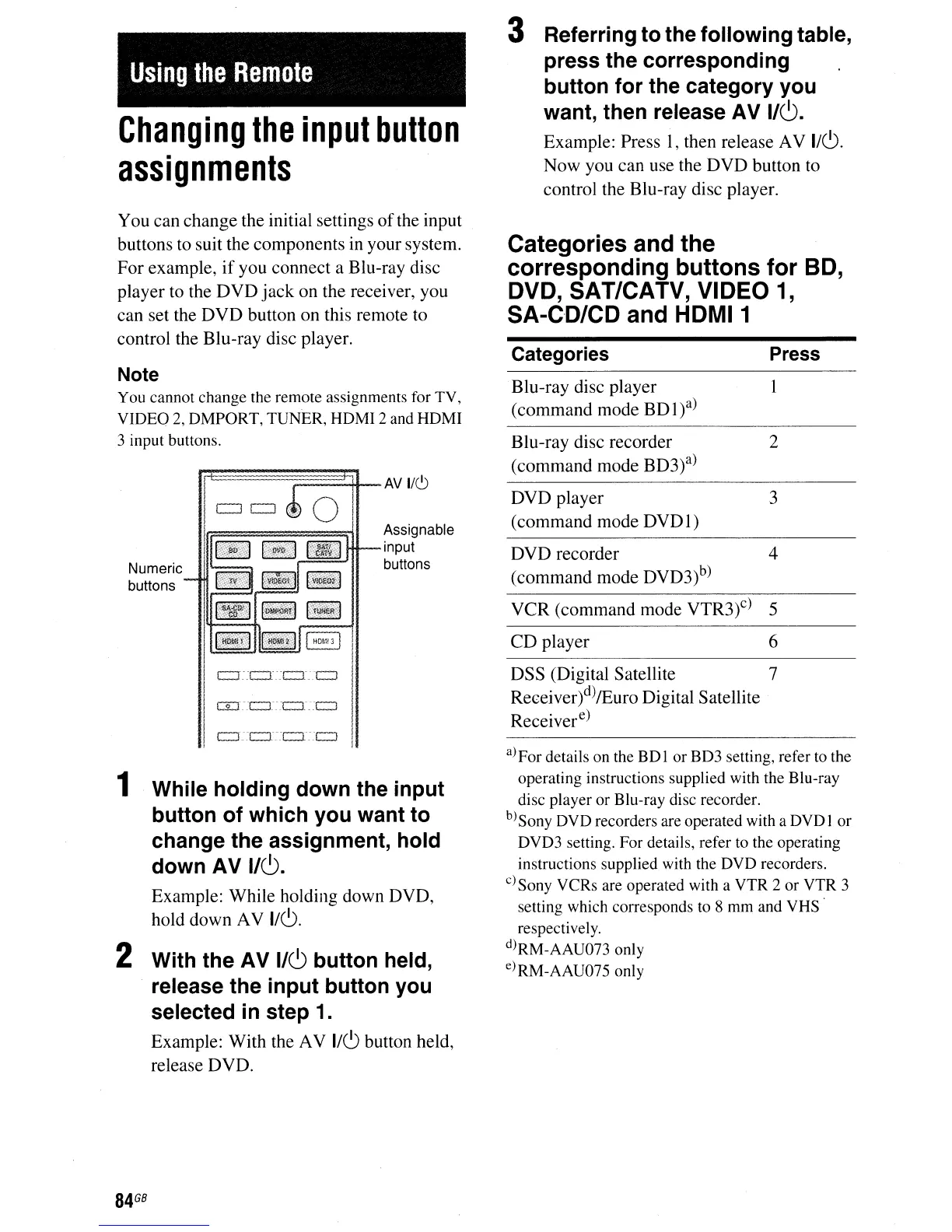
You can change the initial settings
of
the input
buttons to suit the components
in
your system.
For example,
if
you connect a B1u-ray disc
player to the
DVD
jack
on the receiver, you
can set the
DVD
button on this remote to
control the B1u-ray disc player.
1 While holding down the input
button of which you want to
change the assignment, hold
down AV
I/C).
Example: While holding down DVD,
hold down AV
I/~.
2 With the AV
I/C)
button held,
release the input button you
selected in step 1.
Example: With the AV
I/~
button held,
release DVD.
1
Press
2
Blu-ray disc player
(command mode BDl)a)
Categories
Blu-ray disc recorder
(command mode BD3)a)
CD
player 6
VCR (command mode VTR3)c) 5
DVD player 3
(command mode
DVDl)
DSS (Digital Satellite 7
Receiver)d)/Euro Digital Satellite
Receiver
e
)
Categories and the
corresponding buttons for SO,
DVD, SAT/CATV, VIDEO
1,
SA-CD/CD and HDMI1
DVD recorder 4
(command mode DVD3)b)
a)Por details on the
BDI
or BD3 setting, refer to the
operating instructions supplied with the Blu-ray
disc player or Blu-ray disc recorder.
b)Sony DVD recorders are operated with a DVD I
or
DVD3 setting. Por details, refer to the operating
instructions supplied with the DVD recorders.
C)Sony VCRs are operated with a VTR 2 or VTR 3
setting which corresponds to 8 mm and VHS .
respectively.
d)RM-AAU073 only
e)RM-AAU075 only
Assignable
input
buttons
Numeric
buttons
84
GB


 To Next Page