The Spok GenA™ Pager is a dedicated user interface device designed for detailed user information and operating instructions, primarily for healthcare and other critical communication environments. This manual provides a comprehensive overview of its features, usage, and maintenance.
Function Description
The GenA™ Pager serves as a reliable communication tool, allowing users to receive and manage messages efficiently. It is designed to provide detailed user information and operating instructions, making it an essential device for professionals who require constant and secure communication. The pager supports various message types, including encrypted messages, and offers robust management features for organizing and accessing information.
Important Technical Specifications
The GenA™ Pager boasts several key technical specifications that enhance its functionality and user experience:
- Display: High-resolution E-Paper display with auto-on front-light, ensuring readability in various lighting conditions.
- Battery: Utilizes one alkaline AA battery, offering 10 weeks of long/short addresses for extended use.
- Message Capacity: Capable of storing up to 99 inbox folder messages and up to 99 saved folder messages, with an additional capacity for up to 99 Groups folder messages across all sub-folders.
- Folders: Supports Inbox and Groups folder message lock with Lock Icon, and up to 15 groups sub-folders (optional).
- Message Details: Displays message with Time & Date stamp, message continuation icon, and message slot number.
- Duplication: Includes duplicated message indication (with icon) to prevent accidental deletion.
- Message Text: Supports 5, 6, 7, & 10 line message text display with proportional font.
- Alerts: Features Quiet Mode (User Selectable), one alarm with alert text, and multiple alert types including one beep, one standard, and seven custom alerts (chirp, vibrate).
- Do Not Disturb: Allows setting a "Do Not Disturb" time (no audible alert).
- Reminders: Includes a 2-minute Reminder Alert (User Selectable).
- Power Management: Manual power On/Off, and email unread reminder On/Off (Optional).
- Screen Name: Customizable screen name.
- Remote Programming: Supports access lock clear, message and encryption key delete, screen name update, and group address add/delete.
- Other Features: Always on clock display, custom power up logo (Optional), and message encryption (AES-128) for secure communication.
Usage Features
The GenA™ Pager is designed for intuitive and efficient use, offering a range of features to enhance the user experience:
- Main Screen Status: Displays new message indication (Message Icon), unread message count indication for Inbox and Groups folders, and four segment battery status display.
- Control Buttons: Features Up & Down Control Buttons, Escape, Left, Right & Enter Control Buttons, and a Speaker Hole.
- Battery Insertion and Removal: Simple process involving sliding the battery cover lock away from the cover, sliding the battery cover about ¼” out until the two alignment dots are lined up, lifting the cover away from the pager, inserting an AA battery with the negative end to the spring contact, and replacing the battery cover by inserting and aligning the dots.
- Screen Indicators: Provides clear visual cues for various statuses, including:
- Main Screen Folder Icons: Inbox, Groups, Saved, Settings.
- Main and Time Screen Status Icons (Bottom Row): Audio Alert, Silent Alert (Vibration), Disabled Alert, Alarm Enabled, Full Battery Status, ¾ Battery Status, ½ Battery Status, ¼ Battery Status, Low Battery Status, New Message Indicator, Full Encrypted Message Support Indicator, Do Not Disturb Indicator.
- General Navigation Indicators: Current Setting Indicator, Before page indicator, Next page indicator.
- Message Status Icons: Unread Message Indicator, Locked Message Indicator, Duplicate Message Indicator, Unread & Duplicate Message Indicator.
- Button Functions: Each button has multiple functions depending on the context:
- Left and Right: Used to move selection highlight, navigate through settings menu items, move to previous/next message in message list screen, navigate through Date & Time, alarm, and Do not disturb time setting values.
- Enter: Used to open an action popup (with 2 sec press), open a message from a message list screen, activate a highlighted selection, move to the next page of a message when in the message view screen, confirm adjusted Date & Time, alarm, and Do not disturb time setting value changes.
- Escape: Used to exit a menu or a menu popup, cancel a selection, turn the front light on with a 2 sec press.
- Up and Down: Used to move Up and Down a list, move Up and Down the Settings menu and through a message list screen, move Up or Down a message line by line in a message view screen, change values in the Date & Time, Alarm, and Do not disturb time setting functions.
- Main Device Screens:
- Power-up Screen: Appears when the pager is turning on, showing the screen name and a logo graphic.
- Main Screen: Appears after power-up or when the user exits the Inbox, Groups, Saved or Settings list, or when the user presses a button while on the Time screen. Shows current time & date, folder icons, and bottom row status icons.
- Time Screen: Appears after the user hasn't pressed a button for 30 seconds. Shows the date and time, the device screen name, and the device status icons in the bottom row.
- Turning the Pager On and Off:
- Turning the Pager On: Requires a good battery. If the pager doesn't have a battery, insert a fresh battery. If the pager battery is depleted, replace with a fresh battery. The pager has an internal power reservoir; if the reservoir is depleted when a new battery is inserted, it may take up to 15 seconds before the pager can turn on.
- Turning the Pager Off: Access the Settings folder, highlight "Turn Off Pager," and press Enter.
- Special Pager Power Off Screens: Displays "Pager Off by User," "Battery Removed While On," or "Battery Died" screens.
- Main Screen Folders: Inbox, Groups, Saved, Settings.
- Message Operations:
- Messages List Screen (Inbox and Groups Folders): Displays message number, message text preview, and message status icon. Allows navigation and selection of messages.
- Messages List Popup: Appears when Enter is pressed for 2 seconds on a highlighted message, allowing actions like Delete All, Delete, Cancel, Save, Lock/Unlock/Lock Full.
- Messages List Screen Behaviors: All read messages are deleted, oldest first, followed by unread messages, oldest first. Locked messages will not be automatically deleted unless first unlocked.
- Messages List Screen (Saved Folder): Displays received time & date of highlighted message and page continuation icon.
- Messages List Action Popup (Saved Folder): Appears when Enter is pressed for 2 seconds on a highlighted message, allowing actions like Delete and Cancel.
- Message Read Screen (Inbox, Groups and Saved): Displays message number, message text, message source, and message time & date. Allows navigation by line or page, and exit to the message list screen.
- Read Messages Action Popup: Appears when Enter is pressed for 2 seconds on a message, allowing actions like Cancel, Delete, Next, Save, Lock/Unlock.
- Group Folder Sub-Folder Screen (Groups): Displays unread message icon, sub-folder list, and sub-folder alert status. Allows highlighting and viewing messages in sub-folders, and entering sub-folder alert selection screen.
- Messages List Popup (Group Sub-Folder): Appears when Enter is pressed for 2 seconds on a highlighted sub-folder, allowing selection of alert types (Silent, Vibe-Only, Standard, Double Chirp, Vibe Double Chirp, Alert 1-7).
- Settings:
- Quiet Mode: Allows setting the pager to audible (Off) or silent (On).
- Set Date & Time: Allows setting the time and date, minutes sync, and date format.
- Set Alarm: Allows setting an alarm (Off, Daily, One Time) and alarm time.
- Set Inbox Alert: Allows setting the alert type (Standard, Vibe-Only, Double Chirp, Vibe Double Chirp, Alert 1-7) and front light behavior (Flash, No Flash).
- Set Message Zoom: Allows setting the text size of messages (10, 7, 6, 5 line text).
- Set Reminder: Enables or disables the reminder alert, which provides a short beep or vibration every two minutes for unread messages.
- Set Lock Code: Enables a lock code feature to prevent unauthorized persons from reading messages. The user must enter a pre-defined four-button lock code sequence.
- Set Do Not Disturb: Allows setting a period during which the pager will not alert (silent) if it receives a new message.
- Key Vibe: Enables or disables a short vibration each time a key is pressed (Haptic feedback).
- Inbox Size: Determines how many messages can be stored in the Inbox (10-99 messages).
- About: Displays screen lists the following information: Date of firmware release, Firmware version, Device serial number, Programmed device addresses with source text.
Maintenance Features
The GenA™ Pager incorporates several features to ensure its longevity and ease of maintenance:
- Battery Management: The pager uses a single AA alkaline battery, which is easily replaceable. The battery status display helps users monitor battery life and replace it before it runs out.
- Message Deletion: The system automatically deletes older read messages to manage storage space. Messages in the Inbox are deleted starting with the oldest read messages, then unread messages. Locked messages are not automatically deleted.
- Remote Programming: This feature allows administrators to remotely manage certain aspects of the pager, such as clearing access locks, deleting message and encryption keys, updating screen names, and adding/deleting group addresses. This simplifies device management and ensures security.
- Lock Code Management: Users can set and change a lock code to protect their messages. In case of a forgotten lock code, the pager administrator can remotely reset it.
- Firmware Updates: The "About" screen provides information on the date of firmware release and firmware version, which can be useful for troubleshooting and ensuring the device is running the latest software.
- Inbox Size Management: The Inbox Size setting allows users to control the number of messages stored, helping to prevent the device from running out of memory. The system also has rules for deleting oldest read messages when the Inbox size limit is reached.

 Need help?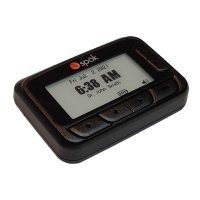

 To Next Page
 General