GenA User Guide
Spok, Inc. – Copyright 2022 P a g e | 25 v01/22
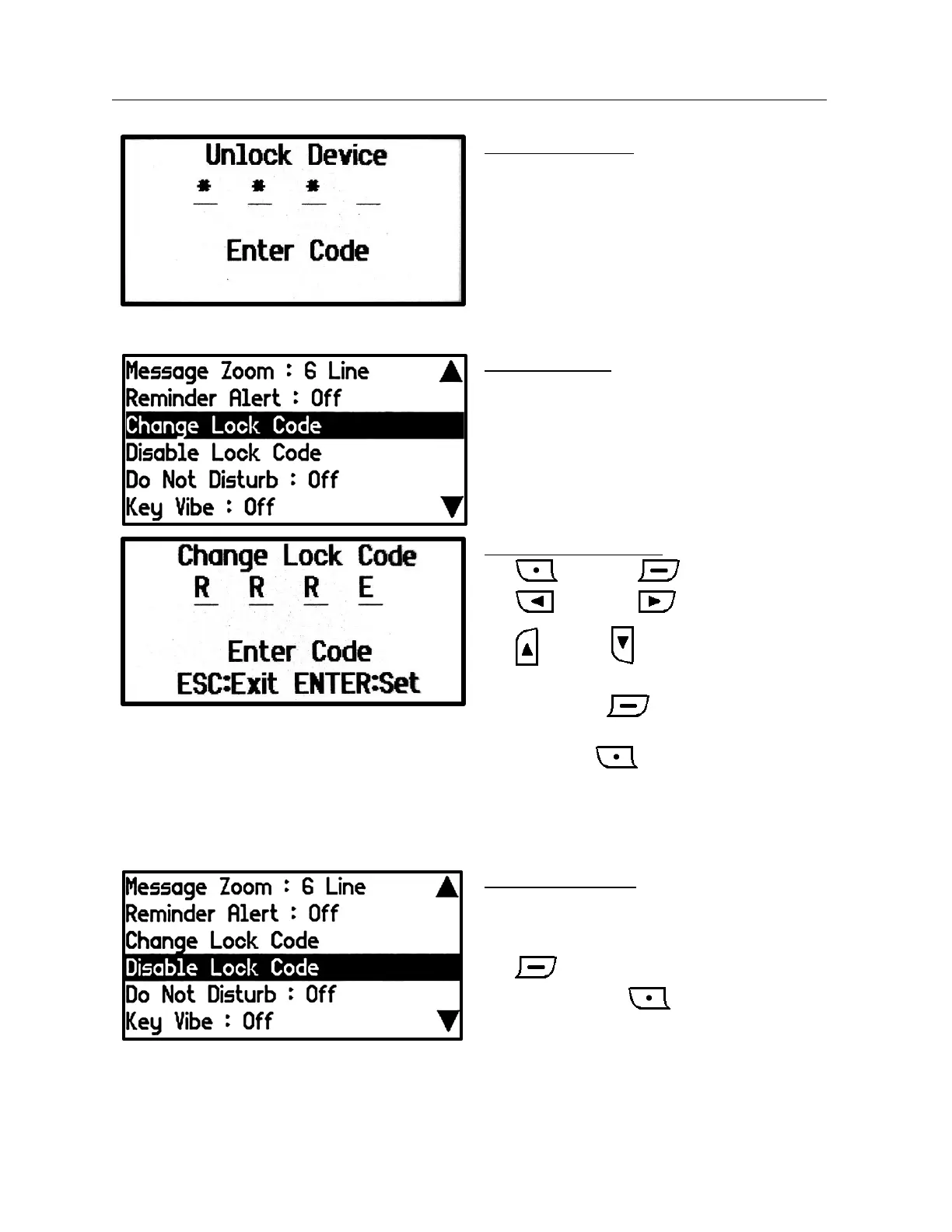
Unlock Device Screen
After entering the Main Screen from the Time
Screen, and pressing a button, the Unlock
Device input screen will appear. If the entered
Lock Code is correct, the user can navigate the
main screen. If the entered Lock Code is wrong,
the main screen is displayed but Lock Code
screen is displayed again when the user presses
a button.
Change Lock Code
When the Lock Code feature is enabled, the
‘Change Lock Code’ function is available for the
user to change the lock code.
Change Lock Code Screen
• (ESC) = C , (Enter) = E
• (Left) = L, (Right) = R
• (Up) = U, (Down) = D
• When four code entries have been made,
press button to activate the Lock
function with the new lock code.
• If you press , the Lock Code update
will be cancelled.
• In the Change Lock Code input window, you
cannot cancel the entry until four entries
have been made.
Set Disable Lock Code
• When the Lock Code is enabled, the
‘Disable Lock Code’ function is available.
• When the Lock Code is correct, press
button to disable the Lock feature.
Pressing button cancels the action.


 To Next Page