IP Video Intercom Paging Console User Manual
16
Click "Browse" to upload the audio files that need to be changed. Click the "Update" button to update the audio files. It will be
effective after rebooting. Note: prompt tone only supports WAV format of 8K or 22K.
Picture library
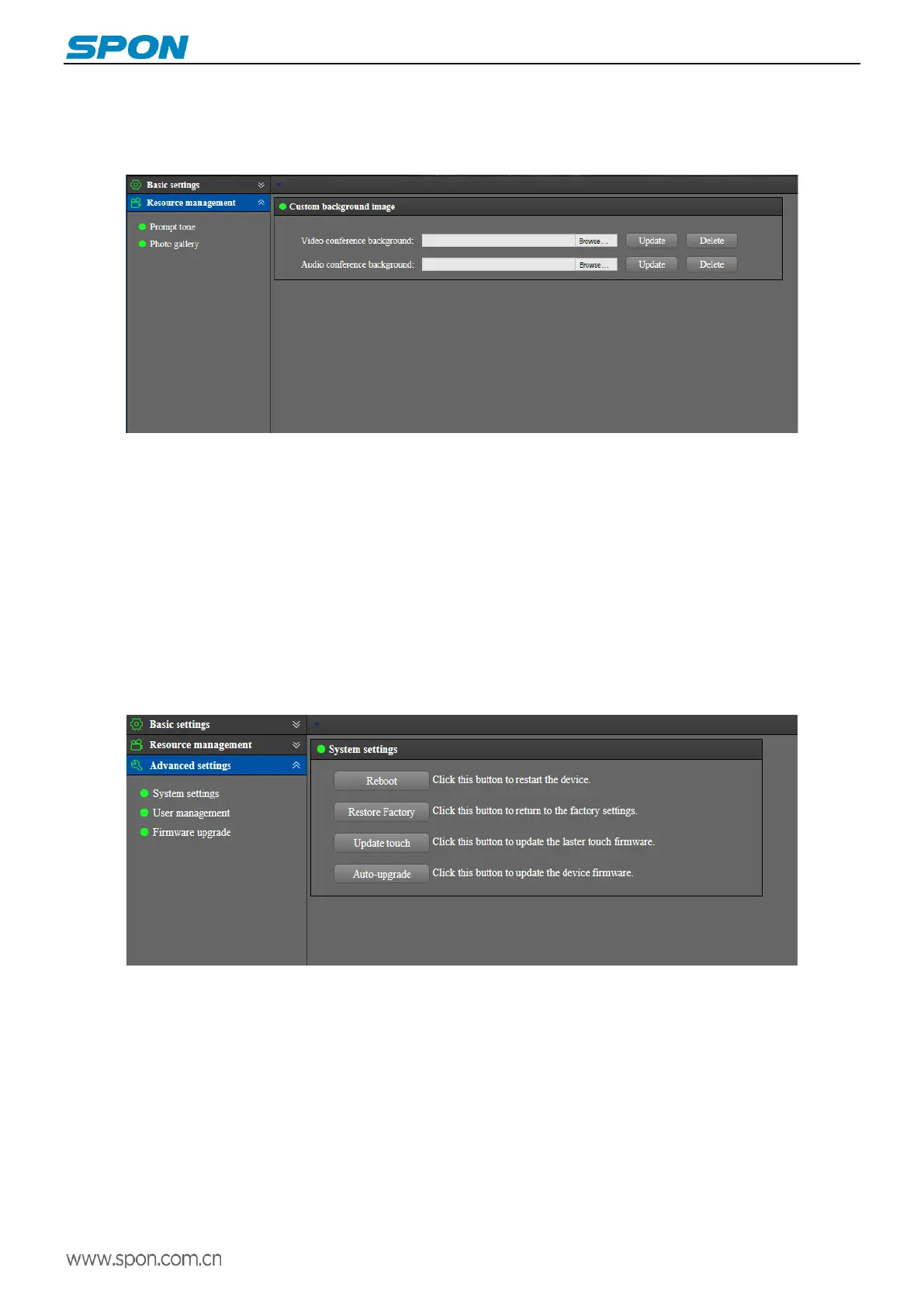
Users can customize the background of audio conference and video command according to their requirements, click
"Browse" to upload the pictures they need to change, click "Update" button to update the pictures. It will be effective after
rebooting Note: image format only supports JPG format.
Advanced settings
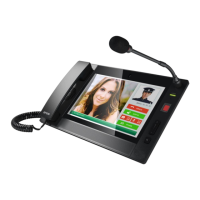
System settings
Reboot: manually reboot the device;
Restore factory: all parameters of the device will be restored to the factory settings (use with caution);
Update touch: click this button to upgrade the touch screen firmware.
Auto upgrade: click this button, the terminal will automatically get the update program from the server for firmware upgrade.
User management
In user management, you can modify the password of the login web page. It will be effective after saving and rebooting.


 To Next Page