Wave User Guide
24
© 2017 Stenograph
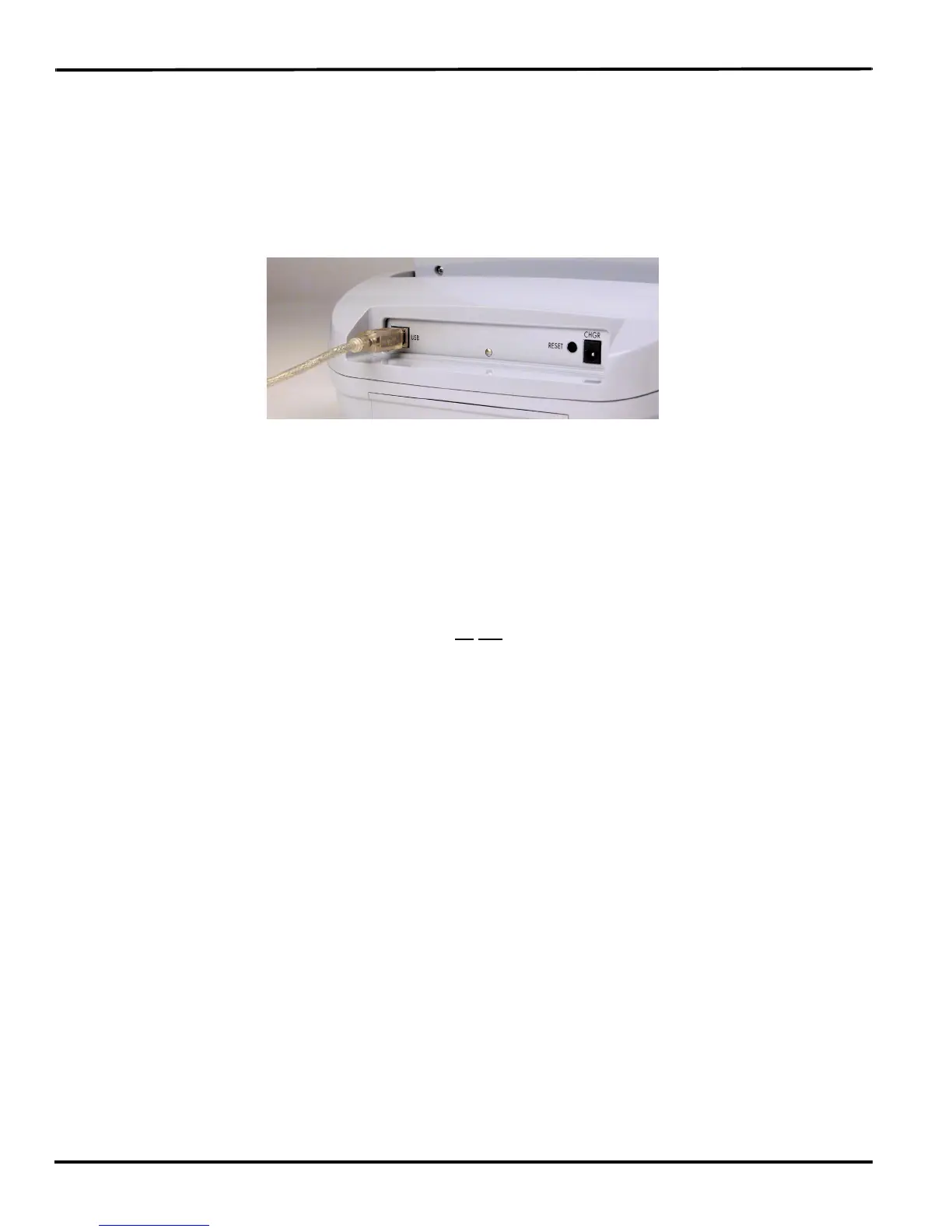
USB Cable Communications
You must be using USB compatible CAT software and have installed the Wave USB driver on your
computer. See Installing the USB Drivers on page 63 for instructions on loading the driver.
1. Ensure your Wave and computer are turned On and are fully booted.
2. Each end of the USB cable has a different connection plug. Insert the appropriate end of the USB
cable into the USB port on the back of the Wave and the other end into a USB port on the computer.
Windows
®
XP
Insert the USB cable into the computer USB port on which you loaded the Wave USB driver. See
Installing the USB Drivers on page 63 for more information.
3. Start your CAT software.
4. Set your realtime options. In Case CATalyst V11 and higher, select Wave - USB on the Translate
Realtime tab. In Case CATalyst V4.096 - V10, select élan - USB.
This is a USB connection. COM port settings do
not apply.
5. Write a few strokes on the Wave before starting realtime.
If the USB realtime connection is active when you break, the realtime screen may not display new
steno strokes when you resume writing. This may happen when the USB port becomes inactive after
remaining idle for a period of time. If this occurs, disconnect the USB cable from the back of the
Wave and reconnect it. The realtime file is not affected. Reconnect the cable to display the new steno
strokes on the realtime screen. See Troubleshooting on page 61 for details on disabling USB port
power saving features to avoid an inactive connection.
If the Memory becomes full while writing realtime, the realtime display on the Wave stops scrolling;
however, the Wave continues to send steno notes to the CAT system.
6. When you are finished writing realtime using a USB cable, it is important that you complete the
following steps in order. This ensures your computer shuts down properly.
a. Press End on the Wave to close the file.
b. Close and save the realtime file.
c. Unplug the Wave USB cable from your computer and the Wave.



 To Next Page