Wave User Guide
74
© 2017 Stenograph
Access TrueStroke Data
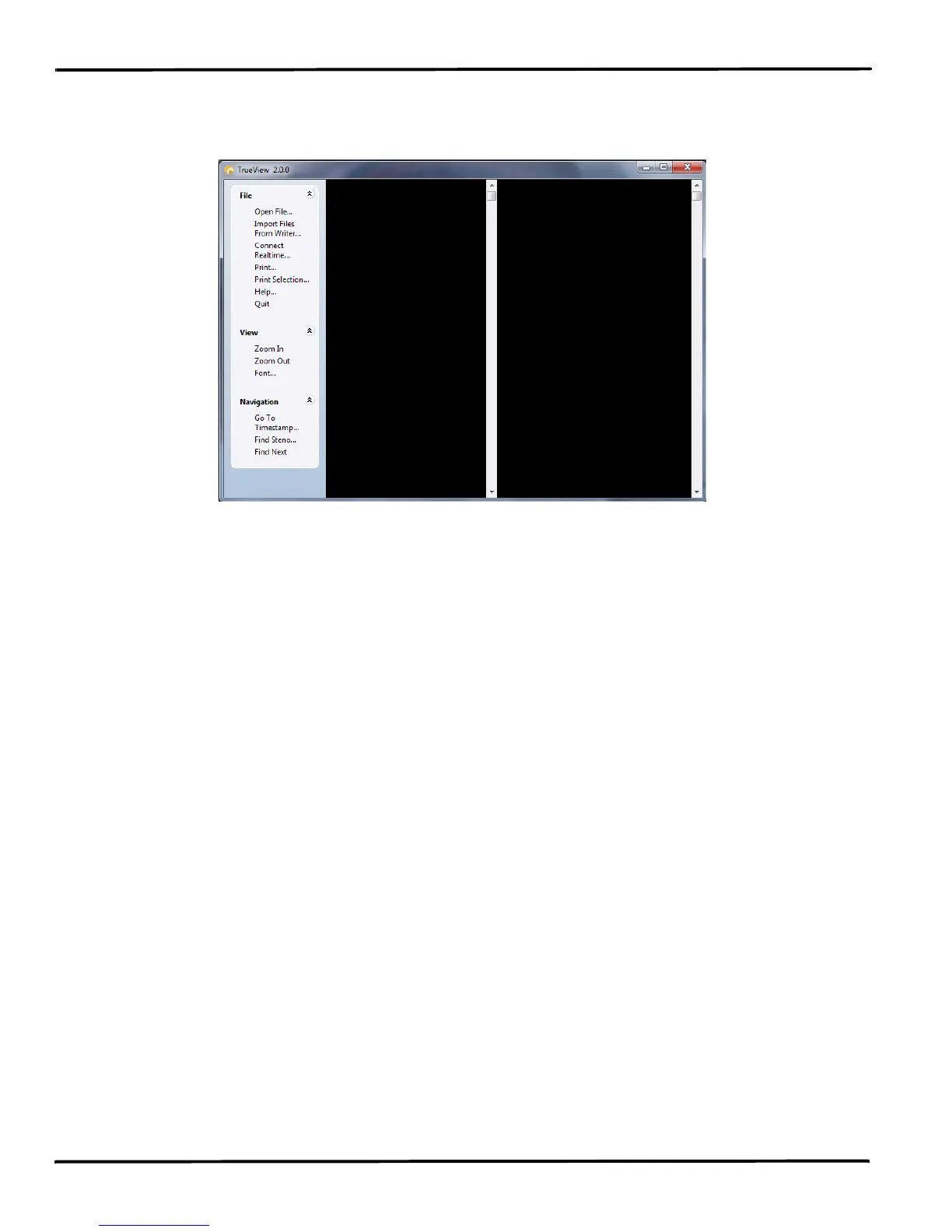
1. Open the TrueView utility. Double click the TrueView icon. The TrueView screen displays.
2. The screen is divided into three columns with the TrueView menu on the left. Click one of the
following features on the TrueView menu to open a Steno X-ray2 file:
Open File
Open an existing steno file on the hard drive or removable media. The Open dialog box displays
allowing you to navigate to the desired file.
Import Files From Writer
Import an existing file from the Wave onto your computer to view it in TrueView.
a. Ensure the Wave is connected to your computer and turned On.
b. Click Import Files From Writer. The Select the files you wish to copy dialog box displays. It may
take a few seconds to display the list. The Wave files are stored in Year/Month folders with a
date/time name.
c. Use Windows conventions to select files and click OK. The Browse For Folder displays.
d. Navigate to the location to which you are copying the files and select OK. The imported files are
saved in the selected location with the original file name.
e. At the Import Complete message, press Enter (OK).
f. Use Open File on the TrueView menu to view the TrueStroke data.
Connect Realtime
View TrueStroke data for the realtime file. See Connect for Realtime Writing on page 23 for detailed
information about realtime writing.
a. Ensure your steno machine is On.
b. Connect the Wave to your computer via the USB cable.



 To Next Page