SunFounder PiCrawler Kit
Ready to explore and create with us? Click [] and join today!
Remote Desktop Access for Raspberry Pi
For those preferring a graphical user interface (GUI) over command-line access, the Raspberry Pi supports remote
desktop functionality. This guide will walk you through setting up and using VNC (Virtual Network Computing) for
remote access.
We recommend using VNC® Viewer for this purpose.
Enabling VNC Service on Raspberry Pi
VNC service comes pre-installed in the Raspberry Pi OS but is disabled by default. Follow these steps to enable it:
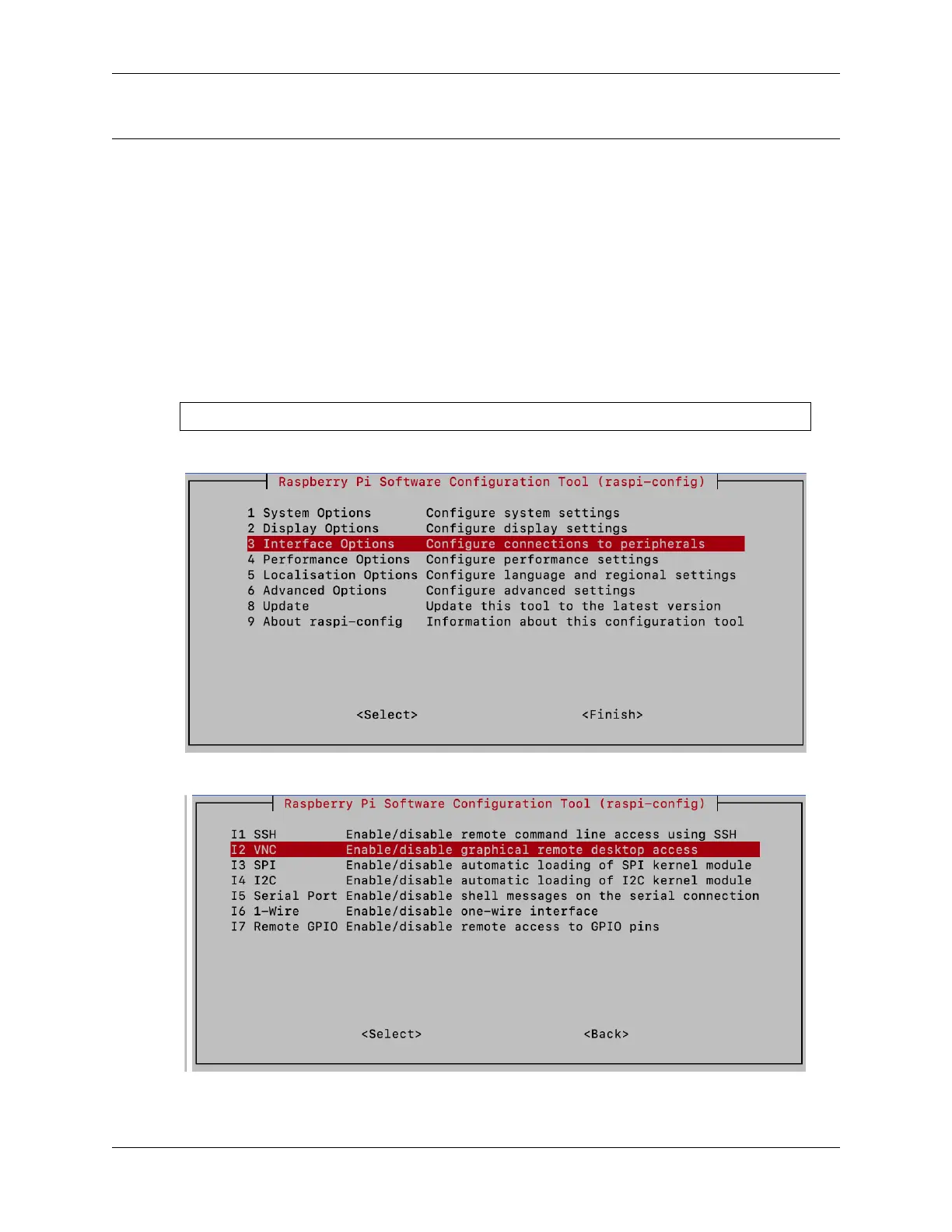
1. Enter the following command in the Raspberry Pi terminal:
sudo raspi-config
2. Navigate to Interfacing Options using the down arrow key, then press Enter.
3. Select VNC from the options.
4. Use the arrow keys to choose <Yes> -> <OK> -> <Finish> and finalize the VNC service activation.
28 Chapter 3. Play with Python



 To Next Page