SunFounder PiCrawler Kit
• Exclusive Previews: Get early access to new product announcements and sneak peeks.
• Special Discounts: Enjoy exclusive discounts on our newest products.
• Festive Promotions and Giveaways: Take part in giveaways and holiday promotions.
Ready to explore and create with us? Click [] and join today!
3.8 Record Video
This example will guide you how to use the recording function.
Run the Code
cd ~/picrawler/examples
sudo python3 record_video.py
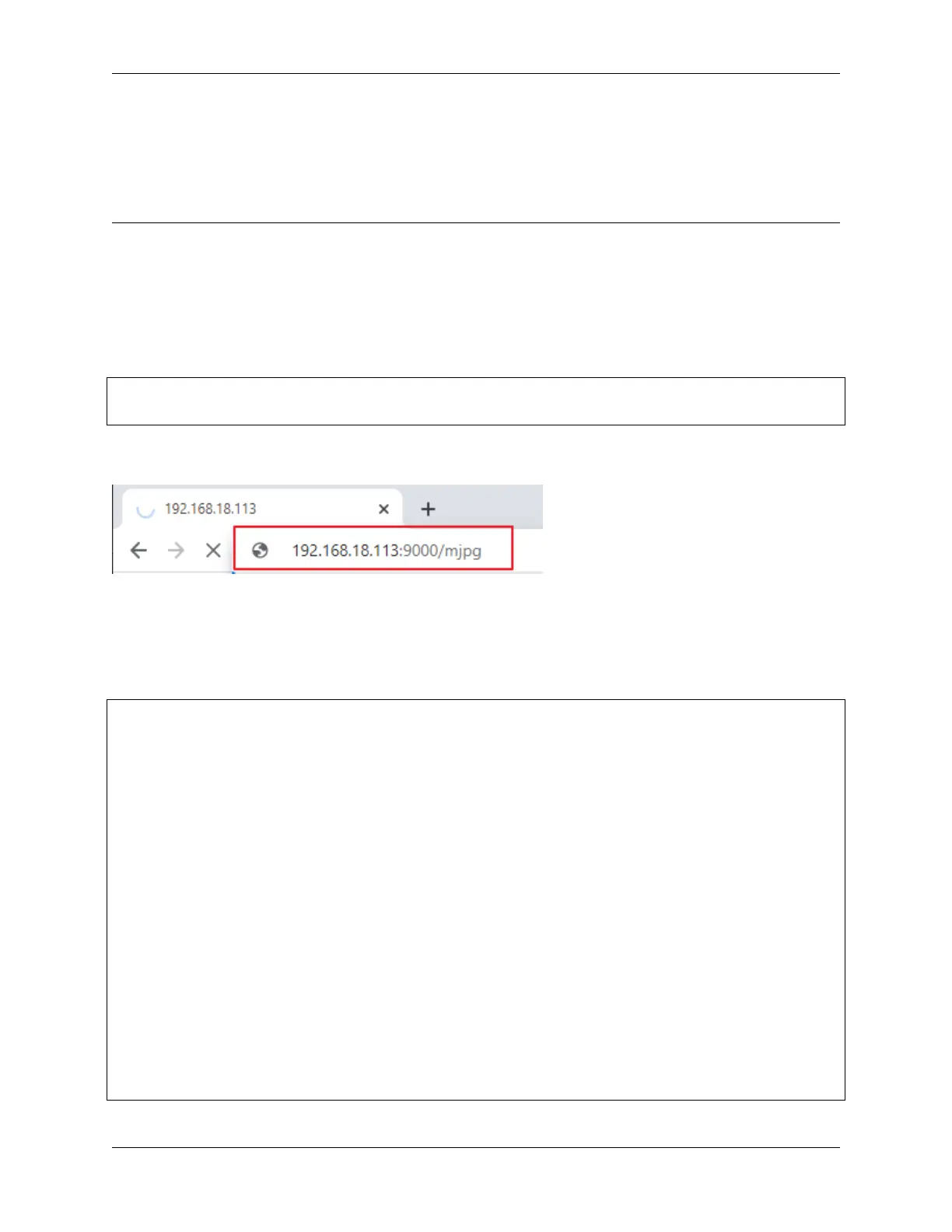
After the code runs, you can enter http://<your IP>:9000/mjpg in the browser to view the video screen. such as:
http://192.168.18.113:9000/mjpg
Recording can be stopped or started by pressing the keys on the keyboard.
• Press q to begin recording or pause/continue, e to stop recording or save.
• If you want to exit the program, press Ctrl+C.
Code
from time import sleep,strftime,localtime
from vilib import Vilib
import readchar
from os import getlogin
username = getlogin()
manual = '''
Press keys on keyboard to control recording:
Q: record/pause/continue
E: stop
Ctrl^C: Quit
'''
def print_overwrite(msg, end='', flush=True):
print('\r\033[2K', end='',flush=True)
print(msg, end=end, flush=True)
def main():
rec_flag = 'stop' # start,pause,stop
vname = None
(continues on next page)
58 Chapter 3. Play with Python



 To Next Page