SunFounder PiCrawler Kit
3.7 Computer Vision
This project will officially enter the field of computer vision!
Run the Code
cd ~/picrawler/examples
sudo python3 display.py
View the Image
After the code runs, the terminal will display the following prompt:
No desktop !
* Serving Flask app "vilib.vilib" (lazy loading)
* Environment: production
WARNING: Do not use the development server in a production environment.
Use a production WSGI server instead.
* Debug mode: off
* Running on http://0.0.0.0:9000/ (Press CTRL+C to quit)
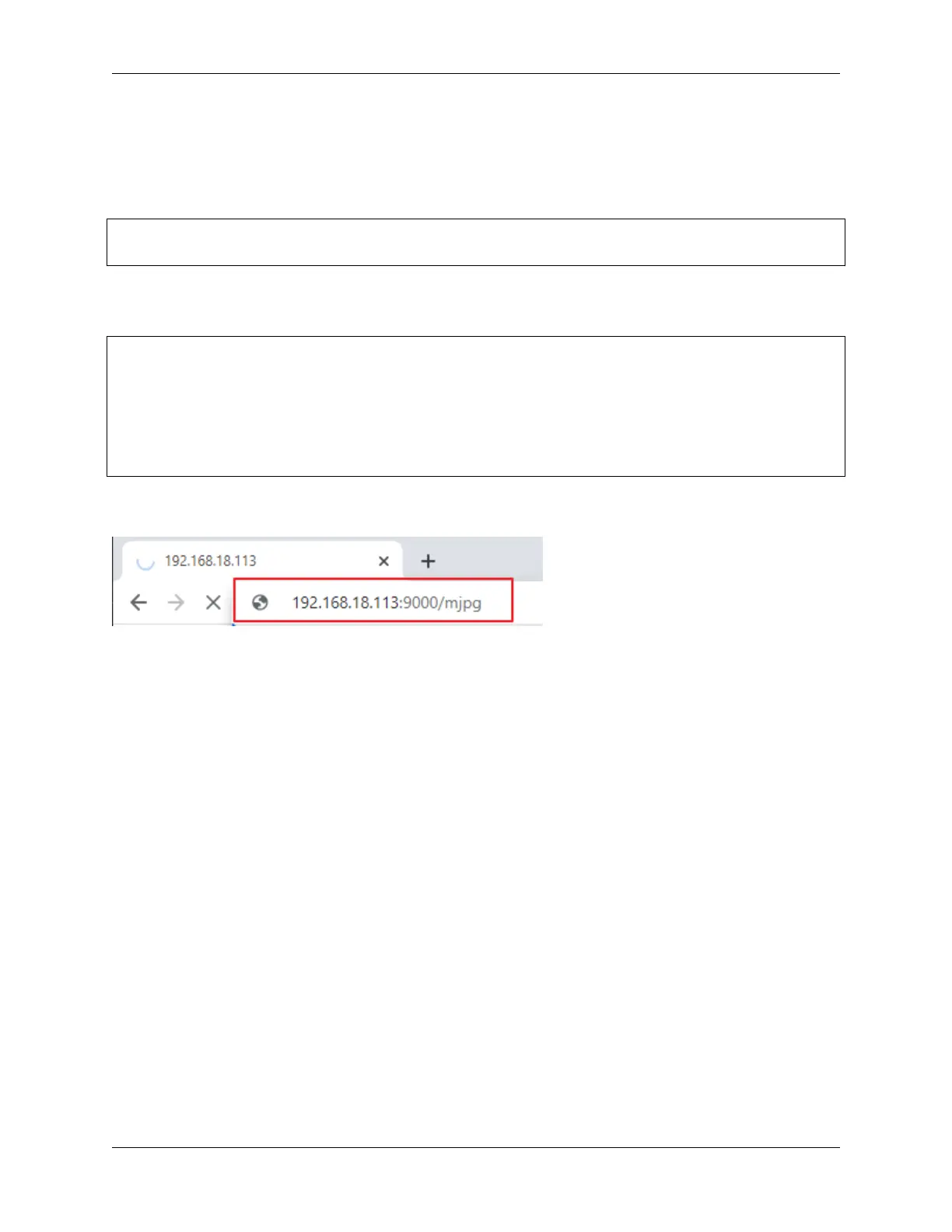
Then you can enter http://<your IP>:9000/mjpg in the browser to view the video screen. such as: https://
192.168.18.113:9000/mjpg
After the program runs, you will see the following information in the final:
• Input key to call the function!
• q: Take photo
• 1: Color detect : red
• 2: Color detect : orange
• 3: Color detect : yellow
• 4: Color detect : green
• 5: Color detect : blue
• 6: Color detect : purple
• 0: Switch off Color detect
• r: Scan the QR code
• f: Switch ON/OFF face detect
• s: Display detected object information
Please follow the prompts to activate the corresponding functions.
• Take Photo
Type q in the terminal and press Enter. The picture currently seen by the camera will be saved (if the
color detection function is turned on, the mark box will also appear in the saved picture). You can see
3.7. Computer Vision 51



 To Next Page