I/NET Conversions Database Utility
I/NET 2000 Getting Started 3-3
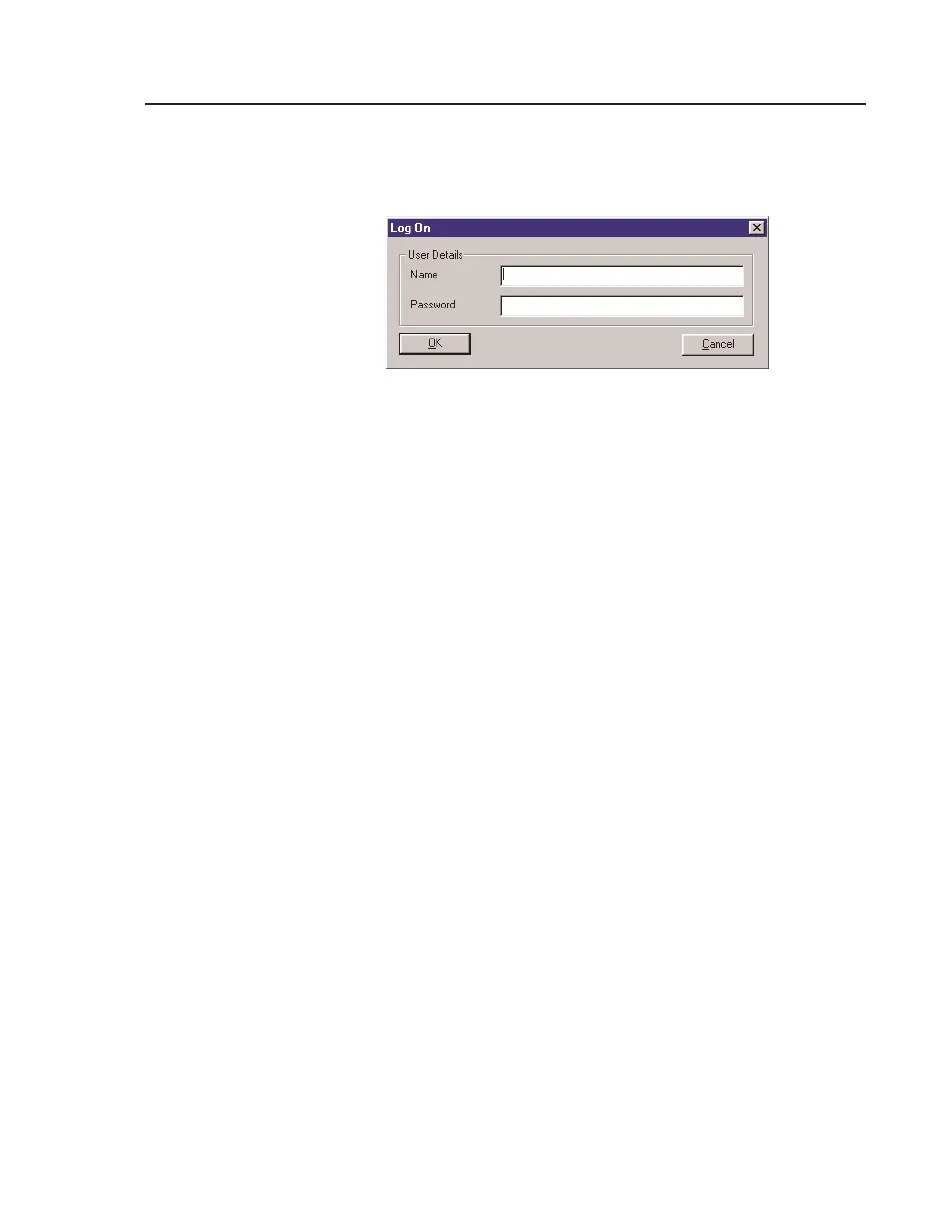
1. Select System > Log on. The system displays the prompt
shown in Figure 3-2.
2. Enter CSI in the
Name field.
3. Enter DACS in the
Password field. You will not be able to
see the letters being typed; the screen will show an asterisk
(*) for each character typed in this field.
4. Click on the
OK button. The system will display the Data-
base Utility main window (see Figure 3-1 on page 3-2).
Check BinaryTree File
The Check BinaryTree function (also called “Check B-Tree”) exam-
ines and repairs files that are stored in a binary tree format.
1. Select
Utilities > Check BinaryTree Files from the menu. The
system displays the dialog shown in Figure 3-3.
2. Select the file
Type from the drop-down list.
3. Click to select the desired file(s) from the
List. For the
upgrade procedure, you should select all files. You may
select a range of files by using Shift-Click, or select multiple
individual files by using Ctrl-click.
4. Select the
Directory where your files are located, or activate
the
Use current I/NET directory to use the directory structure
of the active configuration.
5. Select the current
File Version. This is your existing I/NET
version, not the version you are upgrading to.
6. Activate the
Balance tree option.
Figure 3-2. Log On Prompt



 To Next Page