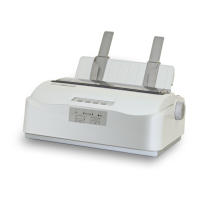
Tally Dascom 1145/1125+
48
5. Repeat the adjustment till two grid lines align satisfactory as “|”. Press “OK” again. The
printer asks if you want to save the correction:
Save the parameter settings ([LOAD/EJECT] or [ONLINE] = OK, [LF] = Next)?
Yes
At this stage, you have the options to save or give up the correction by pressing OK or Next,
respectively. If you respond with OK, an asterisk “*” appends to “Yes” to confirm saving
change. If you intend to give up the correction by pressing Next, the printer prompts a “No”
Then a confirmative response of OK appends an asterisk “*” to the “No” prompt.
The printer then exits the Bi-directional Test and proceeds with the next setup menu.
5.8 Restore Factory Default
The procedures to restore factory default settings:
1. Hold down the Tear key while powering on the printer and then release the key when the
print head starts to move. After loading paper, the printer prompts the Printer Settings
Printer Settings
[LF]=Next, [TEAR]=Back, [LOAD/EJECT]=OK, [ONLINE]=Exit, [ONLINE]+[LOAD/EJECT]=
Save and restart the printer.
System Setup
2. Press the Next or Back keys to scroll forward or backward the sub-menus till the printer
shows:
Restore Factory Defaults
3. Press OK to go into restore factory default dialog. The printer prompts:
[Restore Factory Defaults]
Restore factory settings ([LOAD/EJECT]=OK, [ONLINE]=Exit)?
Yes
4. At this stage you have the option of OK to restore default setting or Exit to discard the
restoration.
5. If input OK, the printer prints an asterisk “*” appending the “Yes” and prompts successful
restoration:
Restore factory settings successfully
6. The printer beeps once to indicate successful restoration.



 To Next Page