Description: By default, this is “Genesys Power Supply”, but it may be changed in the
“LAN ➞ Configure ➞ Modify” web page.
Controller Access: The “One Client Only” setting is the default setting for the highest networking security.
This setting allows only one TCP socket to be open at a time and it disables the connectionless UDP and
Raw sockets. See section 9.4 below.
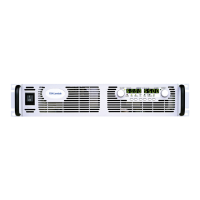
Modify: After logging in (see section 6.4), click this button to open the window shown below.
6.6.2. LAN ➞ Configure ➞ Modify Page
If you are logged in and click the “Modify” button on the “LAN ! Configure” window, the following pop-
up window appears. On this window, you may enter new values for the LAN settings. The available fields
depend on the selection of “DHCP Assigned / AUTO IP” or “Static IP”
Changes to these setting will not take place until the “Apply” button is clicked
Note: After changing the LAN settings (other than the description), the web browser will automatically
close. Re-open it using the new address (see section 5.1).
If the change causes a duplicate IP, the LAN Status LED will turn red. In this case, do a front panel
LAN Reset (section 5.3) and try to modify the LAN settings again.
TCP/IP Mode: This selects how the power supply gets it’s network settings. Select either:
-
DHCP Assigned / AUTO IP: If this mode is selected, the network server uses DHCP to assign the IP address,
subnet mask , default gateway and DNS server. Since the server assigns these, they are disabled (gray) on the
web page. If the server cannot make the assignment, the power supply shall revert to the Auto IP method
described in section 4.4.
In this mode, the user may only change the hostname and description.
- Static IP: If this mode is selected, the IP address, subnet mask and default gateway must be entered in
the window fields. The settings must be compatible with the.
27



 To Next Page