ENGLISH
47
From your Computer:
< Before using AirPlay, perform setup for the Internet
connection. For details, see “Initial Network Setup” on
page 42.
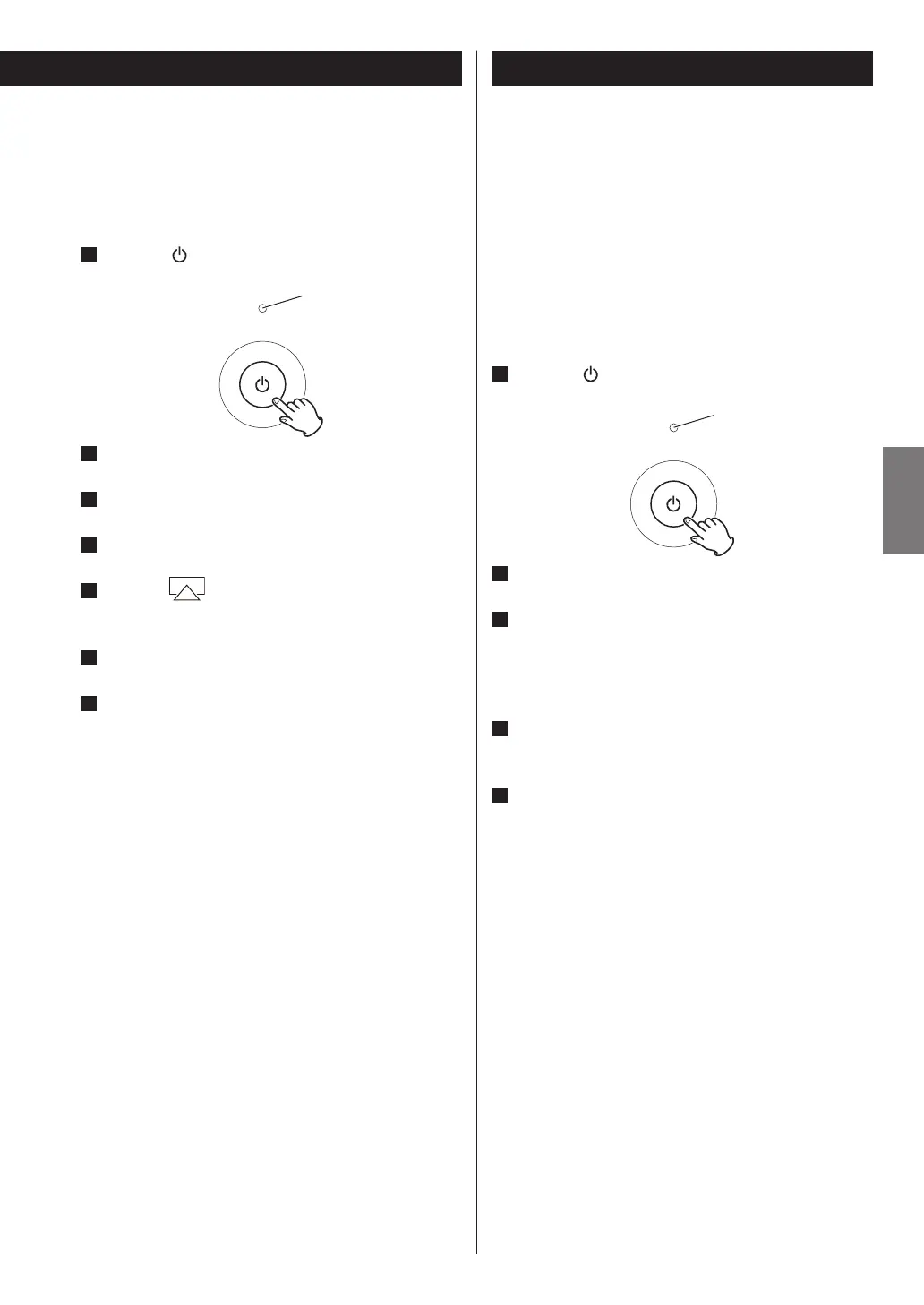
1
Press the button to turn the unit on.
2
Turn your computer on.
3
Connect your computer to the network.
4
Start up iTunes on your computer.
5
Click the (AirPlay) icon.
The available device list is displayed.
6
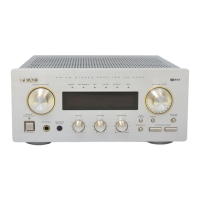
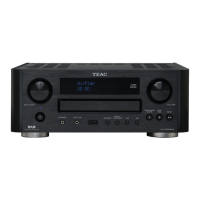
Select the “CR-H700” from the list.
7
Start playing back a file from iTunes.
It takes several seconds to start playing back a file.
Using Music Streaming
You can play back audio files on the server connected to
the network from your computer or mobile device.
< Before using Music Streaming, perform setup for the
Internet connection. For details, see “Initial Network
Setup” on page 42.
< When you use Music Streaming, make sure that DLNA
application is installed on your computer or mobile
device.
< Prepare a NAS (Network Attached Storage) server
compatible with DLNA.
1
Press the button to turn the unit on.
2
Turn your computer or mobile device on.
3
Connect a NAS (Network Attached Storage)
server to the network.
For details on how to connect, refer to the server’s
instructions.
4
Connect your computer or mobile device to the
unit and the server using the DLNA application.
5
Start playing back a file from your computer or
mobile device.
Standby/On indicator
Standby/On indicator


 To Next Page