ENGLISH
49
Preparations for Shared Media
(Windows Media Player 11)
1
Connect your computer to the LAN.
2
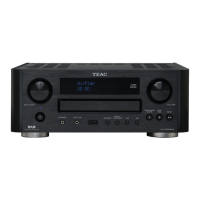
Connect CR-H700DAB to the LAN. (page 10)
< If you have a problem connecting to the LAN, see
page 61.
3
If the files you want to share are not yet added
to the media library of Windows Media Player,
add them to the media library.
< Refer to the manual of Windows Media Player for
details.
4
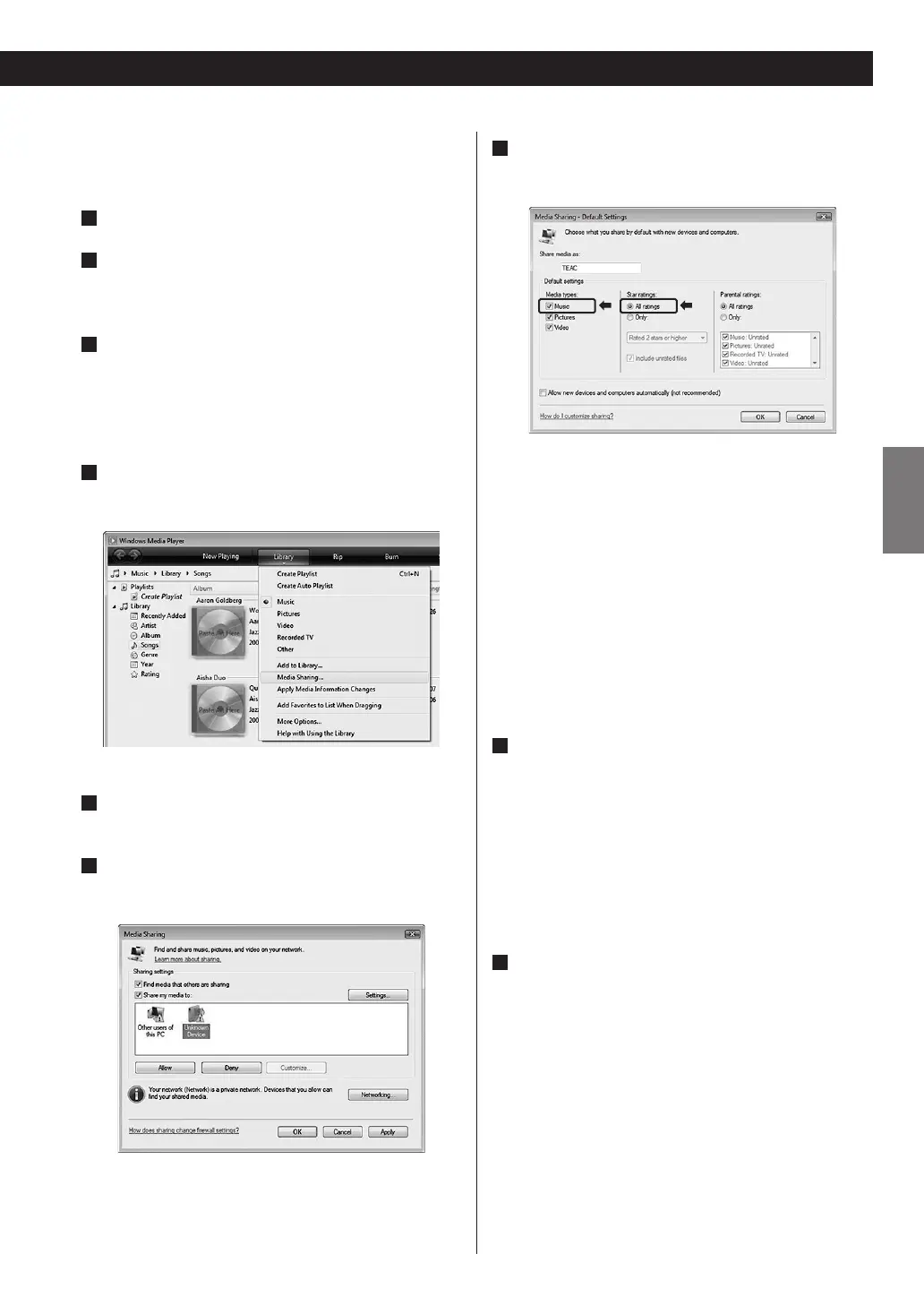
On Windows Media Player, open “Library”, then
“Media Sharing...”.
Media Sharing window opens.
5
Activate “Share my media to:”.
“CR-H700” appears in the device list.
6
Select “CR-H700” and click “Allow”.
The CR-H700DAB can now access to the shared library.
7
Click on “Settings...”, and configure detailed
sharing settings.
< To listen to music files regardless of their rating, set
“Star ratings” to “All ratings”.
< Ensure that “Music” is checked under the “Media
types” setting.
For the procedure of playback, see “Listening to Media
Player”. (page 52)
Preparations for Shared Folders
(Windows XP)
1
Check the name of the Domain or the
“Workgroup” your computer belongs to.
To enable Shared Folders, your computer needs to be
a member of a Domain or a “Workgroup”.
Usually, your computer belongs to a “Workgroup”
by default. To see the name of the Domain or the
“Workgroup” your computer belongs to, check the PC
setting as follows:
Control Panel w System w Computer Name
2
Check the user account name and its password.
To access the computer from CR-H700DAB, you need
the user account name and the password of the
computer.


 To Next Page