© Technosoft 2007 55 IBL2403 Technical Reference
5.2.3.2 Step 2 Establish communication
If you have a drive/motor connected with your PC, now its time to check the communication. Use
menu command Communication | Setup to check/change your PC communication settings.
Press the Help
button of the dialogue opened. Here you can find detailed information about how
to setup your drive/motor and the connections. Power on the drive, then close the Communication
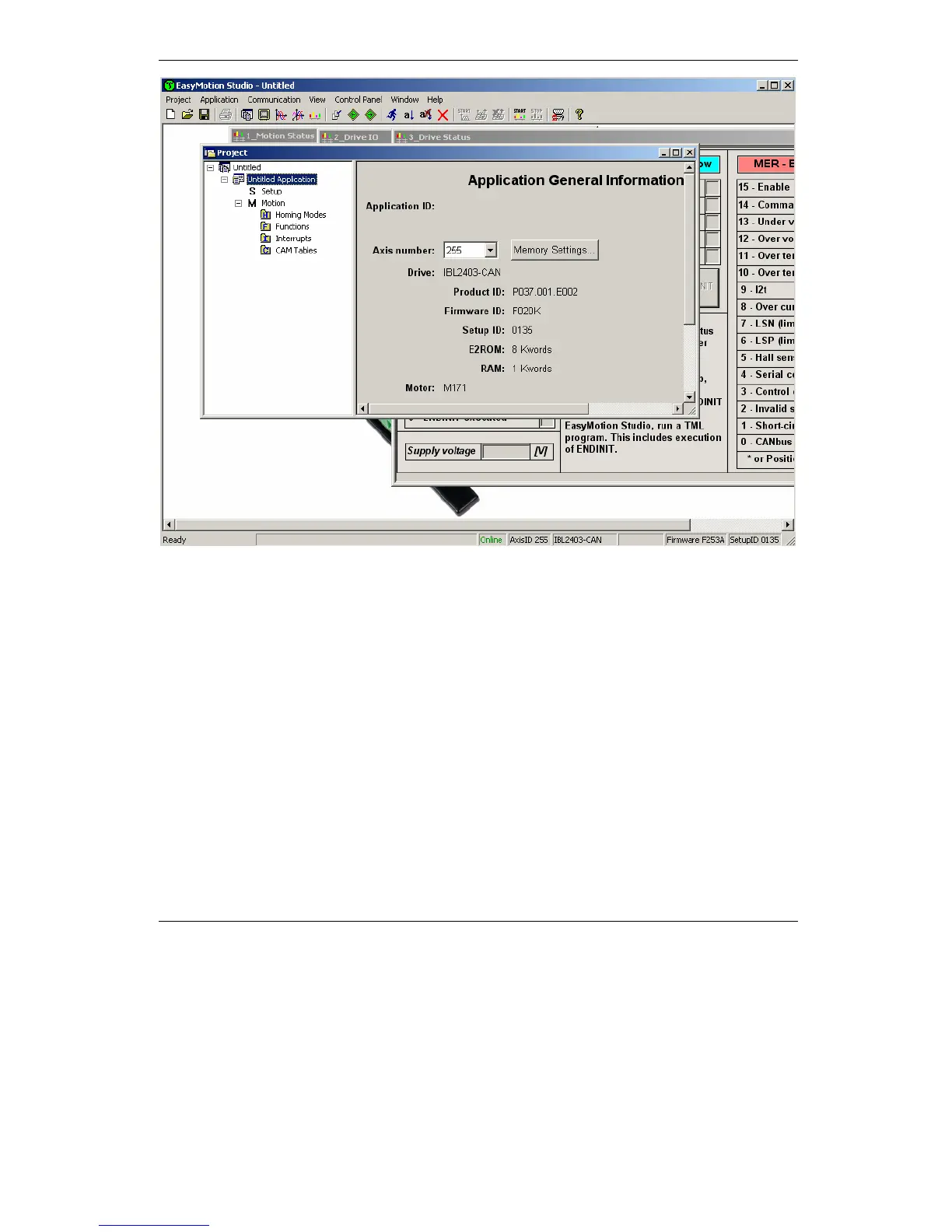
| Setup dialogue with OK. If the communication is established, EasyMotion Studio displays in the
status bar (the bottom line) the text “Online” plus the axis ID of your drive/motor and its firmware
version. Otherwise the text displayed is “Offline” and a communication error message tells you
the error type. In this case, return to the Communication | Setup dialogue, press the Help button
and check troubleshoots.
Remark: When first started, EasyMotion Studio tries to communicate via RS-232 and COM1 with
a drive having axis ID=255 (default communication settings). If your drive is powered with all the
DIP switches OFF and it is connected to your PC port COM1 via an RS-232 cable, the
communication shall establish automatically.
5.2.3.3 Setup drive/motor
In the project window left side, select “S Setup”, to access the setup data for your application.



 To Next Page