Touchscreen basics
You can operate the 4200A-SCS using the touchscreen. You can use your fingers, clean room gloves,
or any stylus manufactured for capacitive touchscreens.
To select and move on the screen:
• To scroll, swipe up or down on the screen.
• To select an item, touch it on the screen.
• To double-click an item, touch it twice.
• To right-click an item, touch and hold, then release to see the options.
To enter information, you can use the on-screen keyboard. Swipe from the left side of the display to
open the keyboard.
The touchscreen uses standard Microsoft
®
Windows
®
touch actions. For additional information on the
actions, refer to the Microsoft help information, available from the on-screen keyboard window menu
option Tool > Help Topics.
You can also adjust the touch settings using the Pen and Touch options in the Windows
Control Panel.
Connect a keyboard and mouse
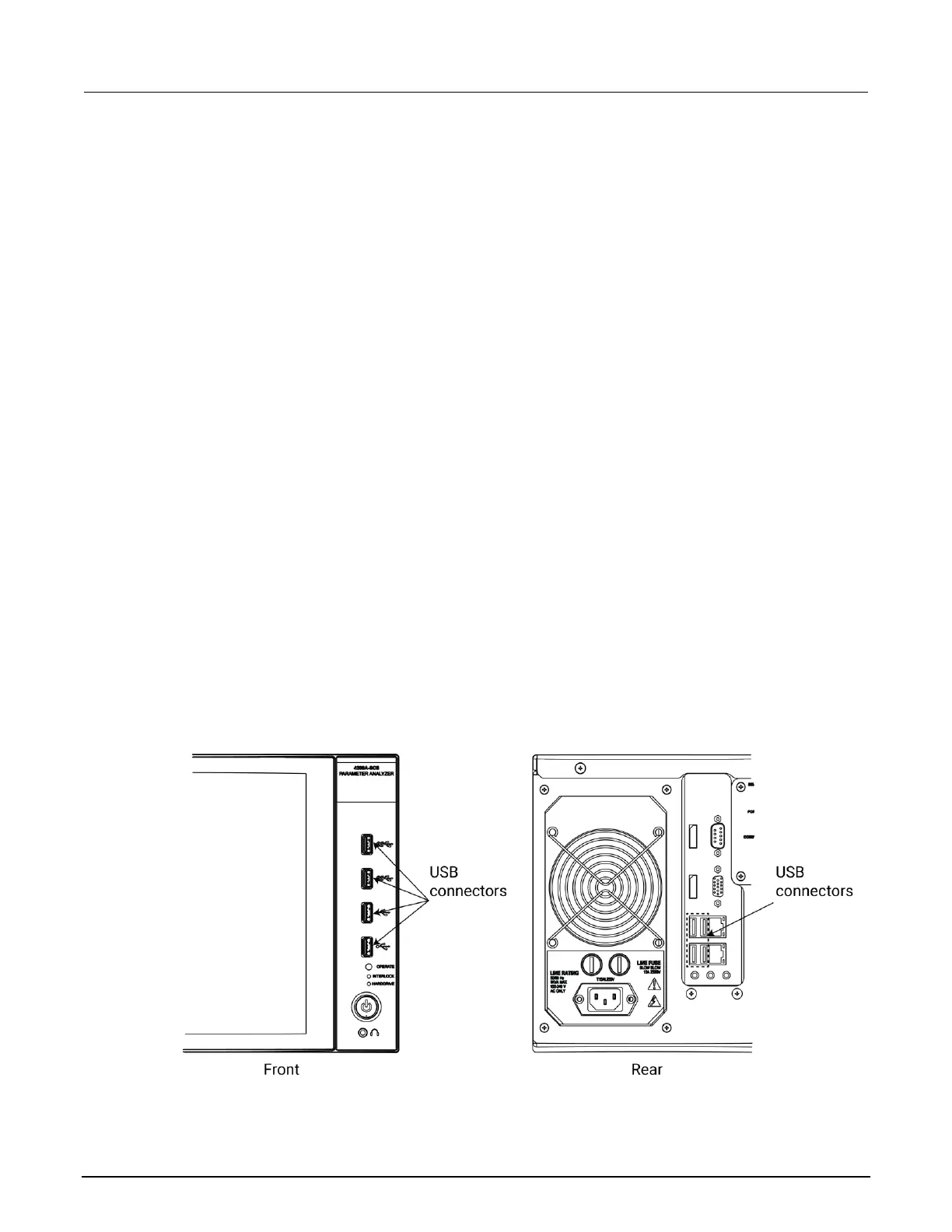
Connect the keyboard to the 4200A-SCS with a USB cable. You can plug it into any of the eight USB
ports. To ensure proper operation, be sure that the keyboard is connected before power-up.
Figure 3: Keyboard and mouse connections
If you want to use a mouse, connect a USB mouse to any of the 4200A-SCS USB ports.


 To Next Page
 Loading...