AS 680/682
Master Technical System Control Description, Operation and Maintenance
ADS−B
4−10 Ed. 10.07
4.3.3 Supervisor Operation
4.3.3.1 Menubar of Main Window
The menubar of the MTSC Supervisor Main window provides the menus ’File’ and ’Help’:
Fig. 4−9 Menubar of the MTSC Supervisor main window (example)
The ’File’ menu of the contains the following submenus:
S Save Configuration
After selecting this submenu the actual configuration of the system is saved within the configura-
tion file config.xml. Clicking on the corresponding icon of the toolbar performs the same function.
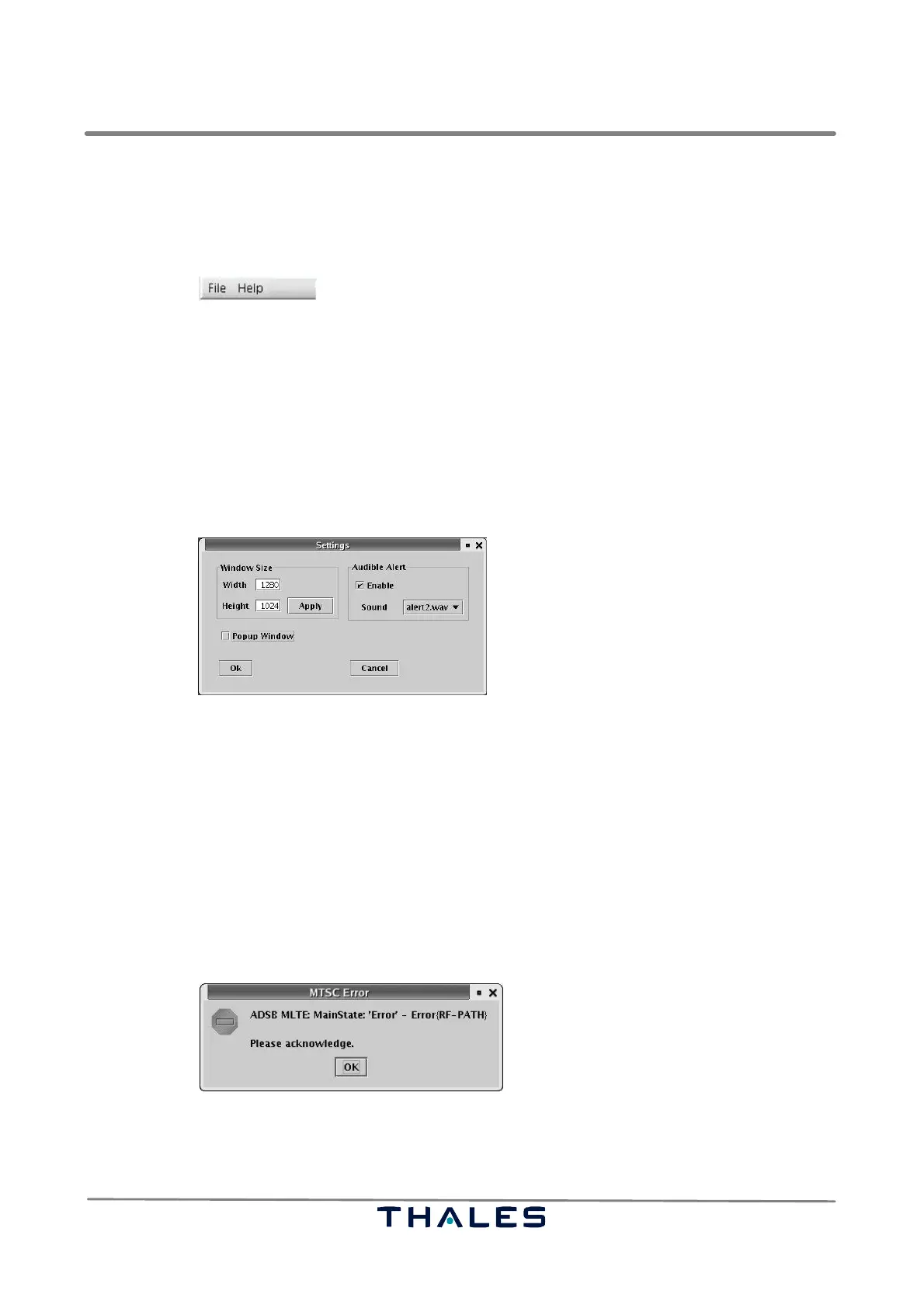
S Settings
Clicking on this submenu opens the ’Settings’ window on screen 0 (see Fig. 4−10). The ’Settings’
dialog allows to change the Main window size. The ’Apply’ button activates the actual values for
width and height immediately.
Fig. 4−10 MTSC, Settings Window (example)
In the ’Audible Alert’ group the user can enable/disable the audible alert. If enabled every state
change of the observed ADS−B Ground Stations causes an audible alert. With the combox
Sound" the user can select the alert file which is played if an alert occurs. The played audio file
has the standard *.wav format.
The ’Popup Window’ select button enables or disables the pop−up of the ’MTSC Error’ window
(see Fig. 4−11), which appears on screen 0 if an error occurs in an ADS−B Ground Station. The
default setting is ’disabled’ (’off’). Clicking on the ’OK’ button confirms the error message and
closes the pop−up window automatically.
NOTE: The default setting of ’Popup Window’ is ’disabled’. If the feature is enabled, the
supervisor has to execute the error confirmation three times, because of the ’error state
acknowledgement’ procedure available on screen 1 (see section 4.3.3.3.2 ).
Fig. 4−11 MTSC, Pop−up window indicating an MTSC Error (example)
S Quit
After clicking on this submenu the Supervisor leaves the MTSC application.



 To Next Page