AS 680/682
Description, Operation and Maintenance Master Technical System Control
ADS−B
4−15Ed. 10.07
4.3.3.3.2 GS Menu of Map Panel
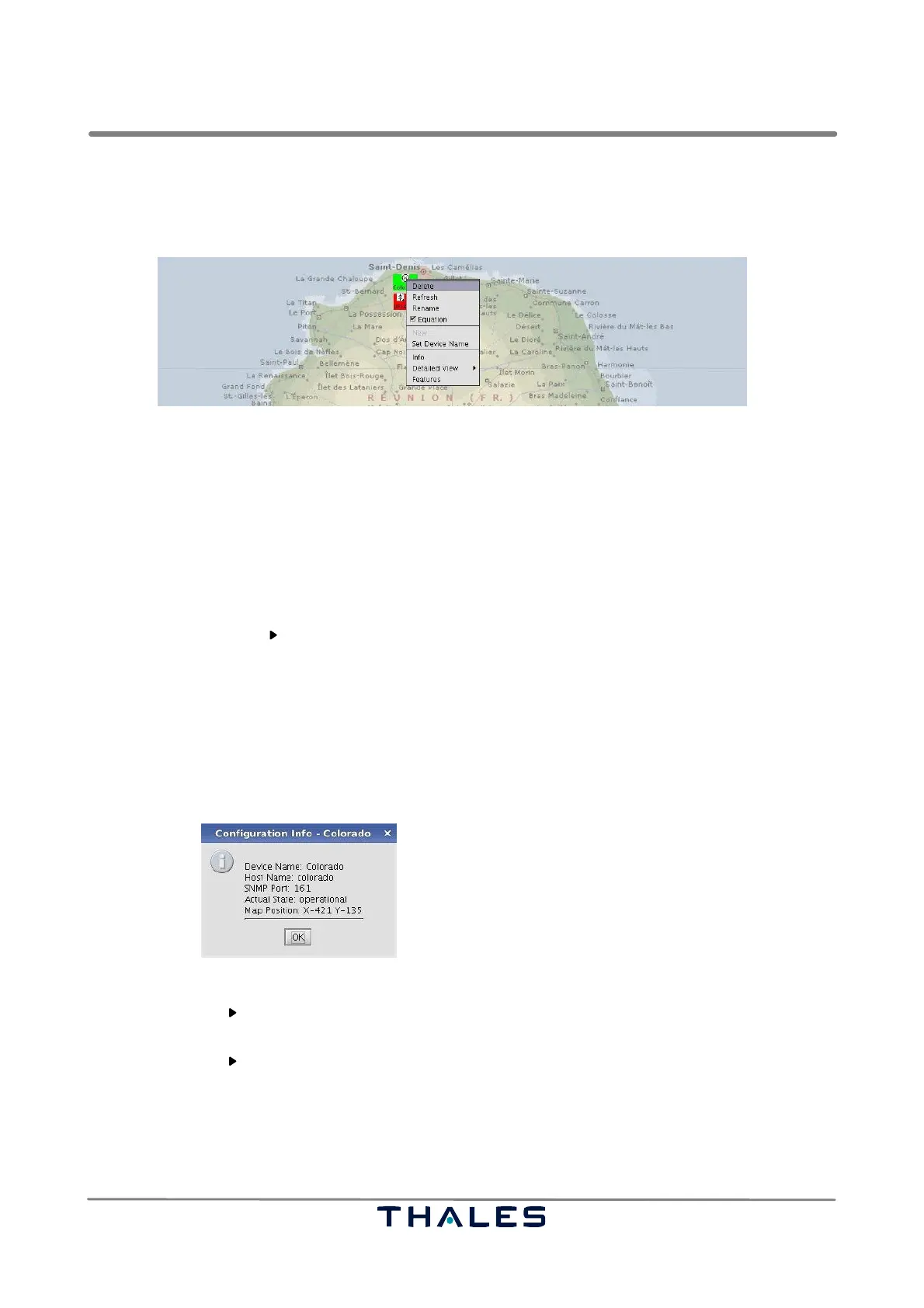
The GS menu appears after clicking with the right mouse button on a GS icon in the Map Panel.
Fig. 4−20 GS menu provided to the Supervisor within the map panel (example)
The GS menu provides the following submenus (see Fig. 4−20):
S Delete: Deletes the selected GS within the map panel.
S Refresh: Refreshes the status indication of the selected GS.
S Rename:
The Supervisor can rename the GS within a ’Rename’ window. First the GS icon gets the new
name. After selecting the function ’Save Configuration’ (see section 4.3.3.1), the name is also
changed in the configuration file config.xml. To set the new name in the GS NVRAM use the sub-
menu ’Detailed View
Show’ of this GS menu (see below).
S Equation:
The state of the selected GS is (not) relevant for the calculation of the entire system status (e.g.
’Australia’) in the list panel.
S Set Device Name: Reads the GS name defined in the NVRAM of the GS.
S Info:
The window ’Configuration Info − <GS name>’ (see Fig. 4−21) appears in screen 0 with informa-
tion to the selected GS, like device name, host name, SNMP port, actual state and map position.
Fig. 4−21 Window ’Configuration Info −<GS name>’ (example)
S Detailed View
Show:
The ’Detailed Status window’ appears on screen 0 (see section 4.3.2.2)
Detailed View
Hide:
The ’Detailed Status window’ disappears on screen 0.
S Features:
The window ’Features’ appears in screen 0 (see Fig. 4−19).
NOTE: The menu items presented in grey letters are not accessible.



 To Next Page