AS 680/682
Description, Operation and Maintenance Master Technical System Control
ADS−B
4−13Ed. 10.07
The Map menu contains the following items:
S Refresh: Refreshes the status indication of all GS indicated in the map panel.
S Rename: Possibility to give a new name to the file.
S Equation:
States of all GS in the map panel are (not) relevant for the calculation of the entire system status
(e.g. ’Australia’) in the list panel.
S New
Device:
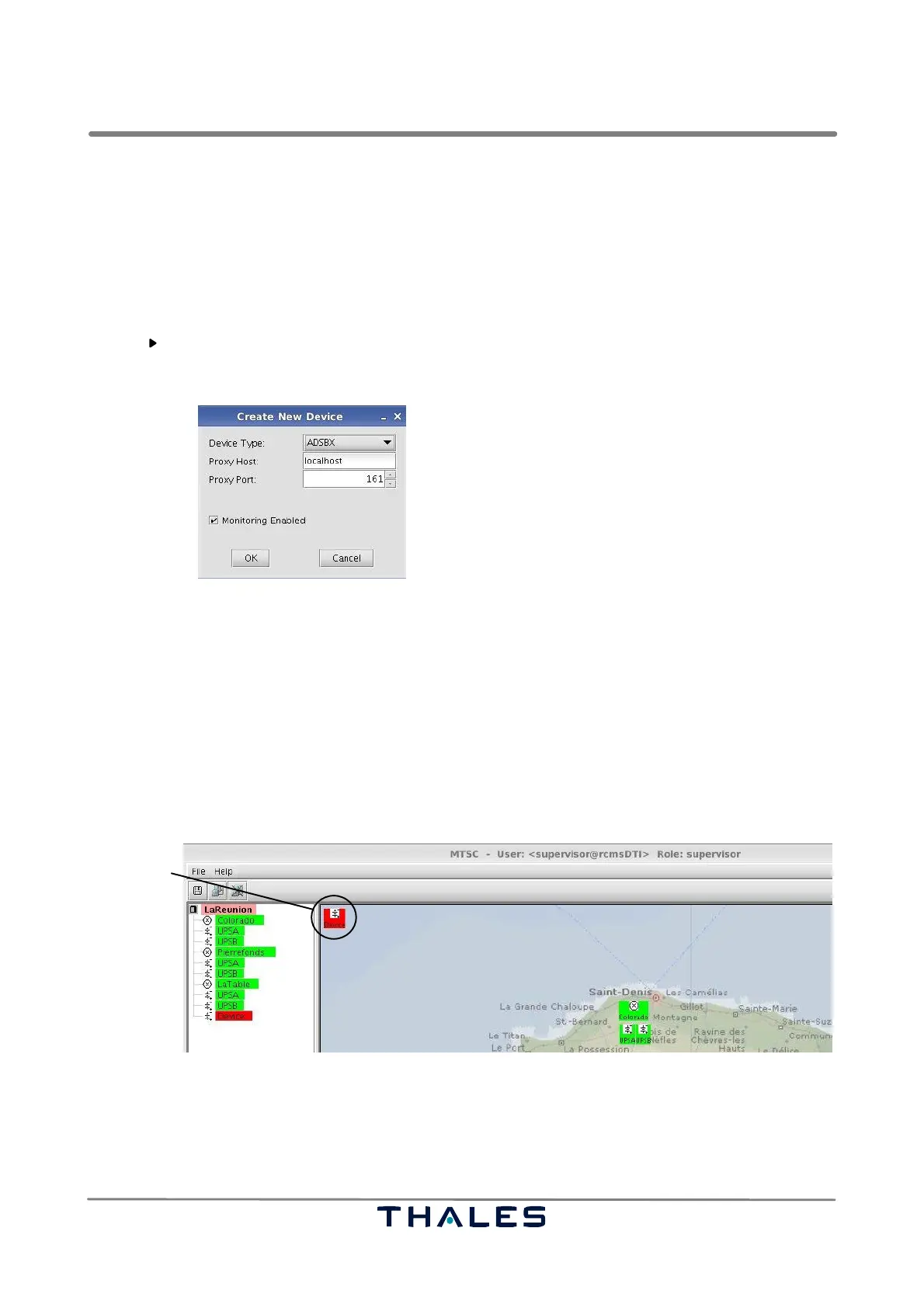
The window ’Create New Device’ appears in screen 0 (see Fig. 4−15) to define a new GS.
Fig. 4−15 Window ’Create New Device’ (example)
After entering the values of ’Proxy Host’ and ’Proxy Port’ and confirming with the ’OK’ button, a
new GS icon appears in the left upper corner of the map panel on screen 1 with a GS default name
("ADS−B_GS"), see Fig. 4−16. With the select button Monitoring Enabled" it is possible to acti-
vate/deactivate the monitoring of the new device. The icon can be moved to the desired place
within the map by clicking and holding the left mouse button on the new icon.
NOTE: To define a new GS it is necessary to update the /etc/hosts table, i.e. to enter the new IP
address and the new alias name (e.g. ’192.168.23.123 Brisbane’).
new GS icon
Fig. 4−16 Map panel with new GS icon (default name), example
The new GS can now be renamed by using the ’Rename’ submenu of the GS menu (see following
section 4.3.3.3.2 ), which appears after clicking with the right mouse button on the new GS icon.



 To Next Page