AS 680/682
Master Technical System Control Description, Operation and Maintenance
ADS−B
4−12 Ed. 10.07
4.3.3.2 Toolbar of Main Window
The toolbar of the MTSC Supervisor Main window (see Fig. 4−5) contains the following icons:
The icons provide the following functions:
S Save configuration
Same function as ’Save configuration’ submenu of menu ’File’, see section 4.3.3.1. After clicking
on this icon the actual configuration of the system is saved within the configuration file config.xml.
S Enable monitoring of selected item
After clicking on this icon the item (Ground Station) selected in the List Panel of the Main window
is monitored, i.e. the GS status is periodically polled. The Ground Station in the list panel is now
marked with the
in front of the GS name.
S Disable monitoring of selected item
After clicking on this icon the monitoring of the item (Ground Station) selected in the List Panel is
disabled. The Ground Station in the list panel is now marked with the
in front of the GS name
and the background color of the item is grey.
4.3.3.3 Map Panel of Main Window
The map panel on screen 1 of the RCMS consists of a map picture and one icon per monitored GS
at its approximate site position on the map.
Within the Map Panel the MTSC Supervisor is able to open two different context menus:
− The Map menu, which appears after clicking with the right mouse button on any point within the
Map Panel work space (not
on a GS icon), see section 4.3.3.3.1 .
− The GS menu, which appears after clicking with the right mouse button on a GS icon in the Map
Panel, see section 4.3.3.3.2 .
4.3.3.3.1 Map Menu of Map Panel
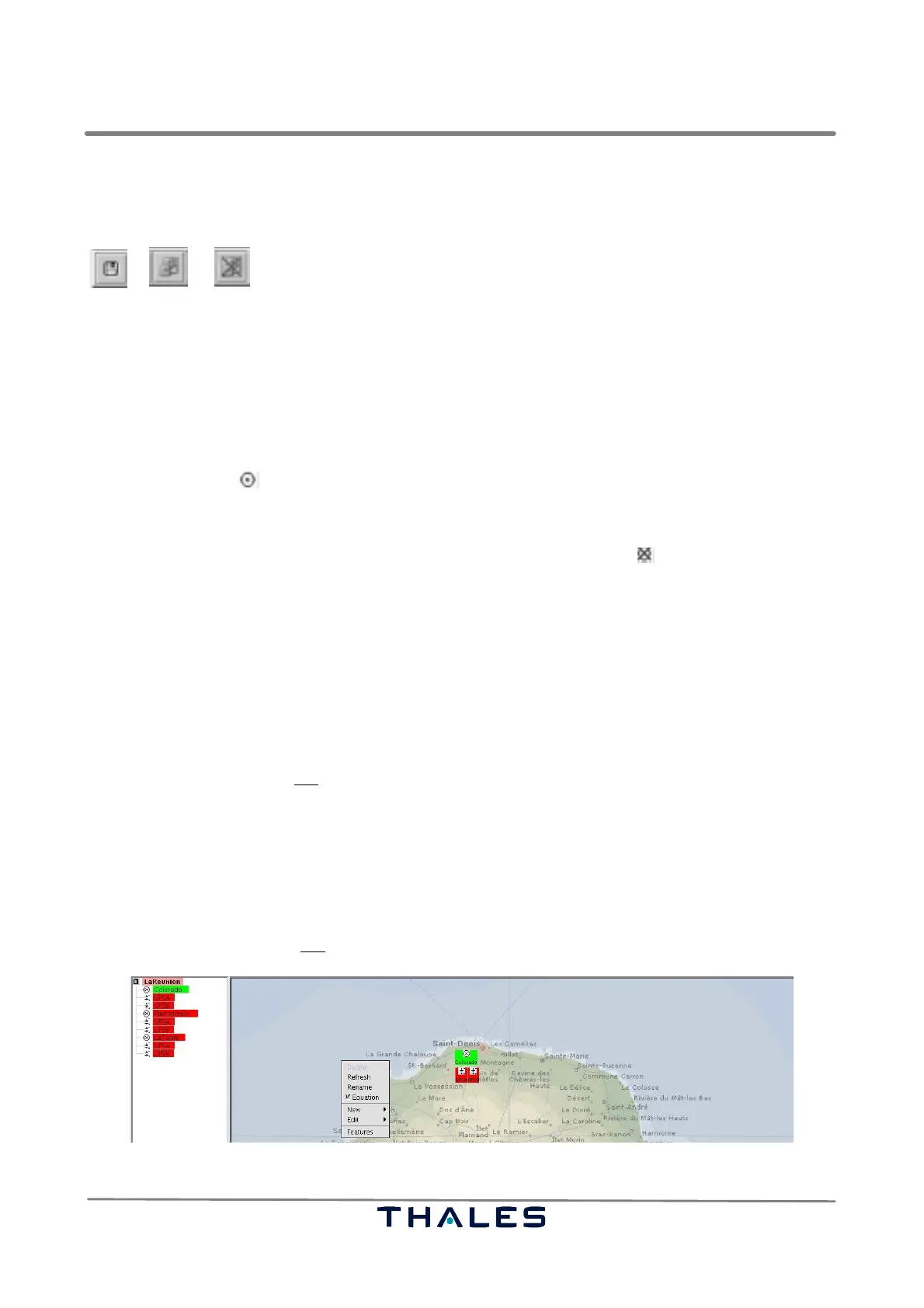
The Map menu (see Fig. 4−14) appears after clicking with the right mouse button on any point within
the Map Panel work space (not
on a GS icon).
Fig. 4−14 Map menu provided to the Supervisor within the map panel (example)



 To Next Page