AS 680/682
Description, Operation and Maintenance Record and Replay
ADS−B
4−53Ed. 10.07
4.6 ADS−B TOOLS: RECORD AND REPLAY
The record and replay tools can be categorized into two groups:
S One group contains the tools that handle so−called raw data. Raw data are the not decoded data
sent by targets. Raw data are the content of the downlink telegrams as byte sequence received
by the Ground Station at the interface to the telegram sender.
S The other group contains the tools that handle the ASTERIX data. ADS−B provides the ASTERIX
CAT 21 protocol, edition 0.20 and edition 0.23.
4.6.1 Starting the Tools
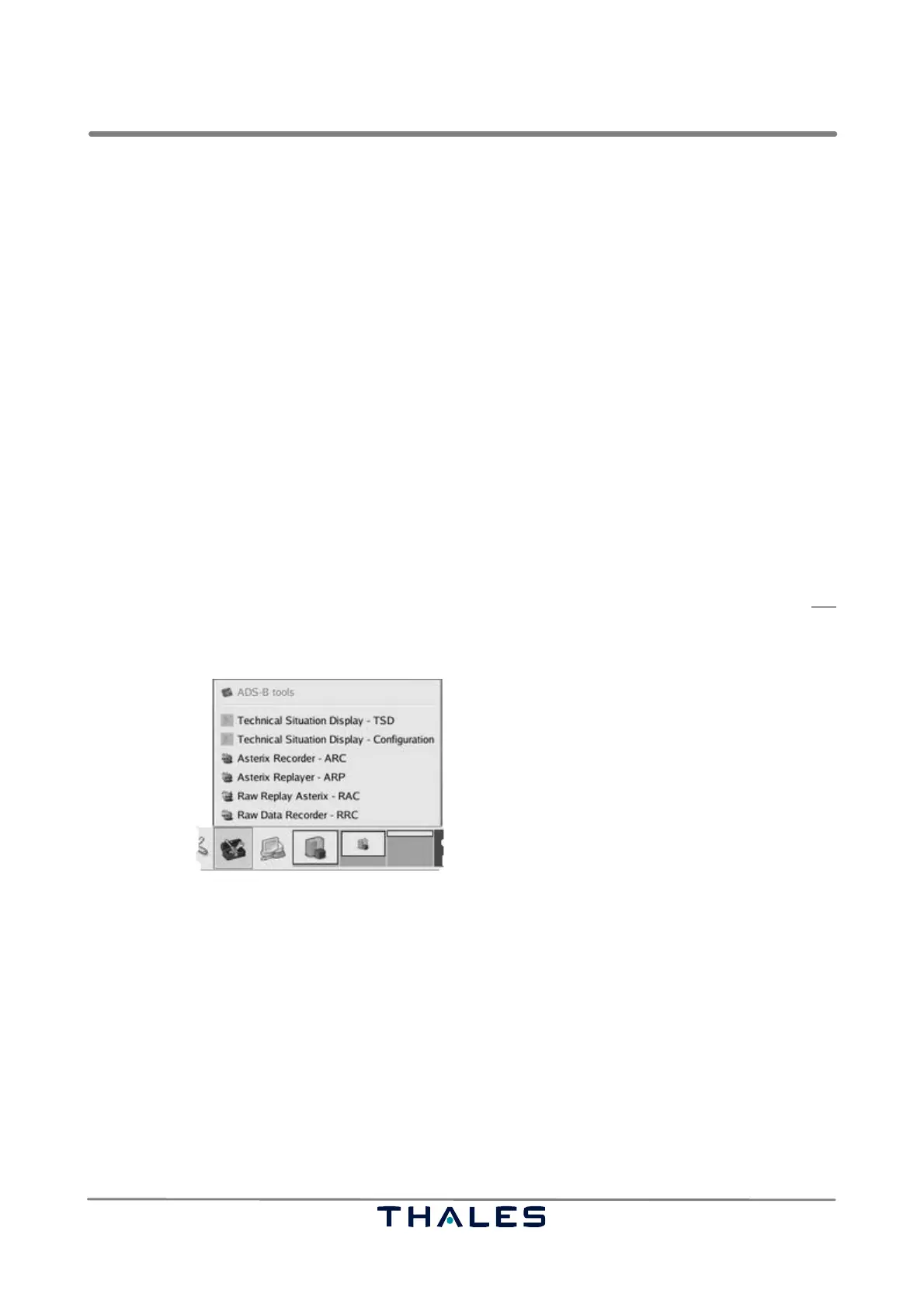
Starting a record or replay tool is done by means of the desktop panel at the bottom of the LCMS
screen or of the RCMS screen 0. The menu ’ADS−B Tools’ provides the available record and replay
tools (see Fig. 4−82).
The tools can be started in command line mode, too. This is a mode assuming that the environment
(e.g. the variable LD_LIBRARY_PATH) is set correctly and the command is executed in the path,
where the tools are found. Some experiences with the operating system are advantageous.
NOTE: Because of safety reasons, the replay tool ’RRP’ (Replay raw data send raw data) is not
available in the pull−down menu ’ADS−B Tools’, but only in command line mode. The
RRP tool is described in section 4.6.4 of this manual.
Fig. 4−82 Desktop panel menu with ’ADS−B Tools’ for record and replay (example)
4.6.2 General Structure of the GUI
After starting a record or replay tool, a window as shown in Fig. 4−83 pops up, which consists of the
components titlebar, menubar, toolbar, notebook and statusbar. These components are common to
all the record and the replay tools of the ADS−B system.
Notes, warnings and errors are shown as dialog boxes popping up.
The selected parameters in the notebook can be saved to configuration files. The tools can be started
from the terminal with a given configuration file name, e.g. ‘recordraw –g −−config myConfigura-
tion.cfg’. The default configuration file name has a name according to the corresponding tool name
and the extension *.cfg, e.g. rawrecord.cfg.



 To Next Page