Advanced functions
20
EN
Configuring AV sockets
You can configure your TV set according to the equipment you connect to it.
Display the
OVERVIEW menu using the MENU button. Select the Installation
option and press OK to confirm.The Installation menu appears. Select the AV
settings option and press OK to confirm.
Follow the messages on screen and the instructions below explaining how to configure the
AV sockets.
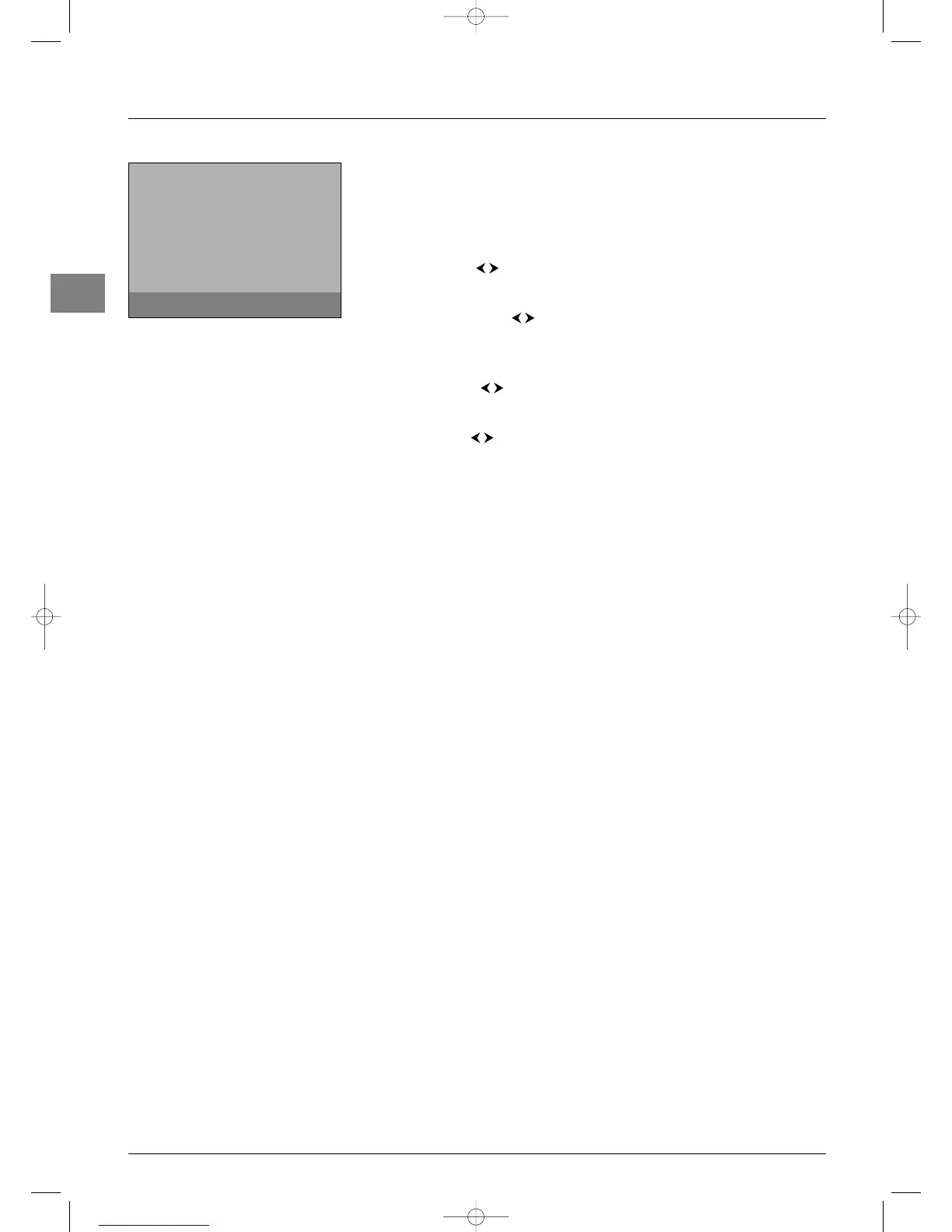
AV1 name: use the buttons to select from the list the name of the equipment
connected to this socket. If the factory preset names do not suit you, select
AV1_ _ _ and
enter another one, following the screen messages.
AV1 video input: use the buttons to select from the list the type of video signal
transmitted by the equipment connected to the AV1 socket.
Note: Select RGB if no picture is displayed when you connect a games console.
Repeat the above procedure to configure the AV2 and AV3 (depending on model) sockets.
CMP name: use the buttons to select from the list the name of the equipment
connected to this socket. If the factory preset names do not suit you, select
CMP_ _ _
and enter another one, following the screen messages.
DVI input: use the buttons to select from the list the type of video signal
transmitted by the equipment connected to the DVI socket.
Press
EXIT to close the menu. Select the option Return and press OK to return to the
Installation menu.
Return
AV1 name ¨ DECOD.
AV1 video input RGB...
AV2 name VCR1
AV2 video input S-Video...
AV3 name CAMCOR...
AV3 video input Video...
CMP name CMP
DVI input PC
AV settings
Select the name of the device
connected to AV1.


 To Next Page