Other information
34
EN
Connecting an amplifier
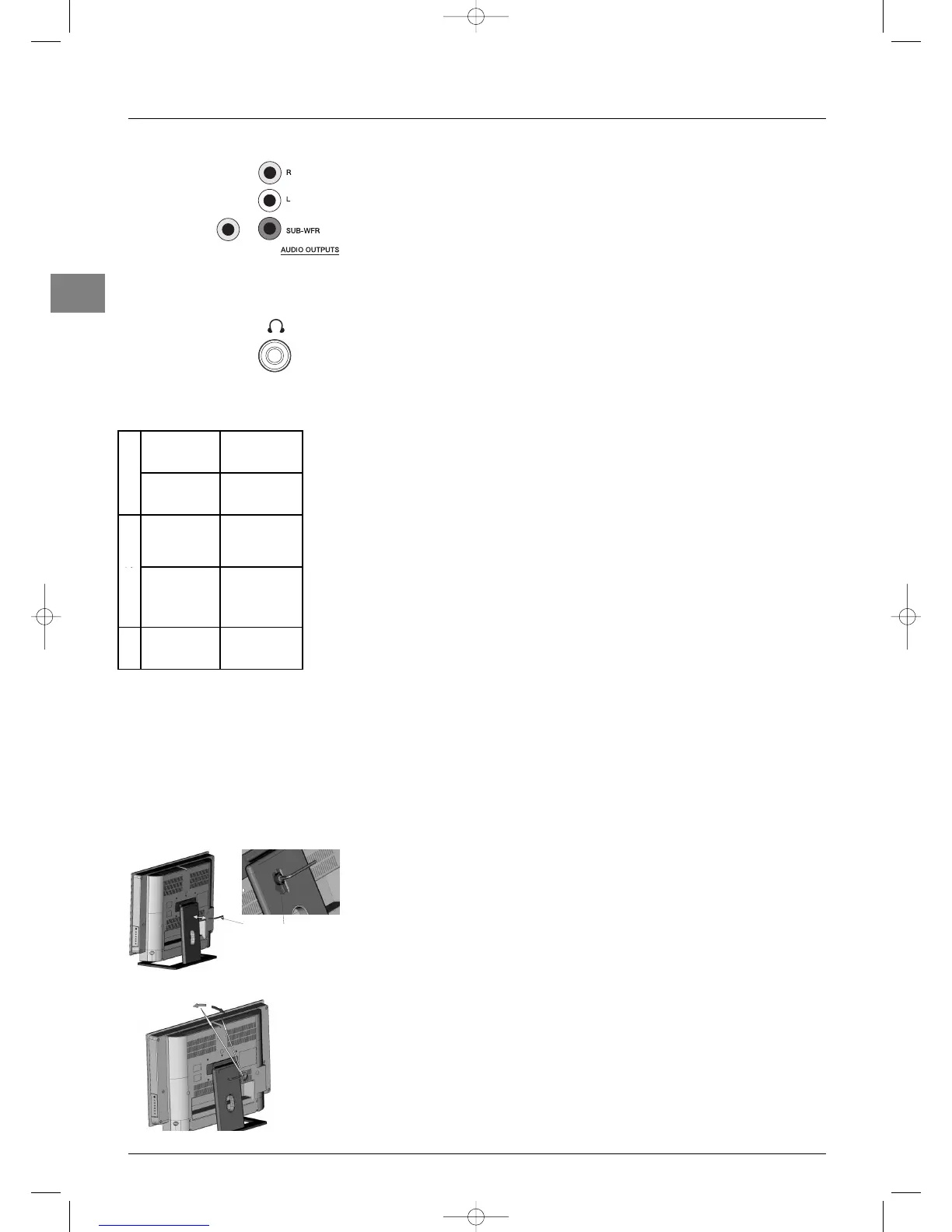
You can connect an amplifier and 2 speakers to replace your television’s side speakers.
Connect your television’s left L and right R RCA sockets to the amplifier’s L and R
inputs.Configure the set as follows (see page 13):
Sound menu Other settings menu
Sound type: Stereo Left/Right speakers: External
Sound mode: Normal Subwoofer: None
The television’s side speakers and subwoofer are now disabled.Adjust the volume using the
amplifier.
Connecting headphones
Use the relevant socket on the right side of the TV set to connect headphones or stereo
earphones. Refer to page 12 on how to adjust the headphone volume.
Connecting a video recorder
You are recommended to connect a video recorder via the SCART socket to obtain
optimum picture and sound quality. However, you can also connect a video recorder to the
TV set only using the aerial socket.
If you select the latter option, switch the video recorder on and play a tape.Then use the
Auto-update option from the Installation menu to search for the appropriate
channel for the video recorder (refer to the relevant section).You should assign channel 99
to it to ensure enhanced picture quality when tapes are being played and in pause mode.
Copying cassettes
Connect the VCR recording unit to the AV2 socket. Connect the playing unit to the AV1
socket.
About NexTView Link
NexTView Link is an “intelligent” link, which can be used to set up channels and as an easy
way to set programmes for recording on a video recorder with the NexTView Link
function or similar (Easy Link, Smart Link, Megalogic, etc.) from a television already set up.
The video recorder should be connected to the AV1 socket using a Scart AVLink cable.
Important: If you’ve purchased your video recorder before 1997, it may not support the
record feature.
Setting up channels
The NexTView Link can be used to automatically download the terrestrial and cable
channels already stored in the television to the video recorder.They will be arranged in the
same order on both items of equipment.
Refer to the instructions for your video recorder to find out how this is done.
Setting a programme to record
The NexTView Link function can also be used as an easy way of setting a programme to
record from Program Info on your television (see paragraph “Recording a programme” on
page 22).
Immediate recording
The NexTView Link function can be used to record what you are currently watching.You
simply press the relevant button on the video recorder remote control (usually REC) and
the recorder will automatically switch to the same channel as the television and start
recording.
Refer to the instructions for your video recorder to find out the relevant button to press
and for more information on the subject.
OAdjustment of the screen inclination
Fig. 1: Engage the hexagonal key (1) in the hole (2) at the back of the stand.
Fig. 2:Turn the key clockwise to increase the inclination (0 to 8°).
Turn the key anti-clockwise to reduce the inclination.
PLAYING
Equipment
Video recorder
or
Camcorder
Socket
AV1 Scart
RECORDING
Equipment
Video recorder
or
Camcorder
Socket
AV2 Scart
Call
programme
AV1


 To Previous Page