E-DOC-CTC-20090507-0002 v1.0
57
6 Thomson Gateway GUI
6.3.1 Remote Access/Assistance
Introduction
The Remote Access/Assistance page allows you to make your Thomson Gateway accessible for remote
support. Remote assistance implies one remote assistance session while remote access can be used for
multiple remote assistance sessions.
Enabling Remote Access/Assistance
Proceed as follows:
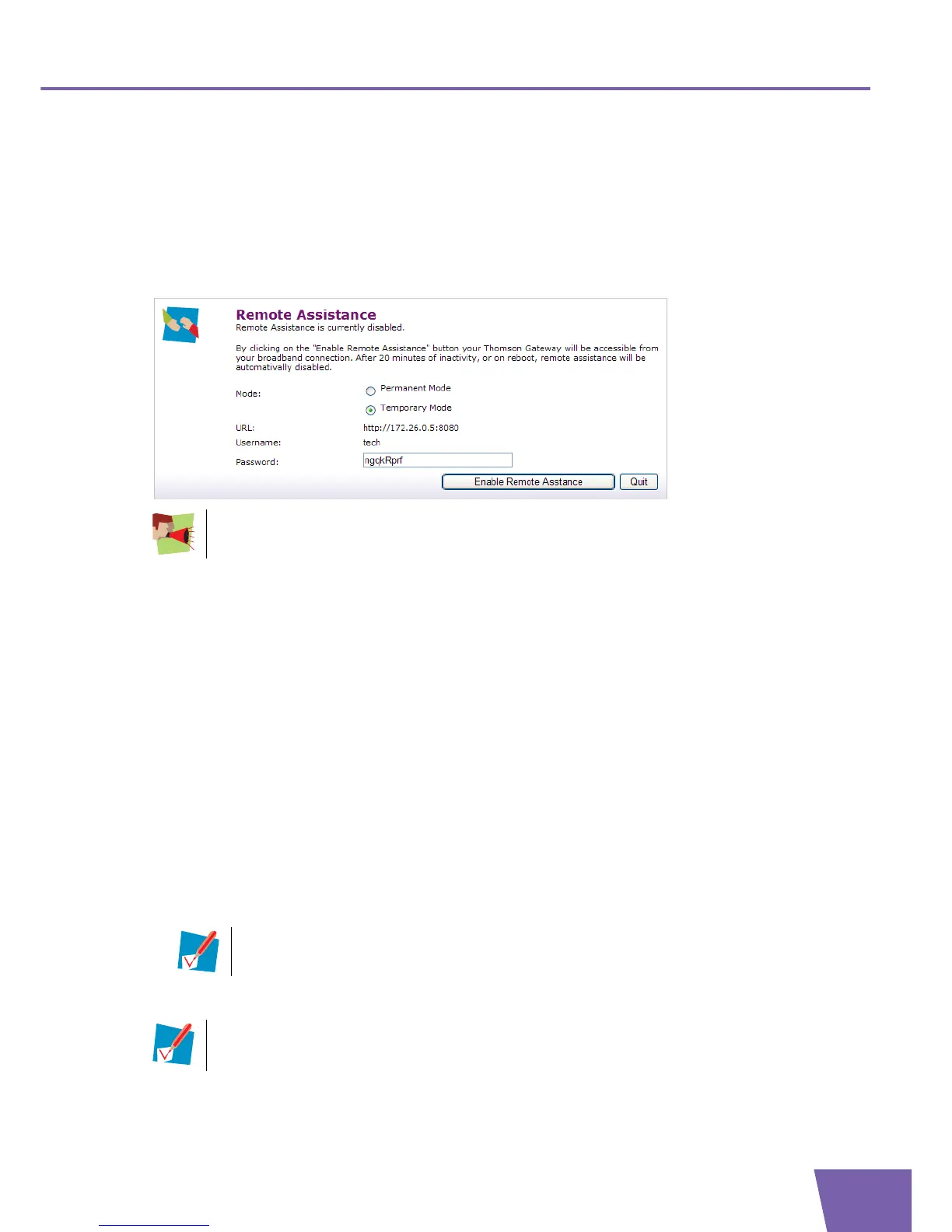
1 Complete and check the following parameters:
Mode:
Permanent Mode (Remote Access)
The remote session ends when the remote user ends the session or after restarting your
Thomson Gateway.
Temporary Mode (Remote Assistance)
The remote session will be automatically disabled, after 20 minutes of inactivity or on reboot.
URL
A remote user can access your Thomson Gateway via the specified URL.
User name and Password
This user name and password are needed to access your Thomson Gateway remotely. If desired, you
can change the automatically generated password in the Password text box.
2 Click Enable Remote Access/Assistance to pass your parameters to your technical support, in order for
them to be able to access your Thomson Gateway.
It is now possible for a remote user to access your Thomson Gateway via the specified URL using the
provided user name and password.
Before you can enable remote assistance, you must be connected to the Internet.
Once a remote authenticated session started, no other remote sessions can be started on the
Thomson Gateway.
You can replace the IP address in this URL by the dynamic DNS host name if you enabled and
configured dynamic DNS (+ link). For more information, see ”6.3.6 Dynamic DNS” on page 70.
Example: https://141.11.249.150:51003 can be replaced by https://dummy.dyndns.org:51003


 To Next Page