6-31
6 SPECIAL MODE (Menu Mode)
6.6.5 Set OCC and BS
To set the Occupied Point and Backsight Point, carry out the following operating procedure.
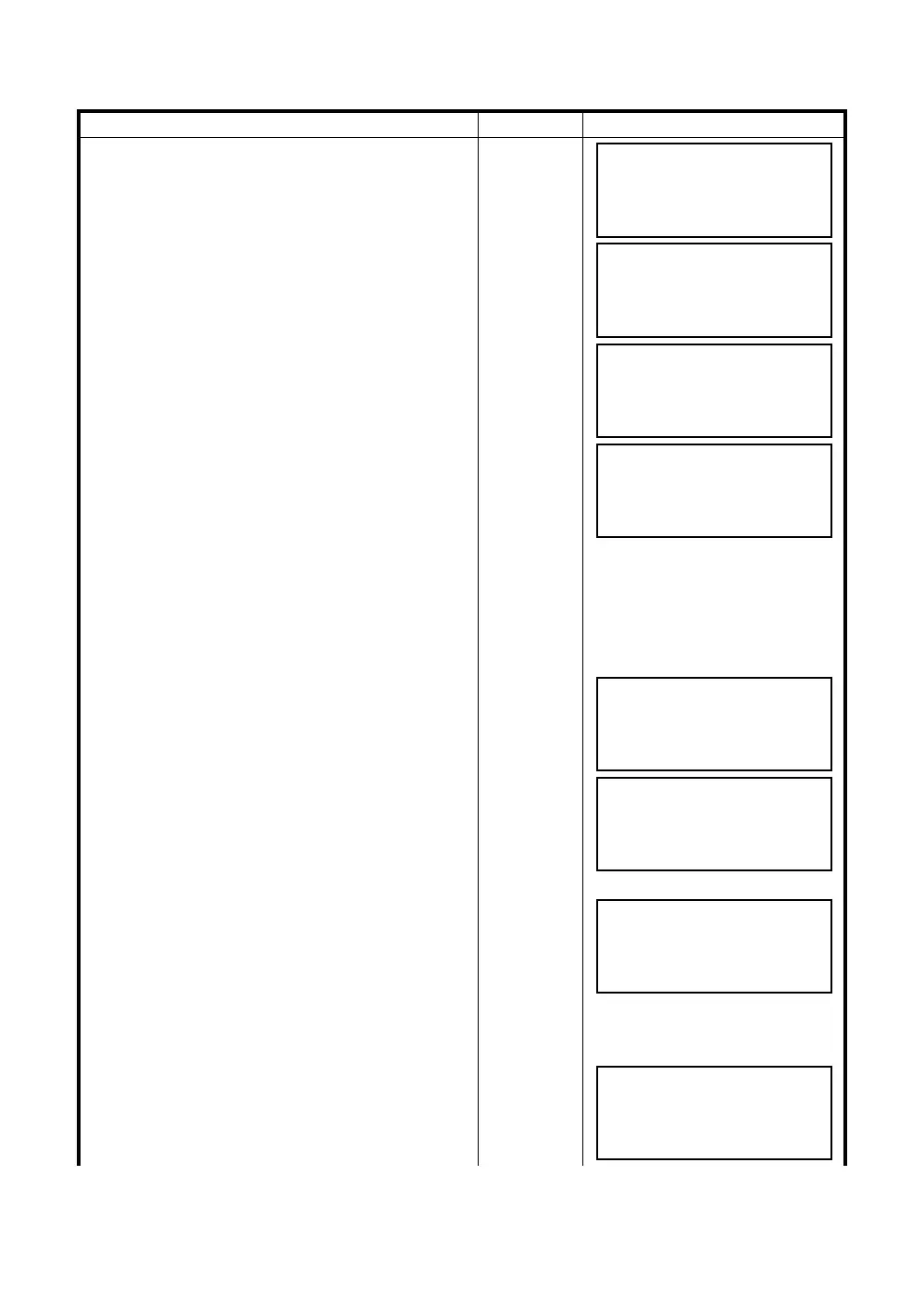
Operating procedure Operation Display
1 After pressing the [MENU] key, press the [F4](P
↓
),
[F1], [F4] key to get the programs menu on page
2/2.
[MENU]
[F4]
[F1]
[F4]
2 Press the [F3], [F2], [F1] key.
(Refer to “Set OCC and BS” on page 24.)
[F3]
[F2]
[F1]
3 Press the [F1] key. *1)
[F1]
4 To input OCC. PT, press
the [F1](COORD. DATA) or [F2](ROAD DATA) key.
COORD. DATA:
Choose the data from Coord Data and set the
Occupied Point.
ROAD DATA:
Create the data from Road Data and set the
Occupied Point.
(Example: ROAD DATA)
[F2]
5 Input OCC. PT, press the [ENT] key.
Input
OCC. PT
[ENT]
6 Press the [ENT] key.
LEFT or RIGHT: Use the offset point.
CENTER: Use the center point.
(Example: CENTER)
[ENT]
7 Press the [F3](YES) key.
[F3]
8 Input the backsight.
9 Press the [ENT] key.
Input
Backsight
[ENT]
PROGRAMS 2/2
F1:AREA
F2:POINT TO LINE
F3:ROAD P
↓
OCC&BS
F1:OCC&BS
F2:RESECTION
OCC&BS
F1:COORD. DATA
F2:ROAD DATA
OCC.PT
CHAIN=
––– ––– [CLR][ENT]
CHAIN:1000.000
>CENTER
LEFT RIGHT ––– ENTER
CHAIN:1000.000
N : 0.000 m
E : 0.000 m
>OK ? [YES][NO]
BACKSIGHT
CHAIN=
––– ––– [CLR][ENT]
CHAIN: 0.000
>CENTER
LEFT RIGHT --- ENTER



 To Next Page