63
Chapter 11
Specify Your Network Settings
4 ) In the Remote IPSec Gateway (URL) column, Enter Site B’s WAN IP address.
5 ) To configure Site A’s LAN:
In the Tunnel access from local IP addresses column, here we take Subnet Address
as an example. Then input the LAN IP range of Site A in the IP Address for VPN
column, and input Subnet Mask of Site A.
6 ) To configure Site B’s LAN:
In the Tunnel access from local IP addresses column, here we take Subnet Address
as an example. Then input the LAN IP range of Site B in the IP Address for VPN
column, and input Subnet Mask of Site B.
7 ) Select the Key Exchange Method for the policy. We select Auto(IKE) here.
8 ) Enter the Pre-Shared Key for IKE authentication. Then keep Perfect Forward Secrecy
enabled.
Note:
Make sure Site A and Site B use the same key.
9 ) Leave the Advanced Settings as default value. Then click Save.
3. Configure on Site B (remote network). Refer to step 2 configuration on Site A and
make sure that Site A and Site B use the same pre-shared keys and Perfect Forward
Secrecy settings.
4. The Status column will change to Up if the VPN connection has been set up
successfully.
5. Check the VPN connection. You can ping site B’ LAN IP from your computer to verify
that the IPSec VPN connection is set up correctly.
To check the VPN connection, you can do the following.
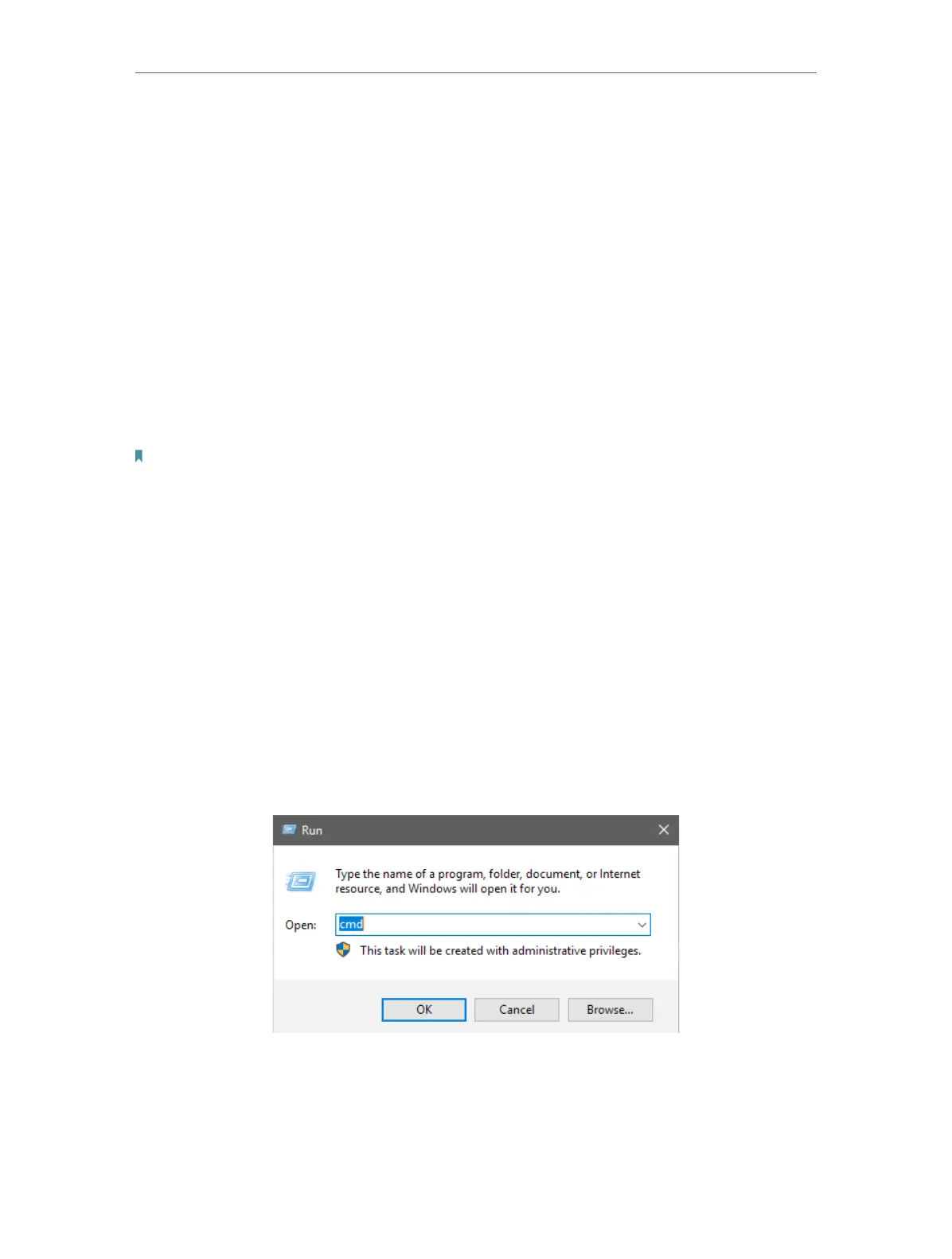
a . On the host in Site A, press [Windows Logo] + [R] to open Run dialog. Input “cmd”
and hit OK.
b . In the CLI window, type in “ping 192.168.2.x” (“192.168.2.x” can be IP address of any
host in Site B). Then press [Enter].











 To Next Page