V1.2 09/01/15 UD0130 Page 14 of 63
3.6 CHANGE PIN
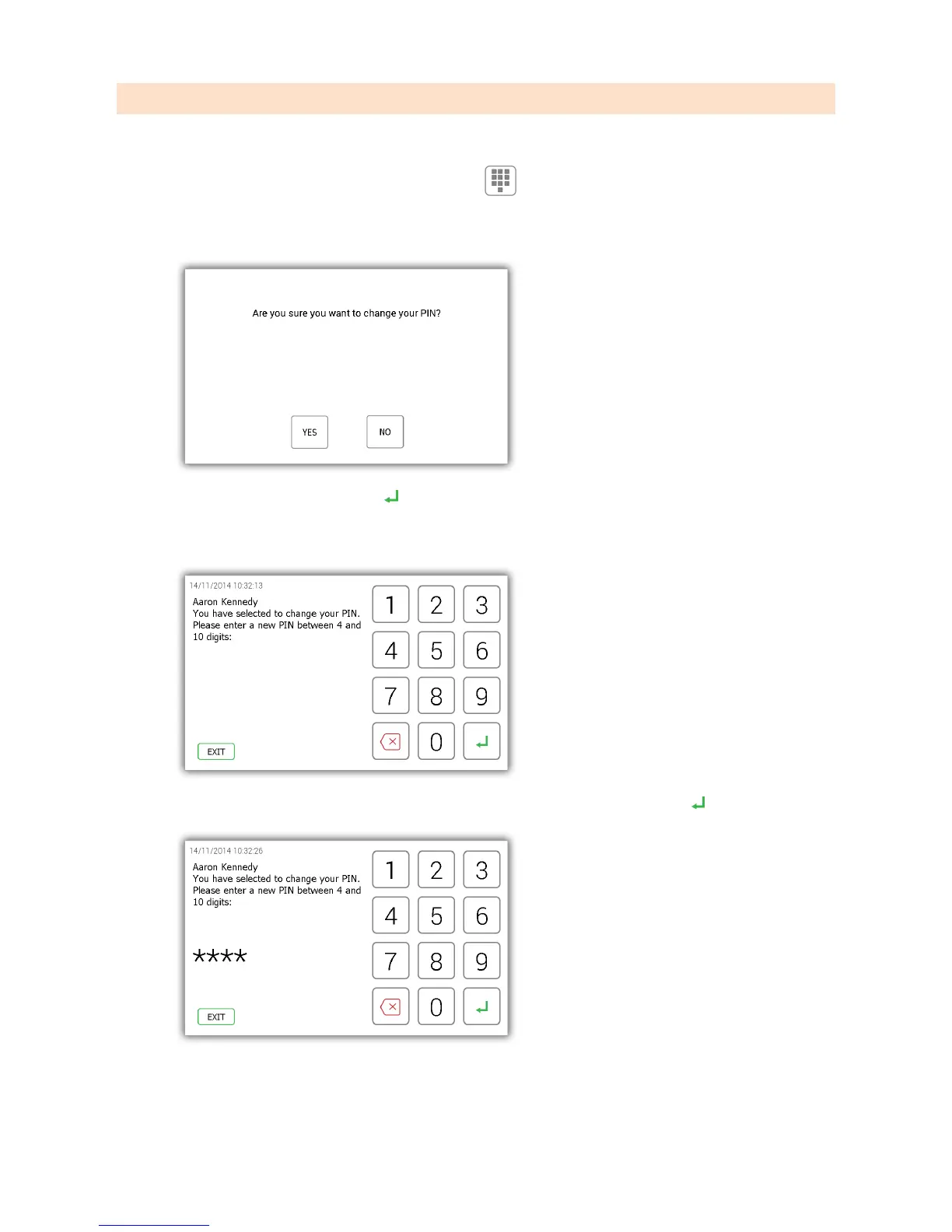
A user can change their PIN by selecting the change PIN button once they have logged in.
1. Click the change PIN icon from the logged in screen
2. A message will appear asking if you wish to change your PIN. Click Yes.
3. Enter your new PIN and click enter .
NOTE: your PIN must be at least four digits long but can be no longer than ten.
4. You will be prompted to enter your new PIN a second time for clarification. Click enter .
5. A message will be displayed stating your PIN change was successful. You will then be taken back to the login
screen.



 To Next Page