V1.2 09/01/15 UD0130 Page 20 of 63
4.2 USERS
From the admin menu click the user’s button. To add, edit or delete a user, login to the system and navigate to the
admin menu. From the admin menu select the user’s button.
4.2.1 ADDING A STANDARD USER
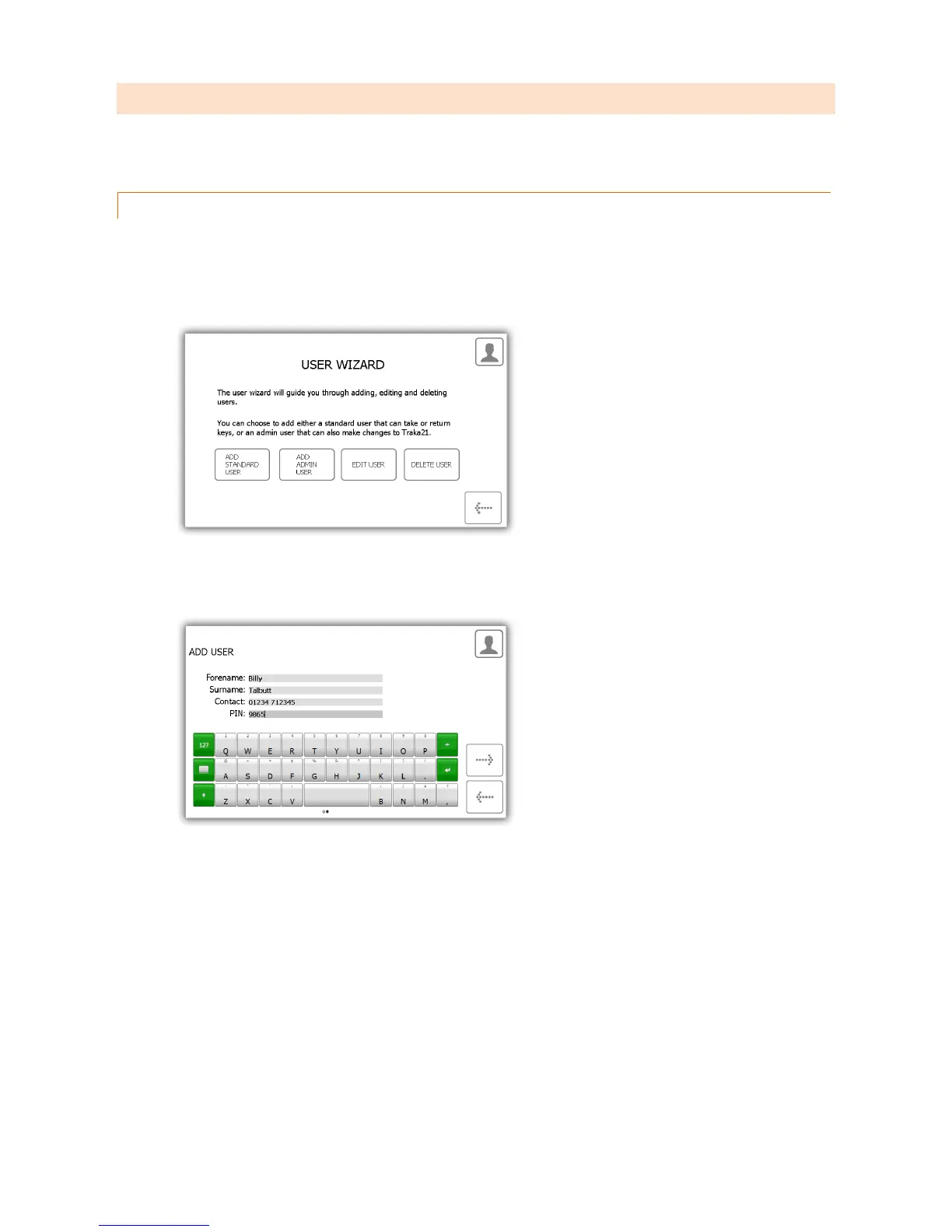
A standard user does not have access to the admin menu or any reports. This user will only be able to remove and
return keys. When the User Wizard appears you will have many options to choose from.
1. Select the Add Standard User button.
2. The user details window will appear allowing you to enter the user’s forename, surname, contact number
and PIN. Enter the details and click the forward button.
Contact – This field is for a phone number, fax number, email or any means of contact that the
user is reachable by.
PIN – The PIN (personal identification number) is the numeric password that will grant you access
into the system. It must be between four and ten digits long.
3. Next you will need to select the user’s permissions. Using the touch screen simply select which iFobs the user
will have access too. The green circles with white ticks show positions the user currently has access to. To
remove access, simply click the button to turn it to a red circle with a white line. When you have finished click
the forward button.



 To Next Page