TVP-SP2 User’s Guide
14
Auto Switch Audio Device
Enabled: When the USB Speakerphone is plugged, it will be automatically set
as Skype’s default audio devices. When unplugged, Skype’s audio device
automatically switches to Windows default audio device, e.g., your sound card.
Disabled: This option keeps Skype’s audio device settings unchanged, even if
your Skype phone is plugged. To let Skype use the USB Speakerphone, you
need to manually specify your USB Speakerphone via Tools > Options >
Sound Devices.
Auto Run Skype when Plug in
When enabled, if you are not logging in to Skype, plugging the USB
Speakerphone will launch Skype and automatically log you in.
Volume Control
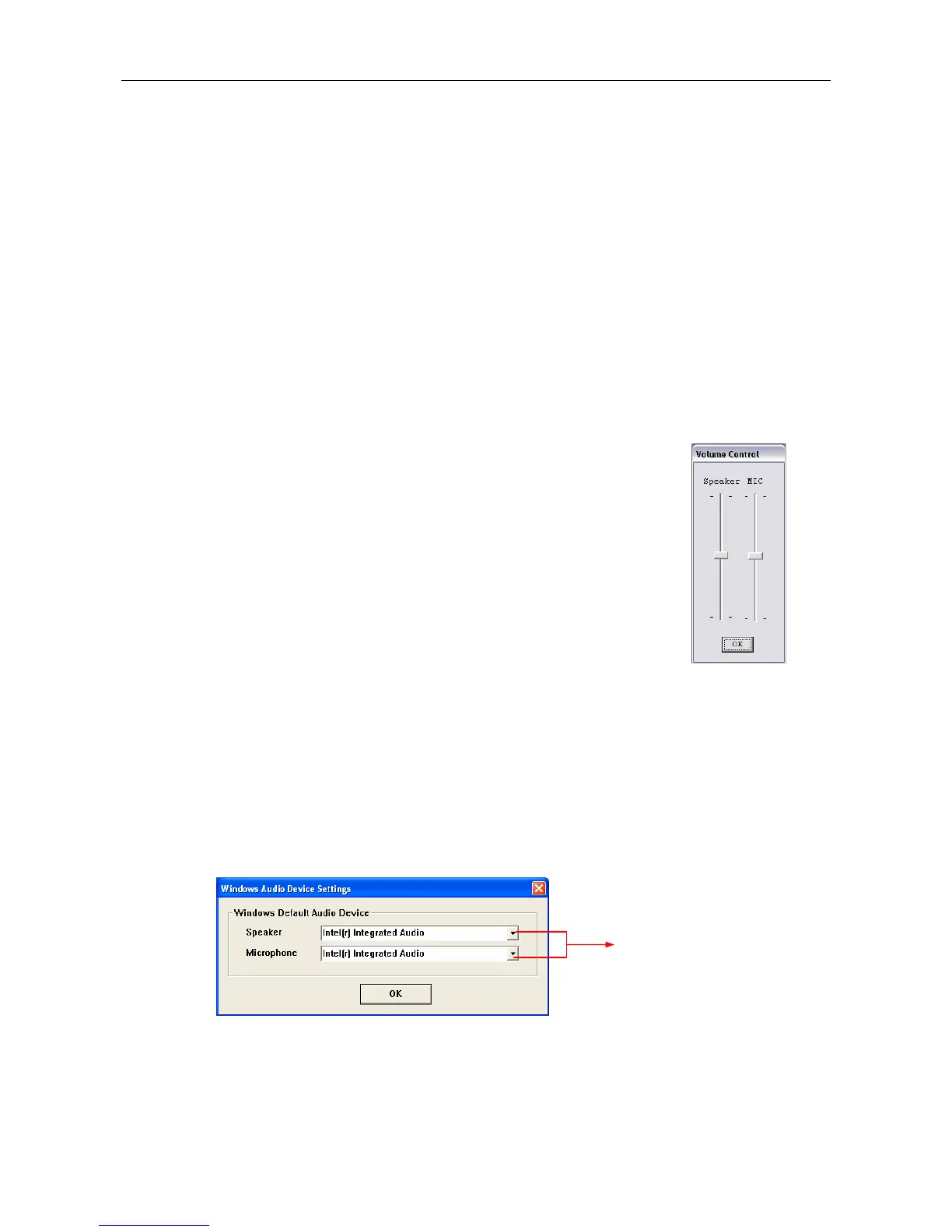
This item allows you to adjust the USB Speakerphone’s speaker
and microphone volume.
Windows Audio Device Settings
This dialogue box controls which audio device is used by Windows. It is a shortcut
to Windows audio device settings under Control Panel. The screenshot below
indicates a default setting, which allows Windows to still use the sound card for PC
music playback when a USB Speakerphone is plugged. If you prefer to use your
sound card for PC music playback, it’s suggested that you keep the defaults.
If USB Speakerphone (USB Audio Device) is selected, Windows will use it for
music placback/recording. Once the USB Speakerphone is unplugged, Windows
turns to use current available audio devices, e.g., the sound card, instead.
Only current available devices
appear in the drop-down list.



 To Next Page