Step 4 — Starting the Print on Palette
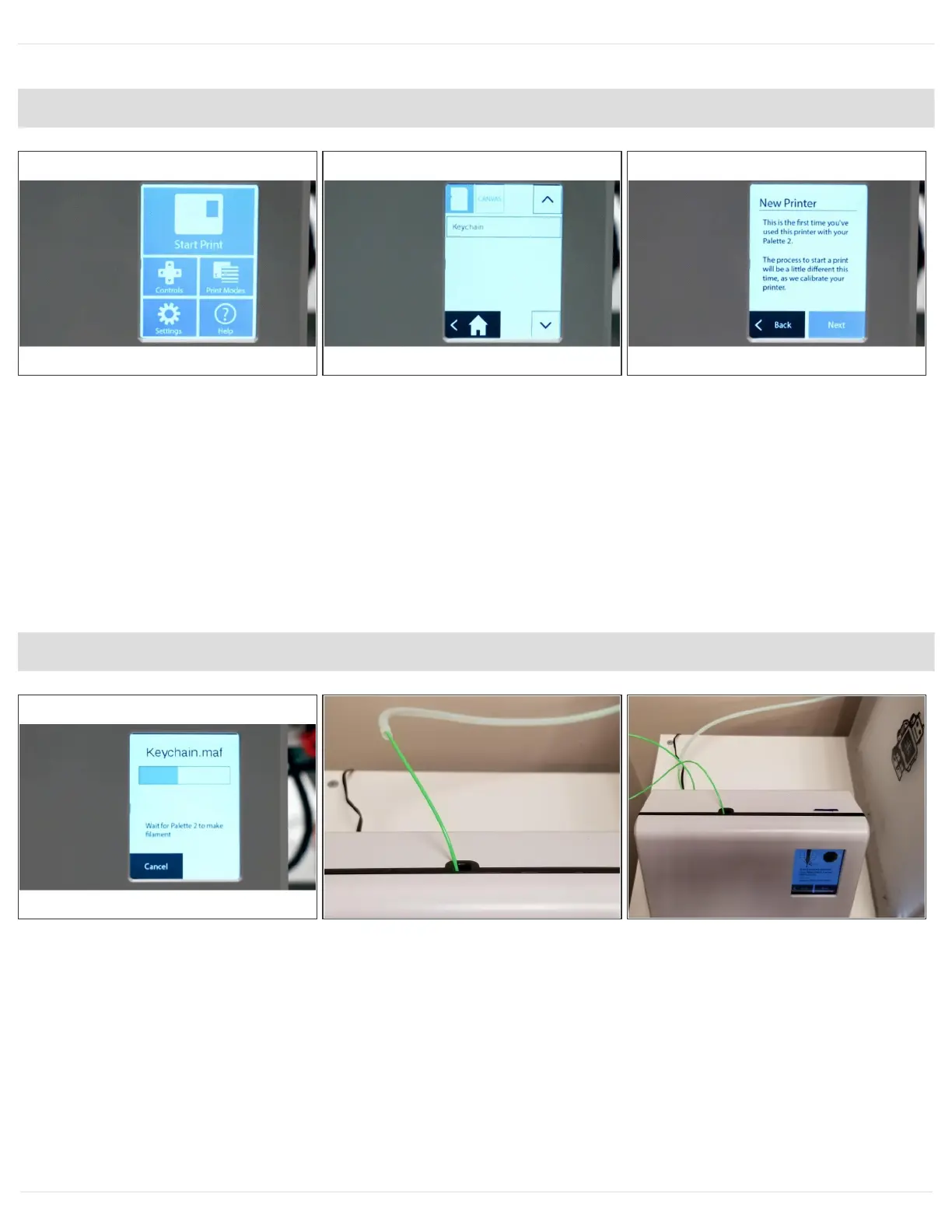
Turn on Palette 2 and select 'Start Print'.
On the top left corner of the screen, you can select to load a file from Palette's SD card (MAF file)
or via CANVAS Hub (MCF).
Palette 2 will recognize that this first time you have used it with this printer and will let you know
before you start the print. Please go ahead and tap 'Next'.
Step 5 — Load inputs and start splicing with Palette
Follow the onscreen instructions to clear the outgoing tube which you would have already
completed in step 3. Load filament into the inputs, making sure not to clear filament for any inputs
as clear filament is used later in the calibration process. Allow Palette 2 to output filament with the
outgoing tube disconnected.
This document was generated on 2021-12-22 12:23:35 AM (MST).
© 2021 support.mosaicmfg.com/ Page 5 of 9



 To Next Page