35
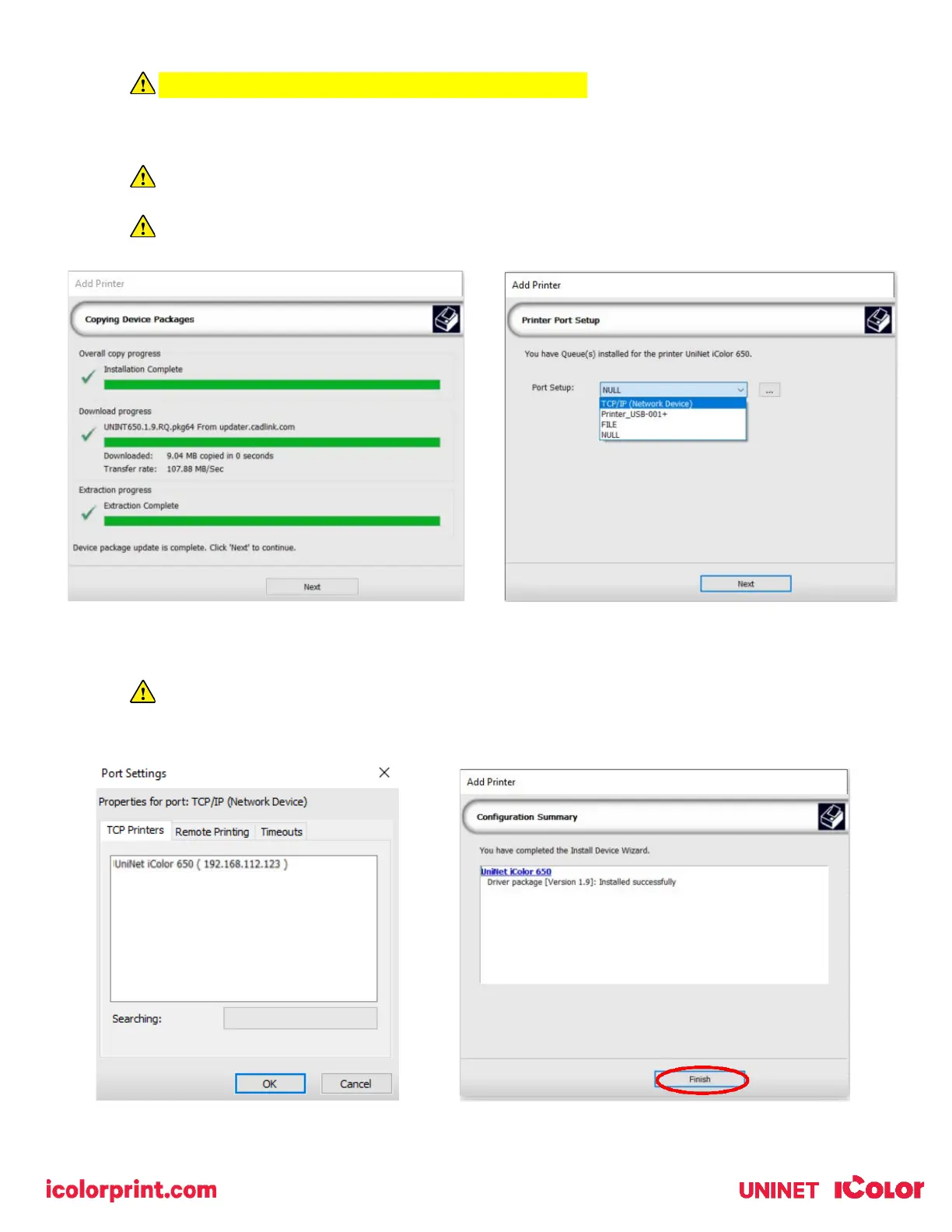
4) Click the ‘Port Setup’ dropdown and select how your printer is connect (Network or USB).
You must complete this step or you will not be able to print.
5) If connected via network (recommended), choose TCP/IP. If connected by USB, choose the printer as identified in
the drop down.
For USB connections, do not choose the port ‘Printer_USB-001+’. The proper port will also have the printer
name in the description.
All other ports will update automatically, it is only necessary to do this for one queue.
6) If connected via network, once TCP/IP is selected, the software will poll your network for available printers. Select
the proper IColor printer. Note that the IP address of the printer is displayed.
Be sure to set a static IP address for your printer so that the IP address does not change later. If this
happens, you will have to repeat this step.


 To Next Page