56
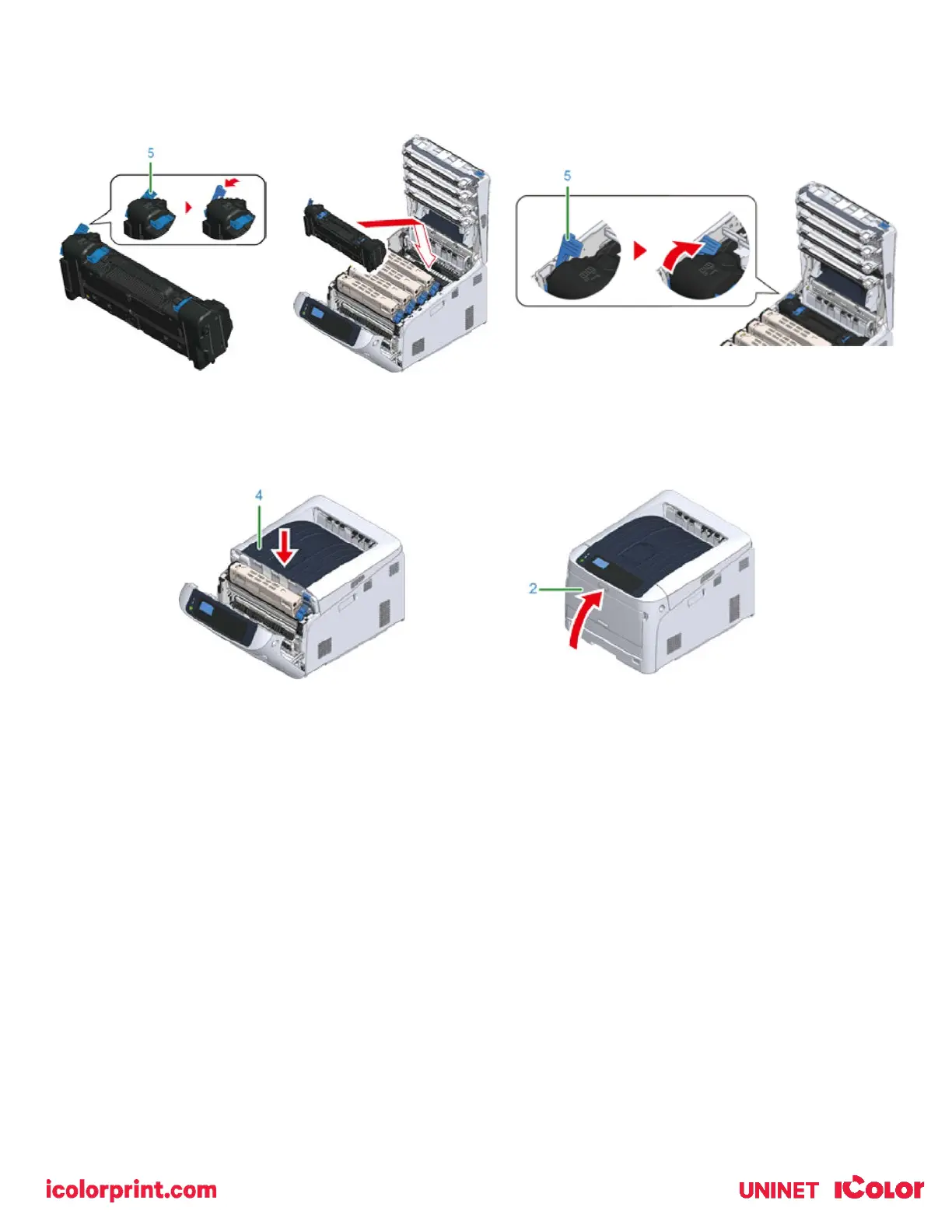
9) Hold the handle and place the new fuser unit into the printer.
10) Push back the left locking lever (5) of the fuser unit to lock.
11) Close the output tray (4) by pushing the center of the output tray firmly. Close the front cover (2).
When Paper Jams Occur
• This section describes how to handle when a paper jam occurs.
• Check the error code on the operator panel and see the corresponding section.
Error Code ‘370’, ‘371’, ‘373’
• A paper jam has occurred around the duplex unit.
• Note: Never duplex transfer paper, only use it for plain copy paper.
1) Take out the duplex unit (1) by pulling it upward while holding the center recess on the back of the printer.
2) Check for jammed paper inside the printer. If jammed paper remains, remove it.
• If the paper is not visible, check the innermost part of the printer.
• If the paper removed from the printer is shredded or torn, remove all paper fragments from inside the unit so that
none are left inside.


 To Next Page