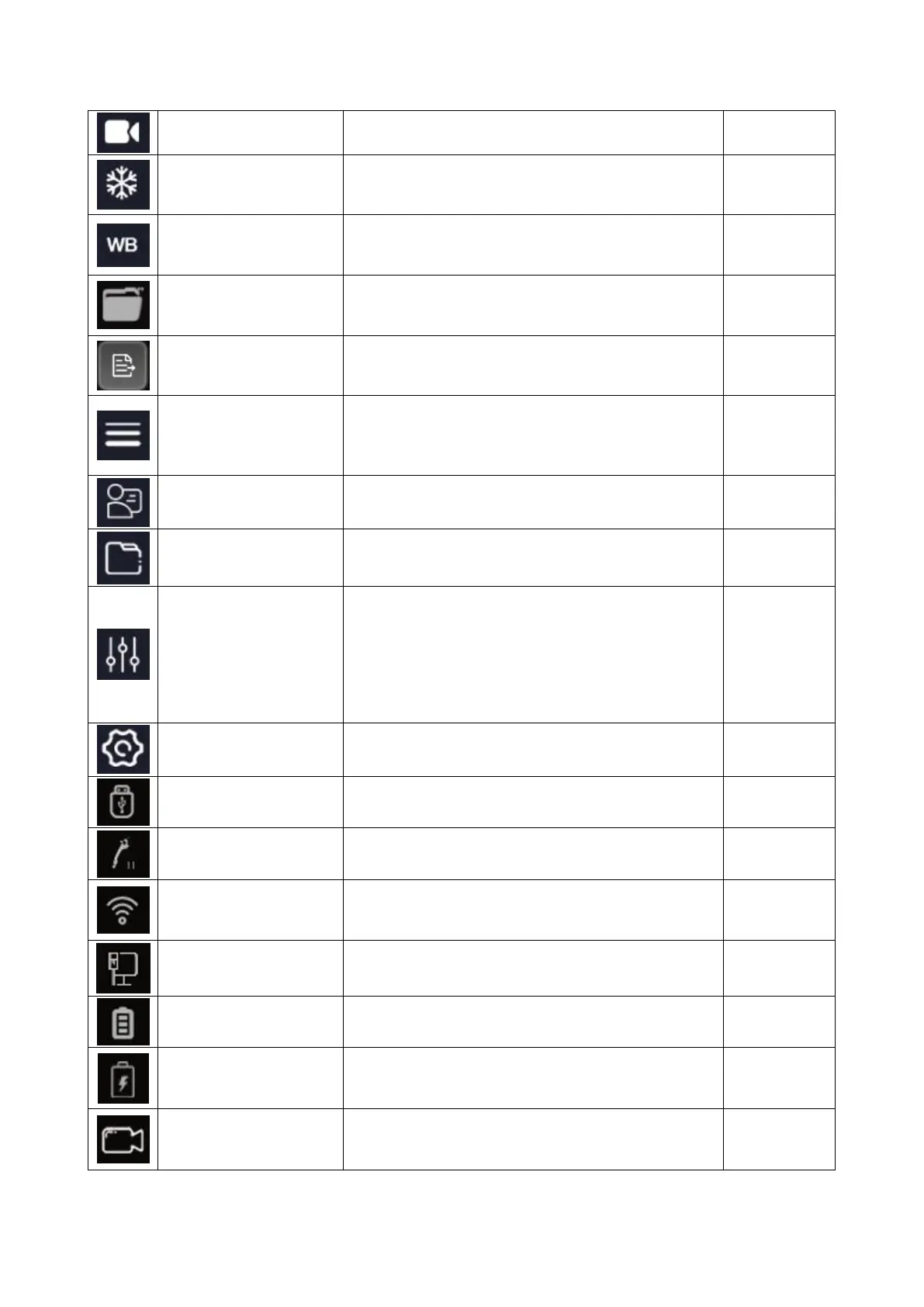
Tap this button to start recording a video. Tap it
again to stop recording
Tap this button to freeze the center image.
Tap this button to perform a manual white balance
operation on the center image.
Tap to call up the quick preview interface to
preview the currently taken image.
Tap to send the selected preview image to the
Case Report .
Tap to select the popup window, including the
patient information icon, file management icon,
image parameter adjustment icon, and system
setting icon.
Tap to enter the Patient Data menu.
Icon for the File Management menu.
Image parameter
adjustment icon
Tap to enter the image parameter adjustment
interface, and you can adjust the image
parameters such as red / green / blue
monochrome color bias, gamma curve, contrast
and sharpness.
Select department image modes, adjust
parameters, and save modes.
Icon for the System Settings menu.
U disk connection
status indication icon
Indicates the U disk insertion status, and it
appears when the U disk is inserted.
Indicates endoscope connection/disconnection
and endoscope insertion status.
Indicates WiFi connection/disconnection.
Eithernet connection
status indication icon
Indicates the connection state of the wired
network.
Indicates the battery base status.
After inserting the adapter for charging, the
charging symbol appears on the battery power
icon in the upper right corner of the display screen.
The remaining
recording time
indicates the icon
This icon and status bar reflect the remaining time.


 To Next Page