Appendix 3. Cybersecurity
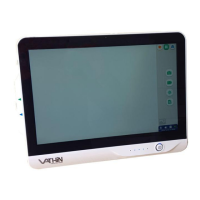
This appendix is intended for the IT network responsible at the organization where the Digital Video Monitor is
used. It contains technical information regarding the setup of the IT network and the devices connected to the
Digital Video Monitor. It also contains information regarding the types of data contained in and transmitted
from the Digital Video Monitor.
Digital Video Monitor can work normally in a non-network environment. At present, the network functions are
DICOM data transmission, LAN printing, and network timing. The DVM-D has Wi-Fi wireless transmission
capability, which can be accessed to the hospital network after obtaining access permission, and wireless data
communication with other equipment in the hospital. Whether the DICOM data transmission or Wi-Fi data
transmission, it will not be connected to the external Internet during the actual clinical application, but will
only be connected to the designated equipment inside the hospital, and work in the controlled network
environment inside the hospital.
The Digital Video Monitor does not allow any input from external devices (except from Vathin endoscopic
devices and secured software updates).
The endoscope, Digital Video Monitor and power adapter can form the minimum system unit. The real-time
image display and adjustment of the endoscope can be realized through the touch screen of Digital Video
Monitor. Essential functionality is secured in case of network problems.
Note:
The Digital Video Monitor does not allow any non-Vathin-licensed programs to be upgraded or otherwise
installed via a USB interface. If the installation package name, RAS authentication, installation package
hash value, or any parameter is inconsistent with the Vathin rule, the installation will be rejected. Even if
this installation package works properly on other Android systems, it will be judged as illegal software by
the Digital Video Monitor. The installation of non-authorized third-party applications will be prohibited. If
the installation is performed, the system will pop up a window indicating that the application is not
installed. If this pop-up window appears when your device is in normal use, it indicates that your device
may be under attack. In this case, remove the network cable and disable the Wi-Fi function on the
Settings screen to ensure that the device is disconnected from the network. When the attack affects the
function of the device, you can contact the local representative of Vathin to help you restore the basic
function of the product. Do not connect to the network until the network is secure. Please Feedback this
abnormal event to our after-sales mailbox by email.
After we receive the incident feedback, we will reply to the email address of the feedback incident,
including but not limited to the confirmation of the receipt of the incident, the information required for
the investigation of the incident, the results of the incident processing, etc.
Appendix 3.1. Network Setup
When preparing the network for connection to the digital video monitor, the following should
be considered:
Overview of the existing ports and their communication protocols


 To Next Page