37
User Manual
Finding Wrecks
To show the nearest Wrecks loaded in the C-CARD:
[MENU] + "FIND" + [ENTER] + "WRECKS" + [ENTER]
Press [ENTER] to locate the selected Wreck on the map.
Finding Obstructions
To show the nearest Obstructions loaded in the C-CARD:
[MENU] + "FIND" + [ENTER] + "OBSTRUCTIONS" + [ENTER]
Press [ENTER] to locate the selected Obstruction on the map.
Finding Port By Name
To select the Port By Name function following the procedure:
[MENU] + "FIND" + [ENTER] + "PORT BY NAME" + [ENTER]
Shows the list of all ports stored on the C-CARD in alphabetical order and allows
to search ports by name to locate the ports on the map. Press [ENTER] + [CLEAR]
to locate the selected Port by Name on the map.
Finding Port By Distance
To select the Port By Distance function following the procedure:
[MENU] + "FIND" + [ENTER] + "PORT BY DISTANCE" + [ENTER]
Shows the list of all ports stored on the C-CARD in closest distance order and
allows to locate the ports on the map. Press [ENTER] + [CLEAR] to locate the
selected Port by Distance on the map.
Finding Lakes Information
Searches for nearest Lakes Info:
[MENU] + "FIND" + [ENTER] + "LAKES INFO" + [ENTER]
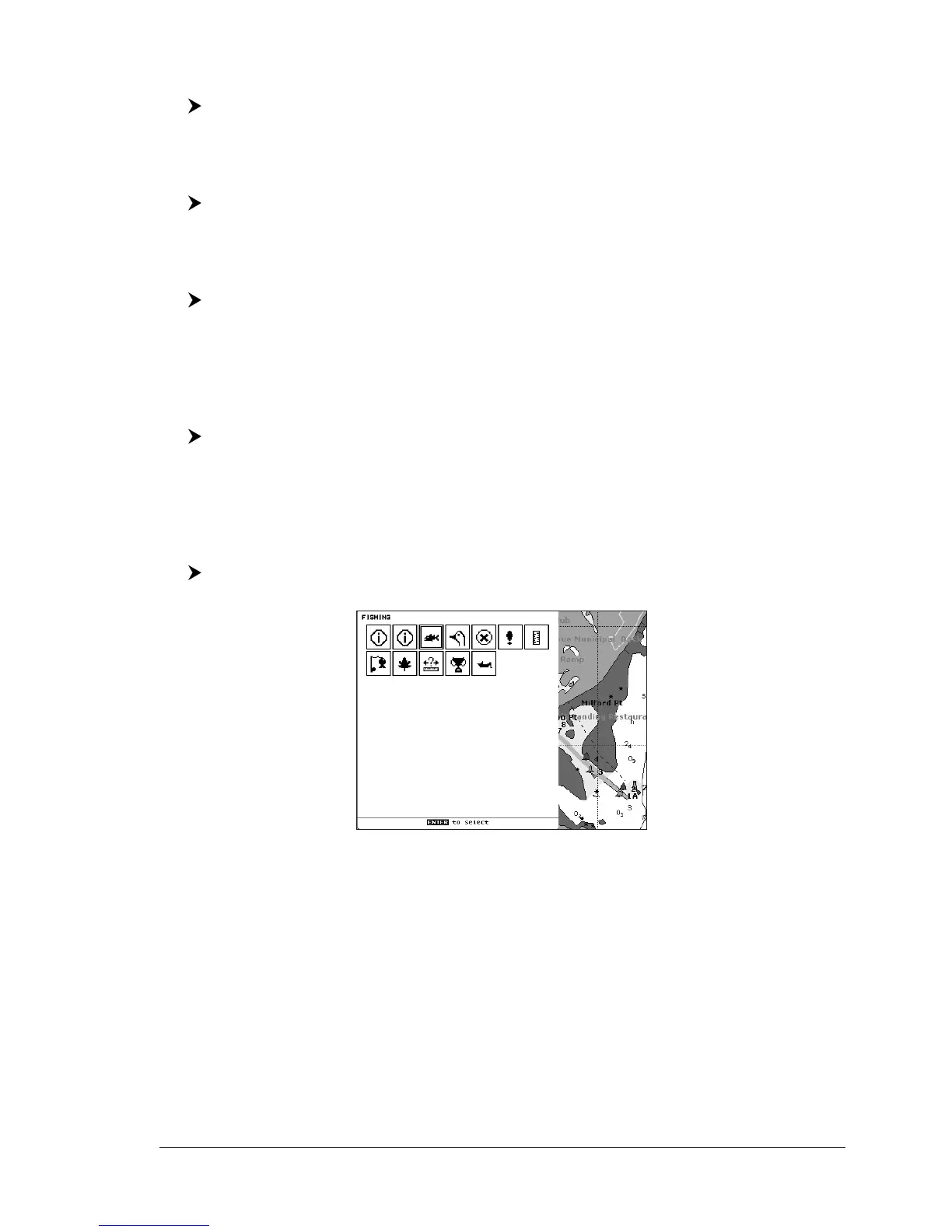
It founds the Outdoor Recreational Area objects. See the following picture:
Fig. 3.7 - Outdoor Recreational Area objects
Use the cursor key to select any objects and press [ENTER]. The list of the
nearest lakes containing the facility will be shown on the screen.


 To Next Page