58
User Manual
♦ Download
E
♦ Copy From CARD
E
♦ Forecast
E
♦ Real Time View
E
♦ Type of Data
E
Download
E
[MENU] + [MENU] + "WEATHER SERVICE" + [ENTER] + "DOWNLOAD" +
[ENTER]
Allows to connect the software to the Jeppesen Marine weather server and to
download Jeppesen Marine weather data directly via C-COM. It activates the fol-
lowing sub-menu:
Select Country to Call : Allows the selection of the country to call. The whole telephone number set is automatically
updated after every download.
SIM Pin : Allows inserting of the PIN of the SIM.
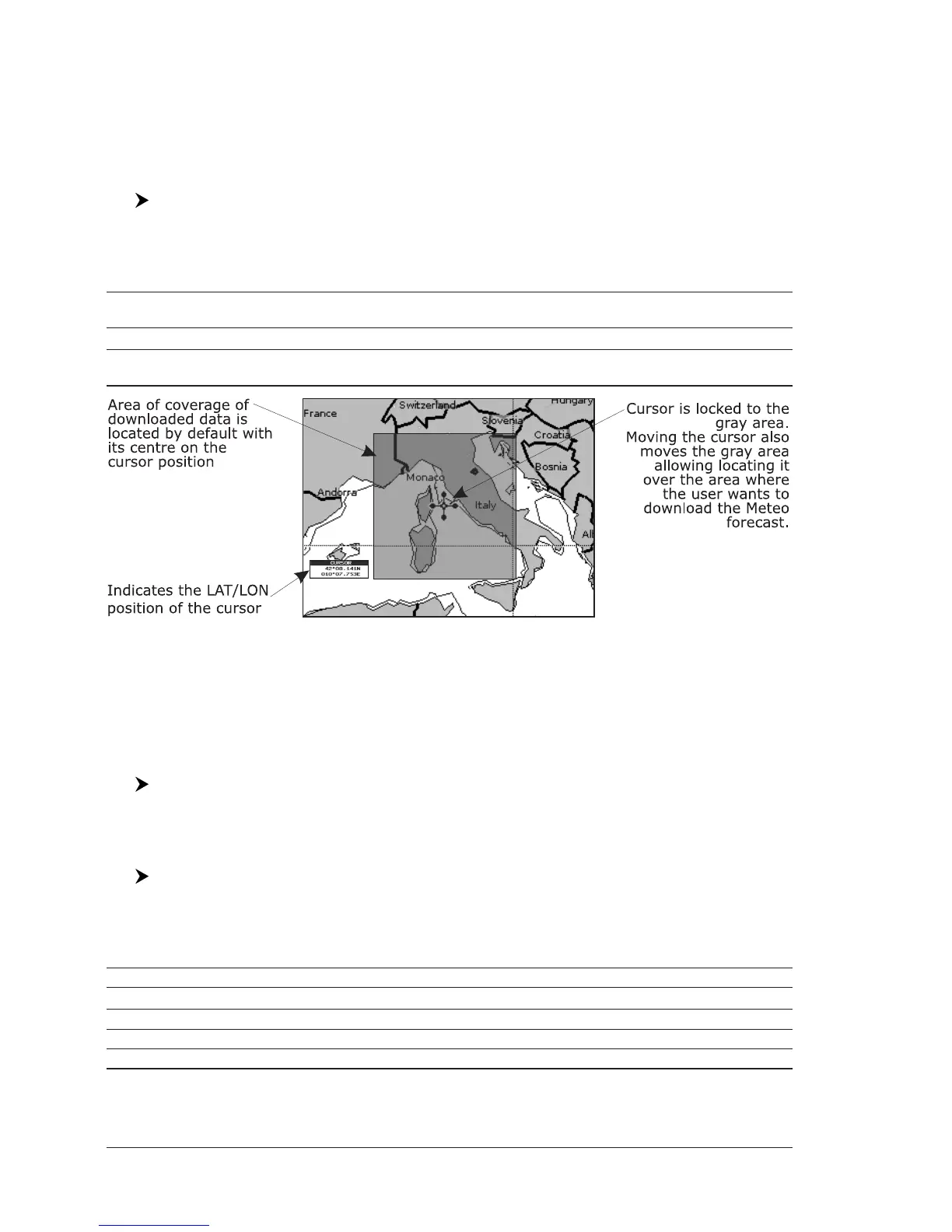
Download Area : Allows the weather download: a squared grey area, where the weather data will be
downloaded, is centered on cursor position. See the following picture.
Fig. 4.8a - Download Area
Press [ENTER] to activate the Weather Download: the whole data package
(see the previous "Weather data package" table) are downloaded. [CLEAR] allows
to interrupt the data download.
At the end of the operation press [CLEAR] to close the window.
Copy from CARD
E
[MENU] + [MENU] + "C-WEATHER SERVICE" + [ENTER] + "COPY FROM CARD"
+ [ENTER]
Allows the whole data package Weather loading from C-CARD.
Forecast
E
[MENU] + [MENU] + "C-WEATHER SERVICE" + [ENTER] + "FORECAST" +
[ENTER]
Allows selecting the Layer of specific weather data to be displayed on the screen
and to change date and time of the forecast preview.
The following functions are available:
Panning : default usage of the cursor key is the normal panning function.
Zoom in/out : zoom in/out functions are allowed as usual by using [ZOOM IN]/[ZOOM OUT].
Set of date and time : [ENTER] to modify date and time values.
Layer selection : [MODE] to cycle of the weather layers.
Exit : [CLEAR] to close the weather prediction page.


 To Next Page