3 ACCESSING AN RPC2 COMMUNICATIONS MODULE VIA THE WEB
INTERFACE
The RPC2 communications module can be accessed with a web browser once it is connected to a network. The browser
obtains direct access to the RPC2 module via a graphical user interface. The data and view varies according to the type of
rack PDU being viewed through the RPC2 module.
3.1 Web Interface Overview for Administrators
To log in to the web interface:
1. Open a web browser and enter the IPaddress of the rack PDU.
2. Log in as an administrator and press Enter to open the web interface.
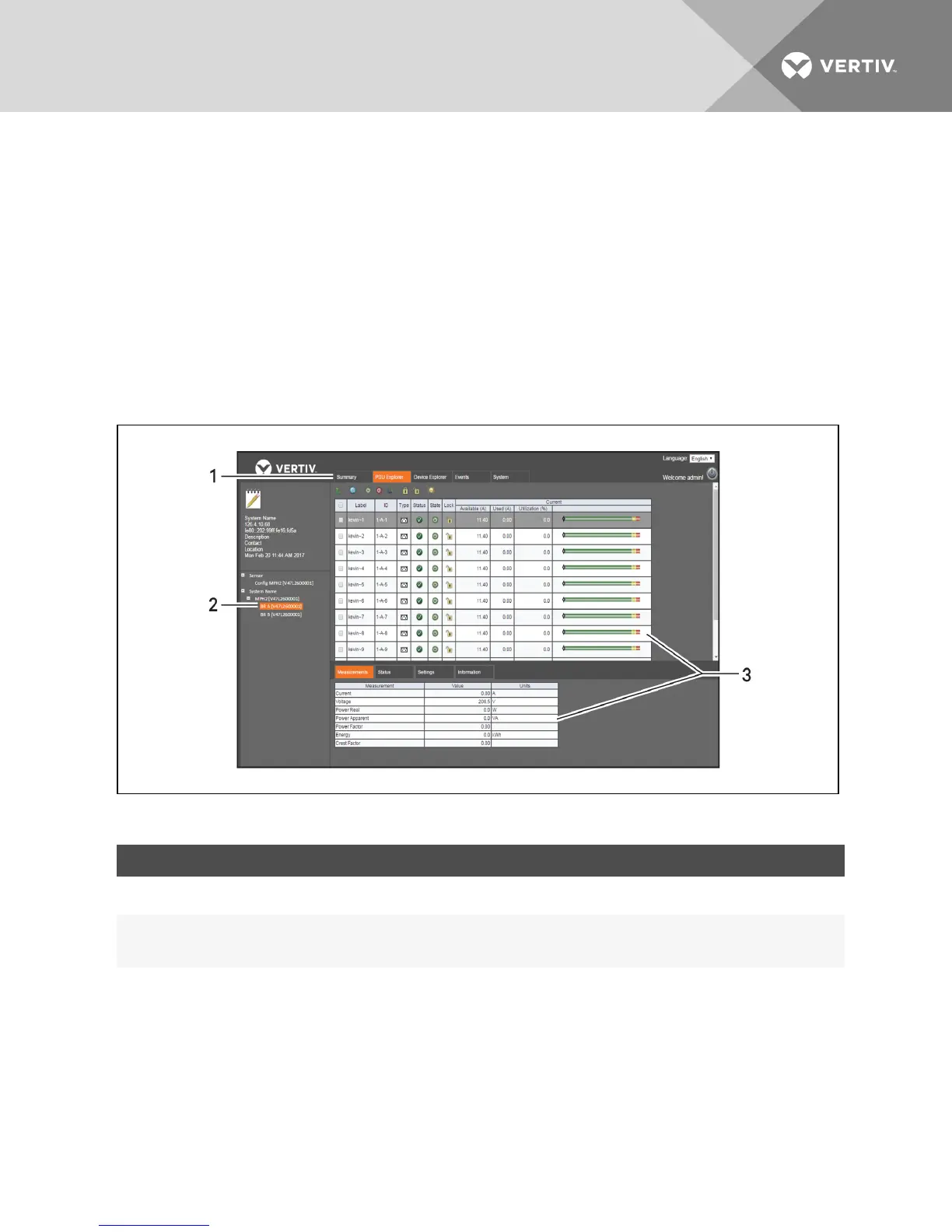
Figure 3.1 Web Interface Window
ITEM AREA DESCRIPTION
1 Tab bar
Displays the Summary, PDU Explorer, Device Explorer, Events and Systems tabs. The available tabs
change based on user rights.
2 Side Navigation Tree
Menu options for configuration, viewing of system information and access to devices. The options change
based on user rights. When the Summary tab is selected, the side navigation bar displays system
information. When other tabs are selected, it displays links to additional content.
3 Content area Displays content based on the options selected in the side navigation tree.
Table 3.1 Web Interface Window Descriptions
3.2 RPC2 Communications Module Icons
The following table displays the icons used in the web UI. Hovering over an icon displays its description in the web UI.
NOTE: The checkmark, red x and blue plus sign icons have more than one function, depending on their location.
Vertiv | RPC2™ Communications Module Installer/User Guide | 9



 To Next Page