Visionary, Network Audio Video
DUETE-2/DuetD-2 USER MANUAL
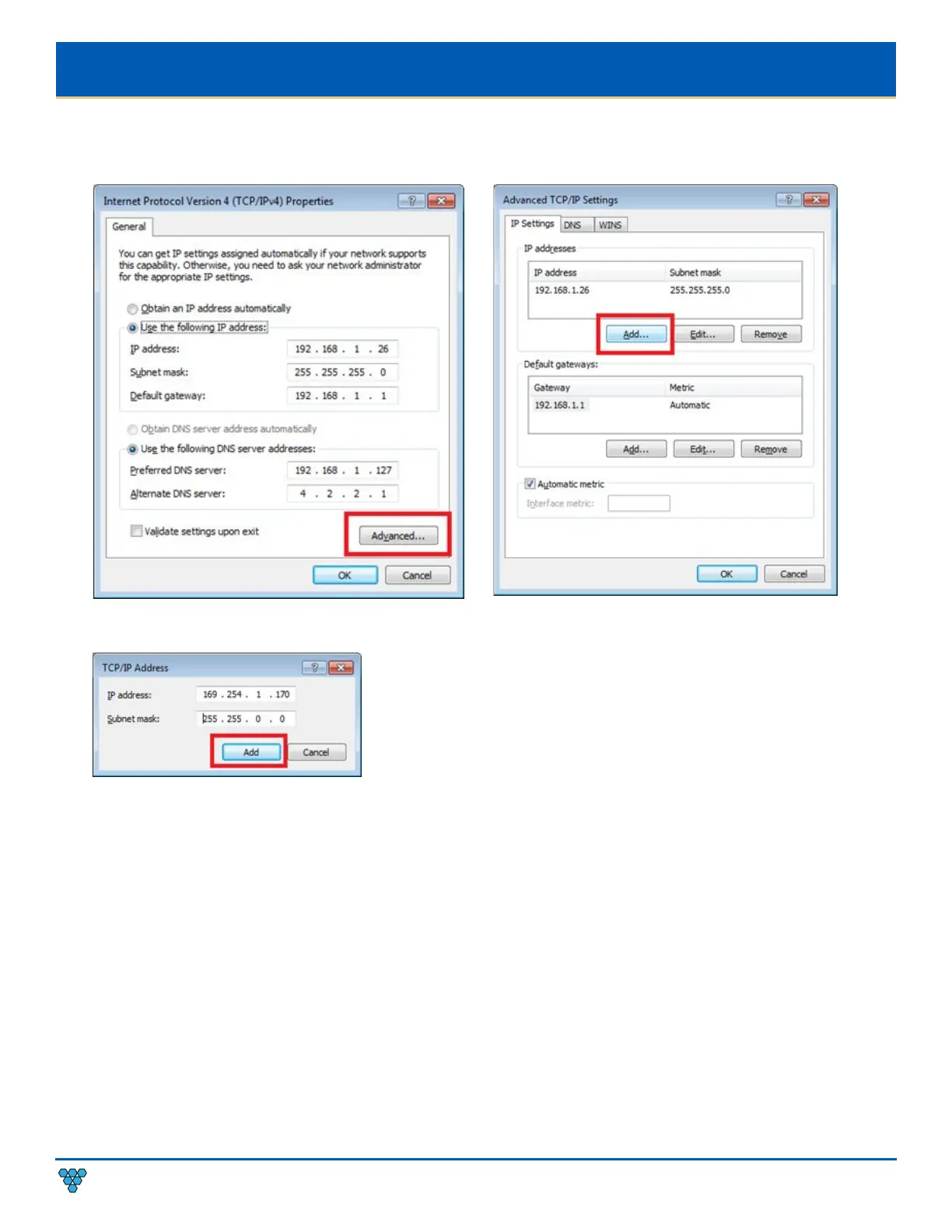
• Method 2: If the computer already has a statically-assigned IP address:
1. Click Advanced > Add.
2. Click Add to enter a unique IP address within the range of
169.254.1.0–169.254.254.255,
with a subnet of 255.255.0.0.
•
Method 3: Configure the computer with a unique static IP address within the range of 169.254.1.0 –169.254.254.255, with a
subnet of 255.255.0.0. If your address is not unique conflicts will occur.
There are multiple ways to discover (find the assigned IP address) the encoders and decoders on your network.
1. Use the Vision Lite application to auto-discover units. RECOMMENDED – refer to section Vision Lite.
2. Look at the DHCP server list of assigned IP addresses.
3. Use avahi-browse (requires avahi-daemon to be running) to find the unit IP addresses.
4. Using a Linux operating system (OS) on the network, ping 226.0.0.19 from the same subnet (VLAN) as the unit to return a list of
assigned IP addresses. On a Windows OS, the ping command only displays the first responding address.
5. Use nmap to scan for Visionary Solutions MAC Addresses.
6. For decoders only: Connect to the network via HDMI to a display. The IP address displays on the bottom right of the Boot up
screen image on the display device when there is no source connected.
Once discovered, you can use the embedded web interface on each encoder and decoder unit to configure and change the network
settings. To log in to the web interface, enter the unit’s IP address in a web browser for the URL OR click the IP address in the Vision
Lite application Configuration page. Log in with
username
=admin
password=admin.



 To Next Page