25
4. The auto detection dialog box will be displayed. Press Ok to start device detection.
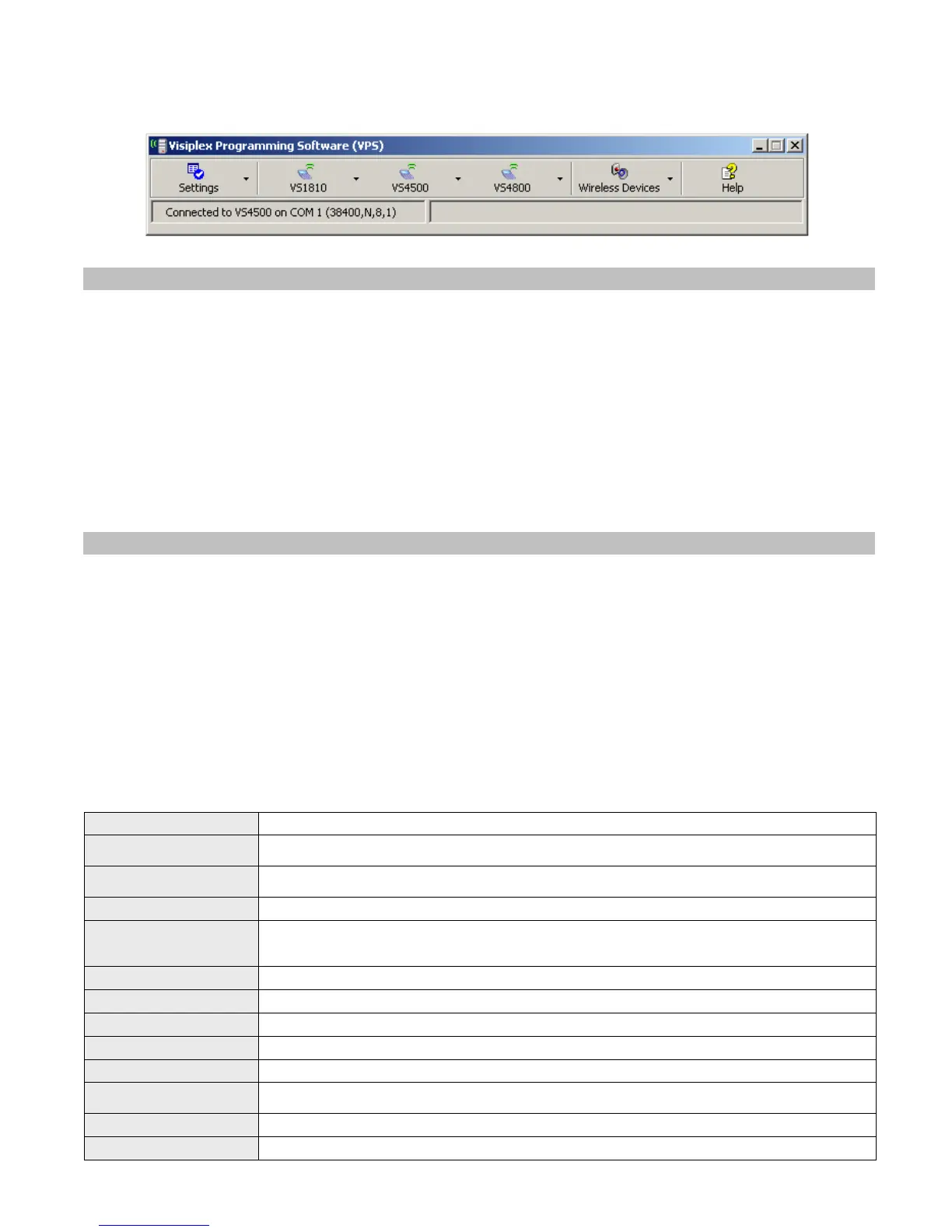
5. If connection was established, the device model and connection details will be displayed on the lower left corner of the
VPS main screen.
4.1.4 Setting Date and Time from PC
Synchronizing the VS4500 date and time to the PC clock allows you to keep the VS4500 internal clock accurate without
using an external time source. This action can be performed manually or automatically as long as the VS4500 is connected
to the PC and VPS is running.
Follow these steps to synchronize date and time to the PC date and time:
1. Make sure the VS4500 is powered on and connected to the serial port on the PC.
2. To set the date and time automatically, click on Settings, Configuration & Settings. Click on Synchronize
Connected Device to PC Clock Automatically and then click on Save.
This will synchronize the VS4500 clock to the PC clocks periodically every hour.
3. To set the date and time manually, click on VS4500, System Devices & Messaging, System Options & Details.
click on Set Date & Time Now.
4.1.5 Weekly Tone & Bell Schedule
The weekly tone and bell schedule allows the VS4500 to activate tones, bells or audible alerts stored in the memory of a
wireless audio/visual controller such as the VNS2200 according to a pre-programmed weekly schedule. Some of the events
are designated to special devices activation and functions.
The weekly schedule consists of 48 daily events that can activate a respective tone, bell or audible alert on the wireless
receiver. The VS4500 stores up to four different weekly schedules in its memory with one active schedule.
Follow these steps to program a weekly schedule (see IMPORTANT NOTES at the end of this section):
1. Make sure the VS4500 is powered on and connected to the serial port on the PC.
2. Click on VS4500, Weekly Tone & Bell Schedule.
3. The Weekly Tone & Bell Schedule dialog box will be displayed. The last schedule file edited by the user will be
retrieved from the disk and displayed. If this file does not exist, a new file will be created by the VPS software. Below are
the fields and functions description:
Close Close the Weekly Tone & Bell Schedule dialog box.
Edit
Display a dialog box that allows updating the highlighted event on the schedule list (see step
4).
Upload
Upload the displayed schedule file in to the VS4500 memory. This command will overwrite the
existing programming of the selected schedule.
Download Download the active schedule from the VS4500 memory to the PC.
Open
Open and display a previously saved schedule file.
Note: The schedule is not active until uploaded to the VS4500. Use the Upload command to
program this schedule in to the VS4500.
Save As Save the displayed schedule to a file on the PC for later use.
Displayed Week Day Display the scheduled events for the selected day of the week.
Copy From Copy the daily events of the Displayed Week Day to the selected Week Day (see step 5).
Test Tone Test the tone or function programmed in to the highlighted event on the list.
Slot Set and display the active weekly schedule.
Last Date & Time
Read from Device
Last date and time information read from the VS4500 when the dialog was opened.
Set Date & Time Now Synchronizes the VS4500 clock to the PC date and time.
File Name Name of schedule file displayed.



 To Next Page