32
IMPORTANT NOTES
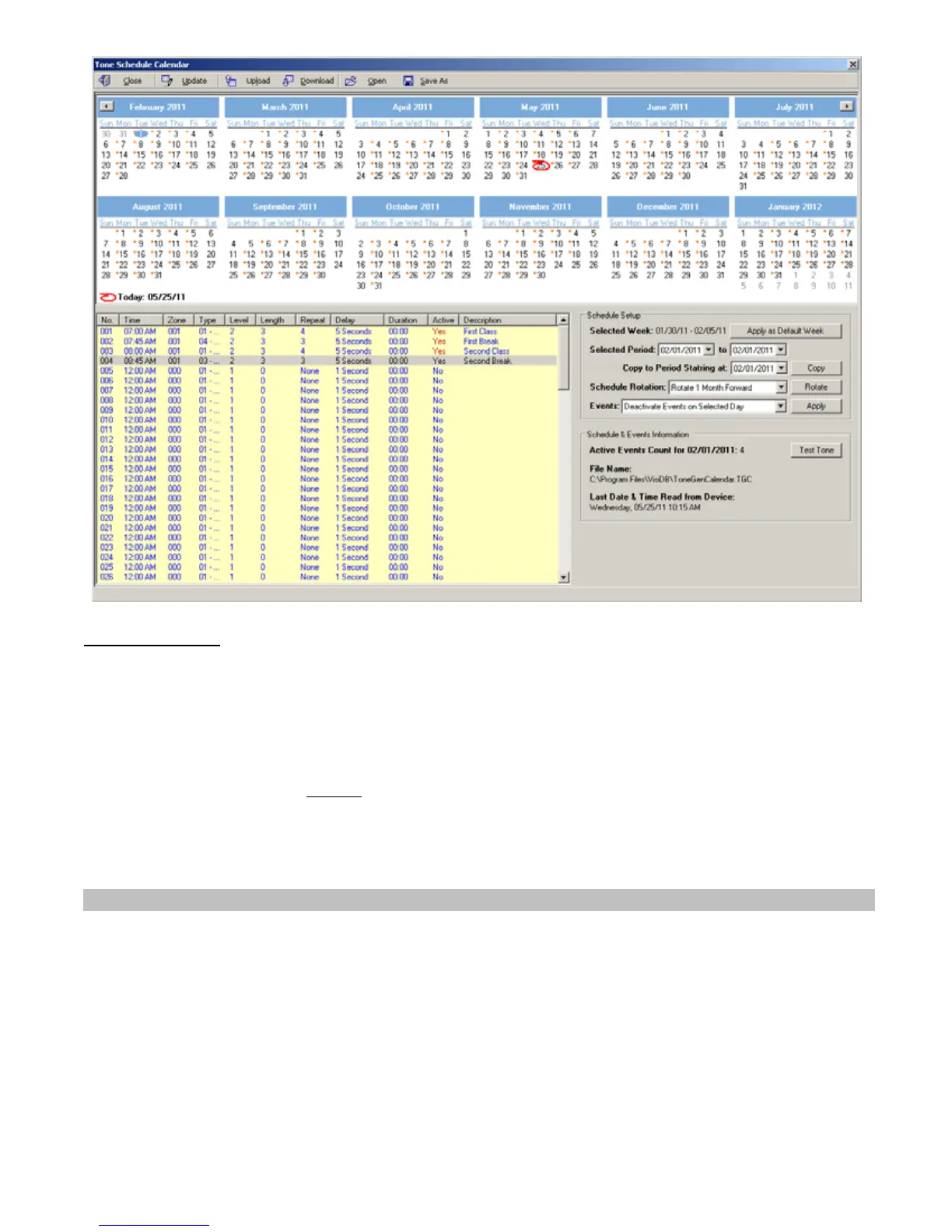
1. When the Calendar Tone & Bell Schedule programming screen is opened, it displays the last file that was edited by
the user. The displayed schedule may be different than the actual schedule data stored in to the VS4500 (unless the
VS4500 was previously programmed with that schedule).
2. To ensure the schedule displayed is same as the schedule programmed in to the VS4500, press Download after opening
the Calendar Tone & Bell Schedule programming screen. This will download and display the schedule from VS4500.
The schedule is downloaded and saved to the Default.tgc file. Use the Save As to save the schedule under a different
name.
3. Changes made to the schedule DO NOT
update the schedule stored in the VS4500 until the Upload command is used.
Always upload the schedule to the VS4500 after schedule changes are completed.
4. The execution of the schedule programmed in to the VS4500 is dependent on the date and time stored in its internal
clock. This internal clock MUST be kept accurate by receiving time updates from a GPS receiver or from a PC connected
to it via a serial port.
4.1.7 Scheduled Paging Activation
Scheduled paging allows you to send tones or messages to devices or speakers based on a preprogrammed schedule. This
feature can be used as long as the VS4500 is connected to the PC and VPS is running. The tones or messages are generated
by the VPS software.
Unlike the weekly and calendar tone & bell schedules, no data is stored by in the VS4500 and the schedule is executed by
the VSP software.
Follow these steps to set scheduled paging:
1. Make sure the VS4500 is powered on and connected to the serial port on the PC.
2. Click on VS4500, Pre-Programmed Messages & Activation, Scheduled Paging Activation.
3. The Scheduled Paging Activation dialog box will be displayed. The last schedule file edited by the user will be
retrieved from the disk and displayed. If this file does not exist, a new file will be created by the VPS software. Below are
the fields and functions description:



 To Next Page