Example 7.3
Changing the name
of input DIG 2 to
PICKUP
If you want to use an input-
name that is not in the
predefined list, then it is
possible to manually add a
name to the list.
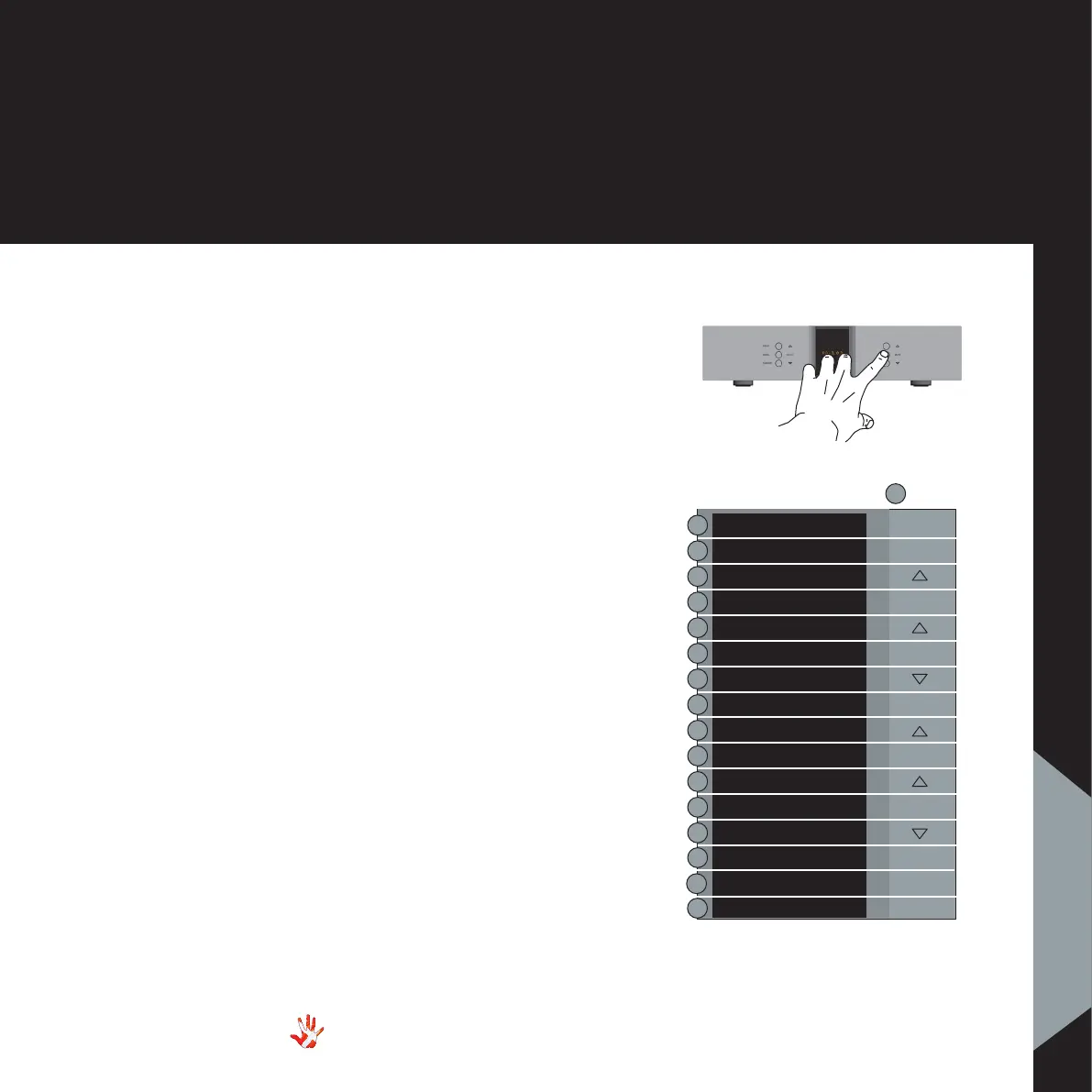
In the text- menu it is possible
to change the name of the
input. This is done by using
the following buttons from the
right front:
1. Change selected
character.
2. MUTE Go to the next
character in the display.
3. Change selected
character..
We will now change the input-
name DIG 2 to PICKUP
(Not in the predefined list) .
We continue from the TEXT
sub-menu in the previous
example.
The display is showing DIG 2
Press MUTE
(The first character in the
display starts blinking)
Press or until the first
character has the value you
want. Press MUTE (The second
character in the display starts
blinking)
Press MUTE when the last
character in the display is
blinking. The new device name
is now saved, and then you can
leave the TEXT sub-menu.
When you are editing the Input
name, then you can save the
changes at any time. You do
this by pressing the SELECT
button
45
RD-101 | Version 1
7. examples operating
7. examples
DIG 2
_ DIG 2
_DIG 2
PDIG 2
P_IG 2
PIIG 2
PI_G 2
PICG 2
PIC_ 2
PICK 2
PICK_2
PICKU2
PICKU_
PICKUP_
PICKUP
TEXT
MUTE
MUTE
MUTE
MUTE
MUTE
MUTE
MENU
RD-101 Right front panel.
MUTE
MUTE
SELECT



 To Next Page