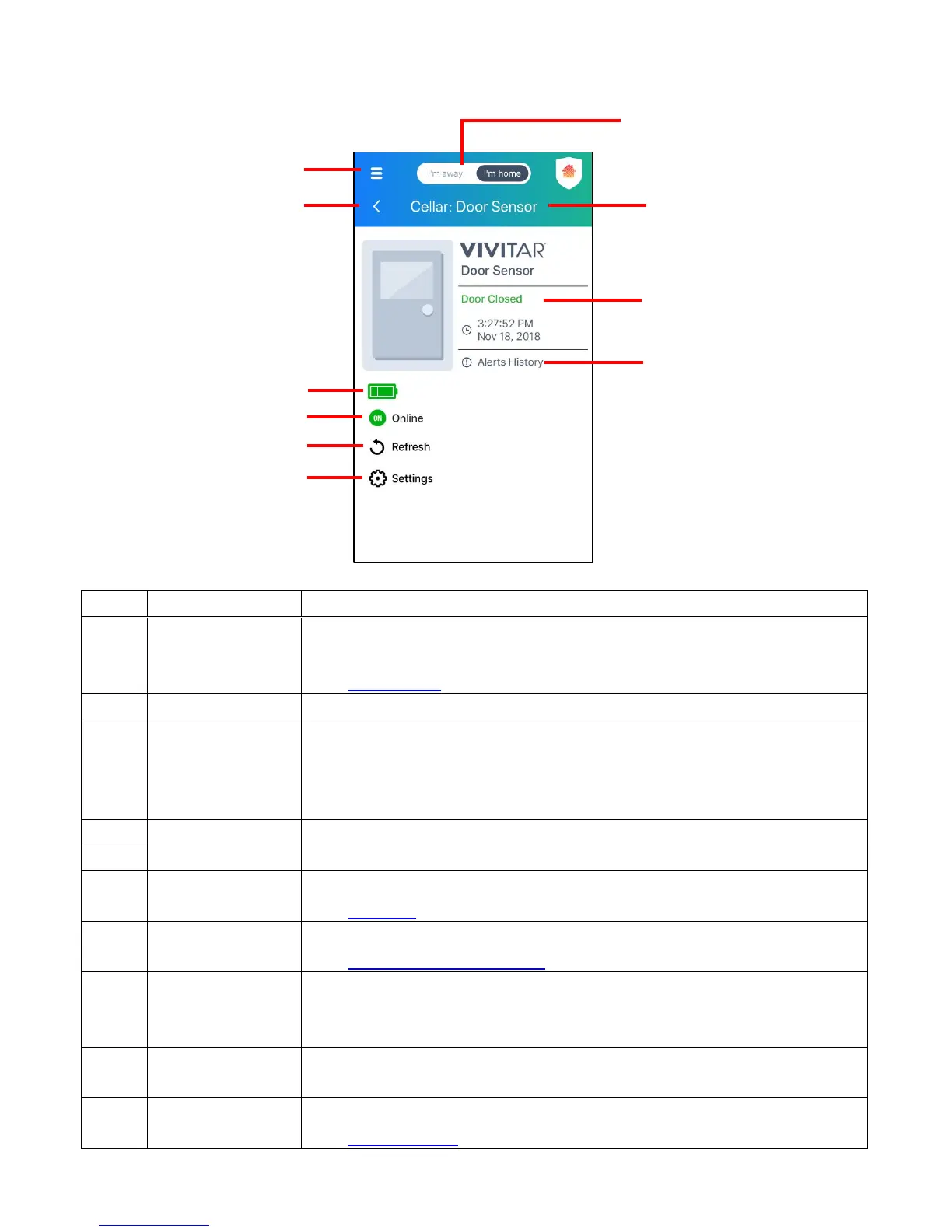
The connected Smart Sensor displays the following:
Displays the Main Menu options: Devices, Events, Rooms,
Settings, Messages, Share, Accounts, Help
See Main Menu for further information.
Tap to go back to the previously viewed screen.
Displays the battery status – either full or almost empty.
When the battery icon is shown in red, this means the battery is
almost empty. Please replace the batteries.
NOTE: Battery status is updated every 6 hours.
Displays if the device is online or offline.
Tap to refresh the screen and display the current device status.
Tap to open the device and app ‘Settings’ screen.
See Settings for further information.
Tap to toggle between the Away and Home Modes.
See Home and Away Modes for further information.
Device
Location:
Device Name
Displays the device name and room name you entered during the
setup.
NOTE: You can change the names at any time via the ‘Settings’.
Displays the current status of the door: ‘Door Closed’ or ‘Door
Opened’. The time and date of the door status change is also shown.
Tap to view the history of the detected door status changes.
See Alerts History for further information.
3. Device Battery Status
4. Device On/Off Status
5. Refresh Screen
6. Settings
8. Device Location:
Device Name
7. Home / Away Mode
Control


 To Next Page