DASHBOARD FEATURES
• Settings
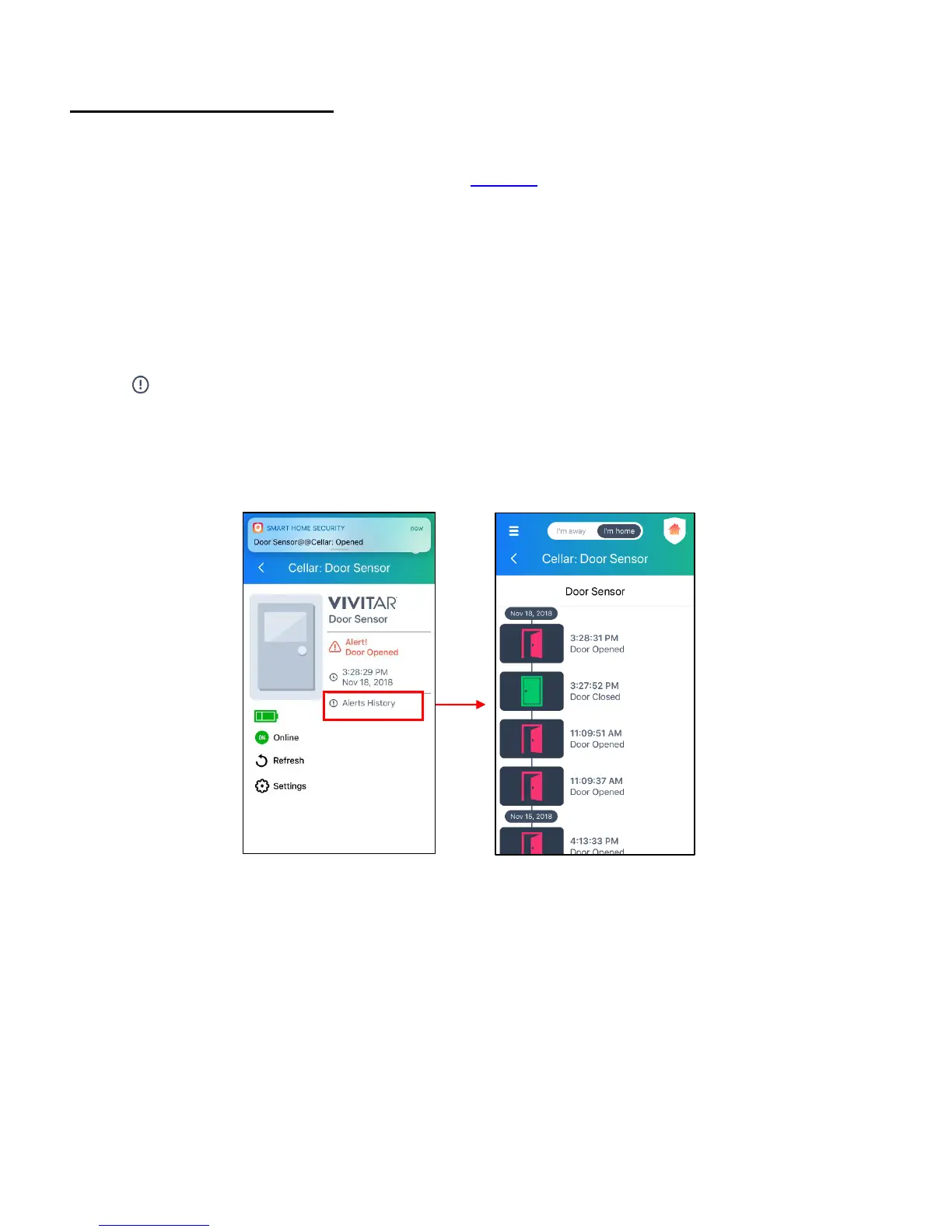
Tap to open the device ‘Settings’ screen. See Settings for further information.
• Alerts History
Once a change to the door status is detected, your mobile device receives a Smart Home
Security notification.
- If the door is opened: ‘Door Name @@ Door Location : Opened’
- If the door is closed: ‘Door Name @@ Door Location : Closed’
Tap Alerts History to view the history of your device’s alerts.
NOTE: The last alert appears on the Dashboard. In order to receive alert notifications, please
make sure that you have allowed your mobile device to receive push notifications for the
Vivitar Smart Home Security app in your phone ‘Notifications’ settings.
• Refresh
Tap to refresh the screen. This will refresh the Sensor’s status.
• Battery
The battery icon displays the battery status.
NOTE: The battery status is updated every 6 hours. If the batteries run out, a ‘Connection
Lost’ message appears. Please place fresh batteries in the device when needed.


 To Next Page