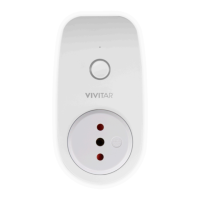
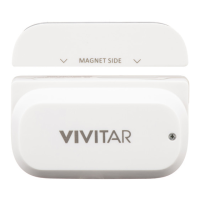
SHARING DEVICES
You can share your Vivitar Smart Home Security devices with other users.
SHARE YOUR DEVICE
To share your Vivitar Smart Home Security device with someone, please follow the steps below:
1. Tap the following: Menu > Share.
Alternatively, the Share feature can be accessed via the selected device’s menu.
Tap the device’s menu under the device thumbnail in the ‘Sensors’ screen or the ‘Rooms’
screen, then tap Share.
2. One of the following screens then opens:
‘SHARE DEVICES’ SCREEN - MULTIPLE DEVICES:
If you have added multiple devices: The ‘Share devices’ screen displays the list of devices
registered to your account that are available to share.
- Connected sensors appear with a colored device icon.
- Disconnected sensors appear with a black device icon.
Tap on a device to select it and open the device’s ‘Share’ screen.
NOTE: Both online and offline sensors can be shared.
‘SHARE’ SCREEN - SINGLE DEVICE:
If there is only one device connected to the app, the ‘Share’ screen automatically appears for
that connected device.
3. SHARE SCREEN: The ‘Share’ screen opens.
Enter the recipient’s account name (their registered email for Group 3) and tap Share.
Alternatively: Tap on the Barcode icon to scan the recipient’s bar code. This bar code
can be seen in the recipient’s app via Menu > Accounts > Group 3. Scan in this bar code
for the app to automatically identify and enter the user’s name (email). Then tap Share.
NOTE: A ‘Success: Device has been shared’ message appears on your screen once the
device has been successfully shared. Tap OK to return to the ‘Share’ screen.


 To Next Page