4. The newly shared device appears on the recipient’s ‘Sensors’ screen.
- The shared device initially appears with the device name only in the recipient’s app.
- The recipient will need to add a room name for the shared device via the device’s Settings.
- If needed, the recipient can refresh the Devices or Sensors screen (by sliding his/her finger
from the top to the bottom of the screen) to see the newly shared device.
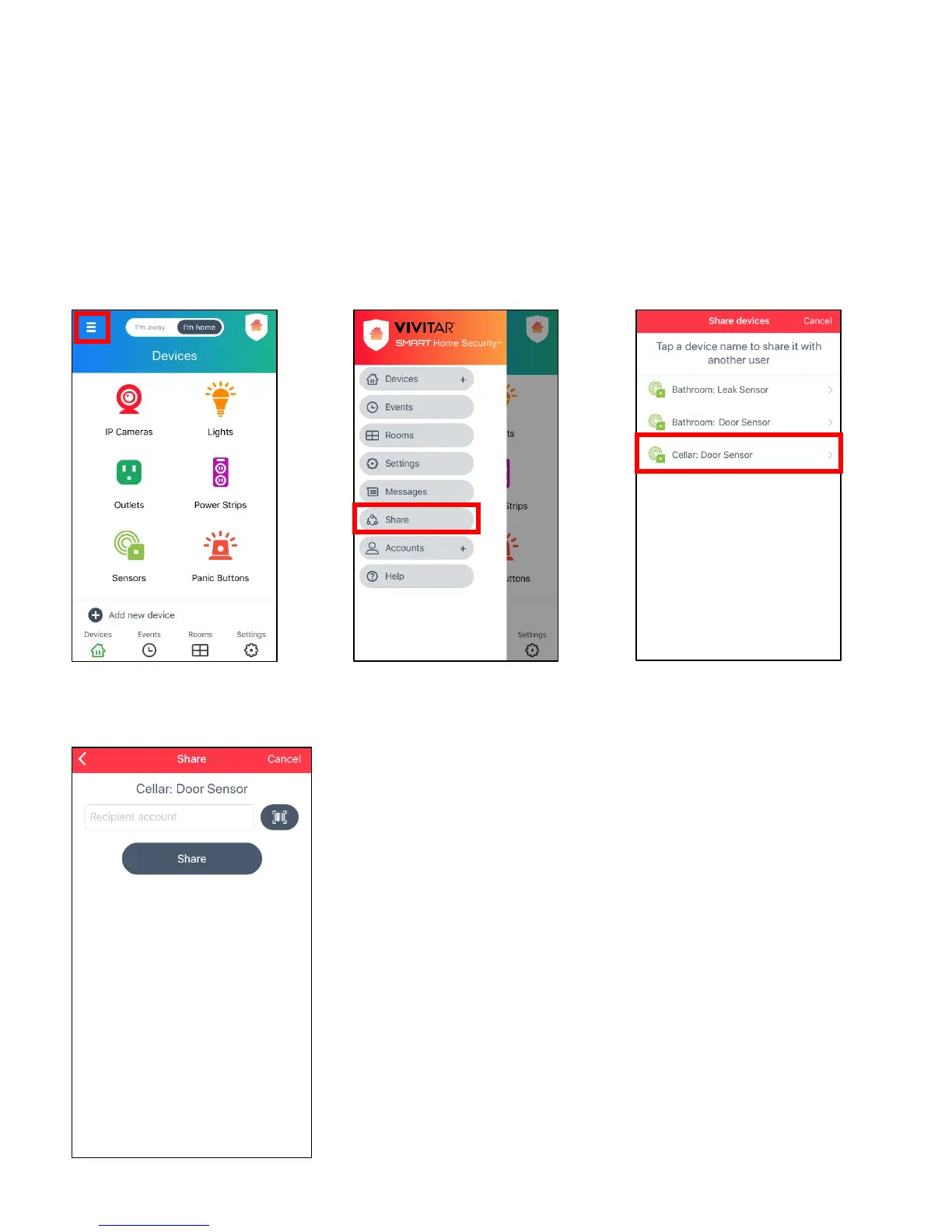
TO SHARE YOUR DEVICE:
4. Enter the recipient’s account
(email) or scan in their account
bar code from their
Accounts>Group 3 screen.
Tap Share.
Your device is now shared with
the recipient.


 To Next Page