6. SHARE
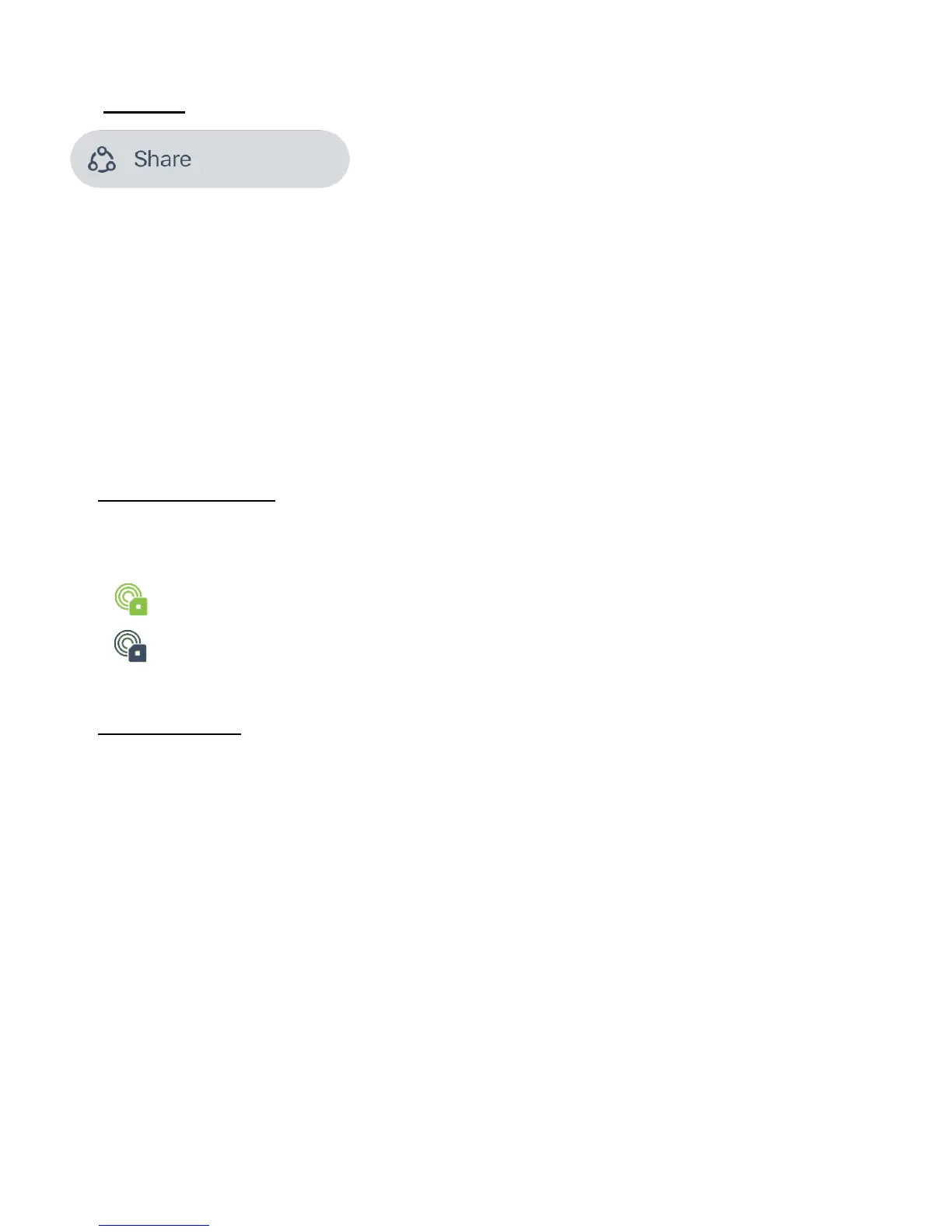
The Share main menu option allows you to share your device(s) with other users that have
installed the Vivitar Smart Home Security app and that have an app Account > Group 3.
To share your device with someone:
1. Tap Share from the Main Menu.
Alternatively, the Share feature can be accessed via the selected device’s menu (menu
accessed via the ‘Sensors’ screen or the ‘Rooms’ screen).
NOTE:
If you have one device or multiple devices please see details below:
MULTIPLE DEVICES:
If you have added multiple devices: The ‘Share devices’ screen displays the list of devices
registered to your account that are available to share.
- Connected sensors appear with a colored device icon.
- Disconnected sensors appear with a black device icon.
Tap on a device to select it and open the ‘Share’ window.
SINGLE DEVICE:
If there is only one device connected to the app, the ‘Share’ window automatically appears
for that connected device.
2. The ‘Share’ window appears with the following information needed:
RECIPIENT ACCOUNT:
Enter your recipient’s account (email) or scan in the recipient’s QR Code (as seen in their
app’s Accounts > ‘Group 3’ screen.
3. SHARE:
Once you have entered the recipient’s account name, tap Share.
4. The newly shared device will appear on the recipient’s Sensors screen.
5. All the sensor functions are available for a shared device.
NOTE: The shared device initially appears with the device name only in the recipient’s app.
The recipient will need to add a room name for the shared device via the device’s Settings.


 To Next Page