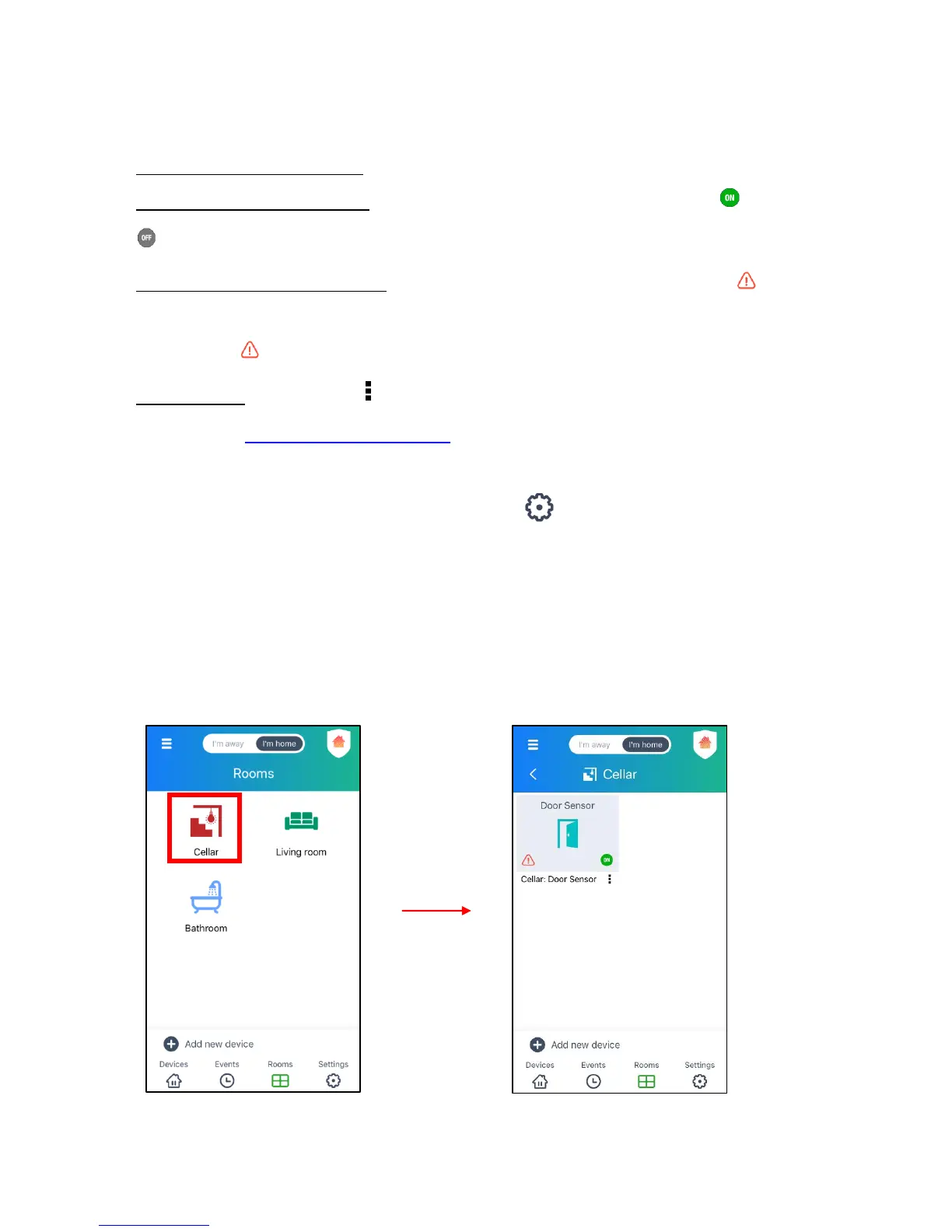
3. Tap on a room to open the list of devices associated within the selected room.
Each device is displayed as a thumbnail with the following details:
• Room Name: Device Name
• Device Online/Offline Status – The device thumbnail appears with the Online or
Offline icon as per the device status.
• Device Opened/Closed Status – The device thumbnail appears with the Alert icon if
the door is opened or no icon if the door is closed.
NOTE: The Alert icon remains on the thumbnail for 5 minutes.
• Device Menu – Tap on the device menu icon to open a window with the device
options. See Sensors: Device Options for more information.
4. Tap on a device thumbnail to select it and view it in the Dashboard screen.
NOTE: To change the device’s room name, tap on the Settings button on the bottom
navigation bar or Settings from the Main Menu.
- If you have one device, the settings screen for that device automatically opens. Tap the
Room setting to select the location.
- If you have added more than one device to the app, the ‘Settings’ screen appears with the
list of all your added devices. Select from the list in the ‘Settings’ screen the device that
you’d like to edit. The ‘Setting’ screen then opens. Tap on Room to select the device location.
List of room(s) of your registered device(s). Display of your device(s) for the selected room.


 To Next Page