54
16. Upgrade rmware
• Downloadthelatestdataloggerrmwarefromtheproductpageonwww.conrad.com.
long
press
ENTER
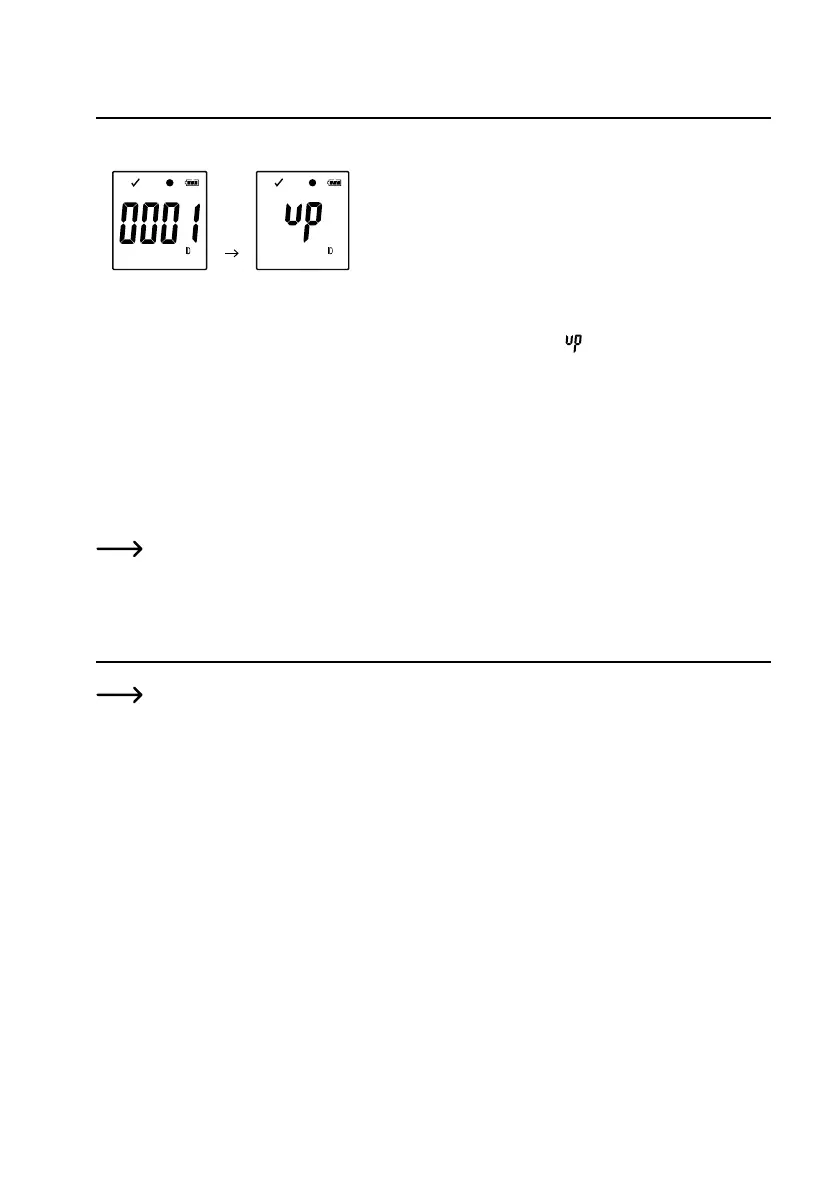
Press the button DOWN (5)severaltimesuntilthe4digitloggeridentierand“ID”areshownonthedisplay.
Press and hold the button ENTER (7)untilthe4digitloggerIDisreplacedby“
”.
• Connect the data logger to your computer.
• Draganddropthermwaretothedataloggerdriveonyourcomputer.
• Dataloggerstartsupgrading.Duringthisperiodthedataloggershownasamassstoragedevicedisappearsfora
short while from your computer. Do not disconnect data logger from your computer!
• Oncethedataloggerappearsasamassstoragedeviceagain,theupgradeisnished.GreenLEDcontrollight
ashestwice.
• Disconnect from your computer.
ThermwareversionofthedataloggercanbecheckedintheleftbottomcornerofthePDFreport.
17. Reset to default rmware
Resetting the rmwaredeletes all congurationsettings, but doesnotaffect the storedmeasurement
records.
• Removethebatteryasmentionedinchapter“9.Initialoperation”onpage38.
• Press and hold the button DOWN (5) and connect the data logger to your computer. Once the green LED control
light (3) is on, release the button DOWN (5).
• WaitforfewminutesuntilthecomputerrecognizesthedataloggerasaUSBdevice.Thermwareisreset.
• Congurethedataloggerasmentionedin“11.Conguration”onpage40.


 To Next Page