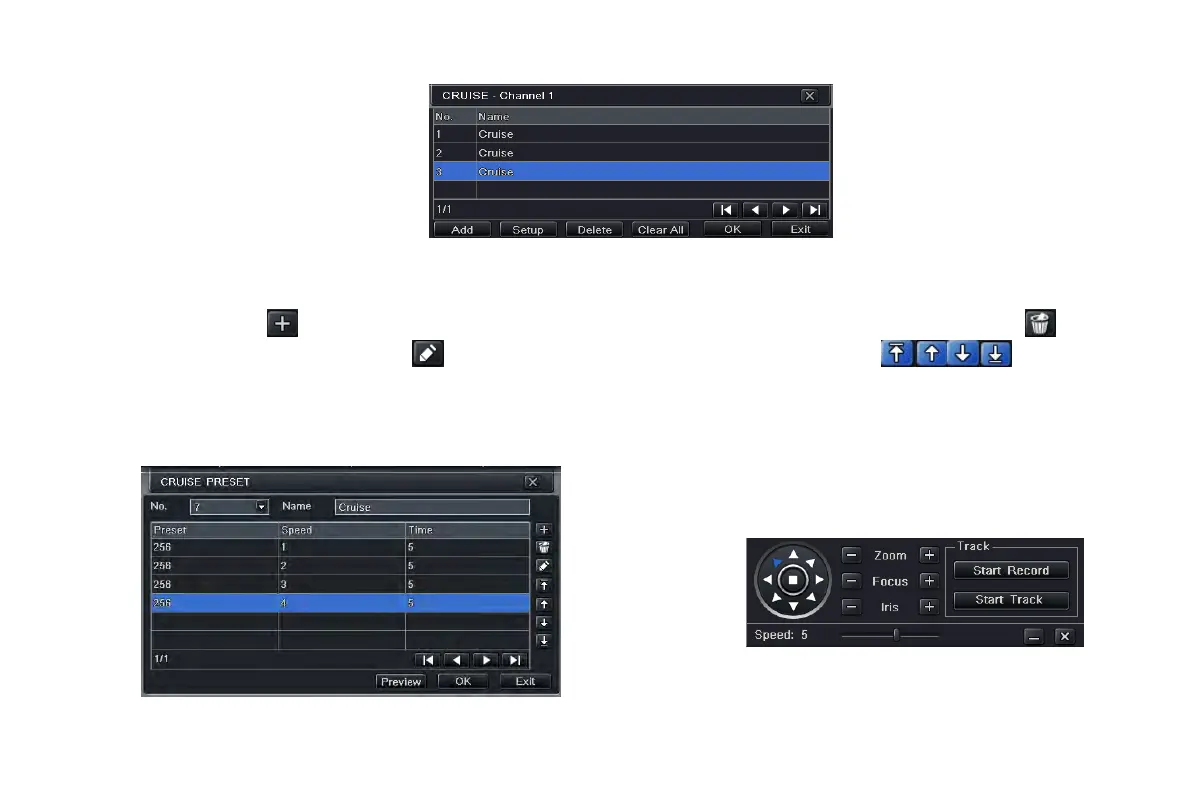
Fig 4-40 cruise set
a. click Add button to add cruise line in the list box (max 8 cruise line can be added); select a cruise line and click Setup button
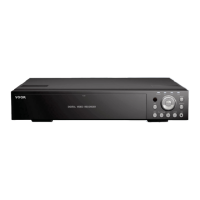
to see a dialog box as Fig 4-41:
b. click Add icon
to set the speed and time of preset point; select a preset point and then click Delete icon to delete
that preset point; click Modify icon
to modify the setting of a preset point. User can click those icons to
adjust the position of preset point. Click Preview button to preview the cruise line; click OK button to save the setting; click Exit
button to exit current interface.
c. select a preset point in the cruise line list box. Click Delete button to delete that cruise line; click Clear all button to clear all
cruise line from the list box; click OK button to save the setting; click Exit button to exit current interface.
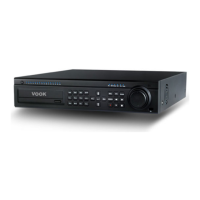
Step4: in the Advance interface, while clicking
track “Setting” button, a dialog box will pop-up as
Fig 4-42:
Fig 4-42 track setting
Fig 4-41 cruise set-modify cruise line
VOOK professional monitoring


 To Next Page