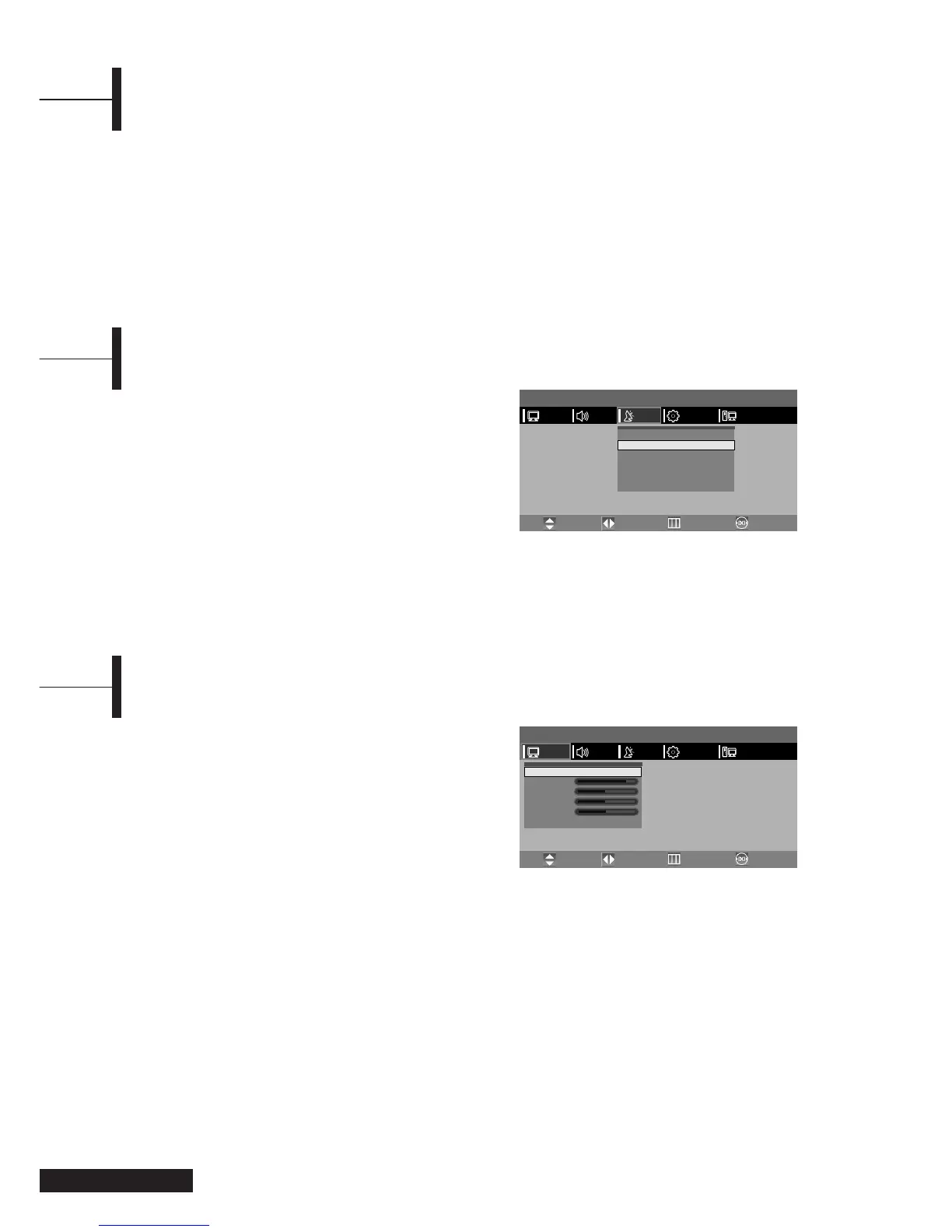
You can select a video mode from among USER,
STANDARD, DYNAMIC, or MILD mode according to
your personal preference.
ΠPress the TV.MENU button. The OSD MENU will
be displayed.
´ Select PICTURE using the œ/√ button.
ˇ Select the desired PICTURE STATUS using the œ/√
button. Whenever you press this button, PICTURE
STATUS changes to STANDARD
➞ DYNAMIC ➞
MILD ➞ USER mode, in this order.
¨ Press the EXIT button to exit the menu.
Picture Status
•STANDARD: Select this mode when the surrounding
illumination is bright.
• DYNAMIC: Select this mode to increase picture clarity
and sharpness.
• MILD: Select this mode when viewing the TV when the
light is low.
• USER: Select this mode if you want to adjust the settings
according to your personal preferences.
Eng - 12
Use fine tuning to adjust a particular channel for
better picture quality when noise interferes, colour
quality is poor, or the screen is unstable.
ΠSelect the channel to tune using the numeric or
channel buttons.
´ Press the TV.MENU button. The OSD MENU will
be displayed.
ˇ Select SETUP using the ▲/▼ button.
¨ Select MANUAL PROGRAM using the ▲/▼ button
and then press the
√ button.
ˆ Select FINE TUNE using the ▲/▼ button and then
press the
œ/√ button to fine tune.
If you are unable to fine-tune a channel, check
that the SYSTEM settings are correct.
Ø Select STORE using the ▲/▼ button and then
press the
√ button.
∏ Press the EXIT button to exit the menu.
When the Picture Quality is Poor or Unstable
Selecting the Picture Status
ΠUsing the PROG buttons
Press the
PROG ▲/▼ buttons to change channels.
You will see all the channels that the TV has
memorised.(The TV must have memorised at least
three channels.)
´ Using the NUMBER buttons
-To change to single-digit channels(0~9) faster,
press “0” before the single digit.
Example: For channel 4, press “0”, then “4”.
-To select a channel over 10, press the -/-- button
first.
Example: For channel 42, press “-/--”, then “4”,
then “2”.
ˇ Using the Previous Channel
Press the
PRE button on the remote control.
The TV changed to the last channels to the last
channel you were watching.
Changing Channel
MENU
PICTURE
System
Fine Tune
Program NO.
Child Lock
Store
Search
œ
œ
œ
œ
œ
LP
0
1
OK
--
œ
√
√
√
√
√
√
PCFUNCTIONSETUPSOUND
Move PreviousAdjust Exit
MENU
Status
Contrast
Brightness
Sharpness
Color
œ
Standard
√
PCFUNCTIONSETUPSOUND
Move PreviousAdjust Exit
PICTURE



 To Next Page